Column mapping settings
Open the details
Configure the output value and transformation steps for each target column. Check Include, then click the detail icon in Value / transform.
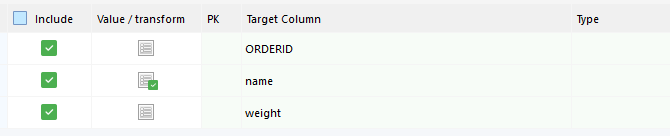
A configured icon has a check mark. Clearing Include retains its settings but excludes the column from editing and execution.
Configure values and transformations
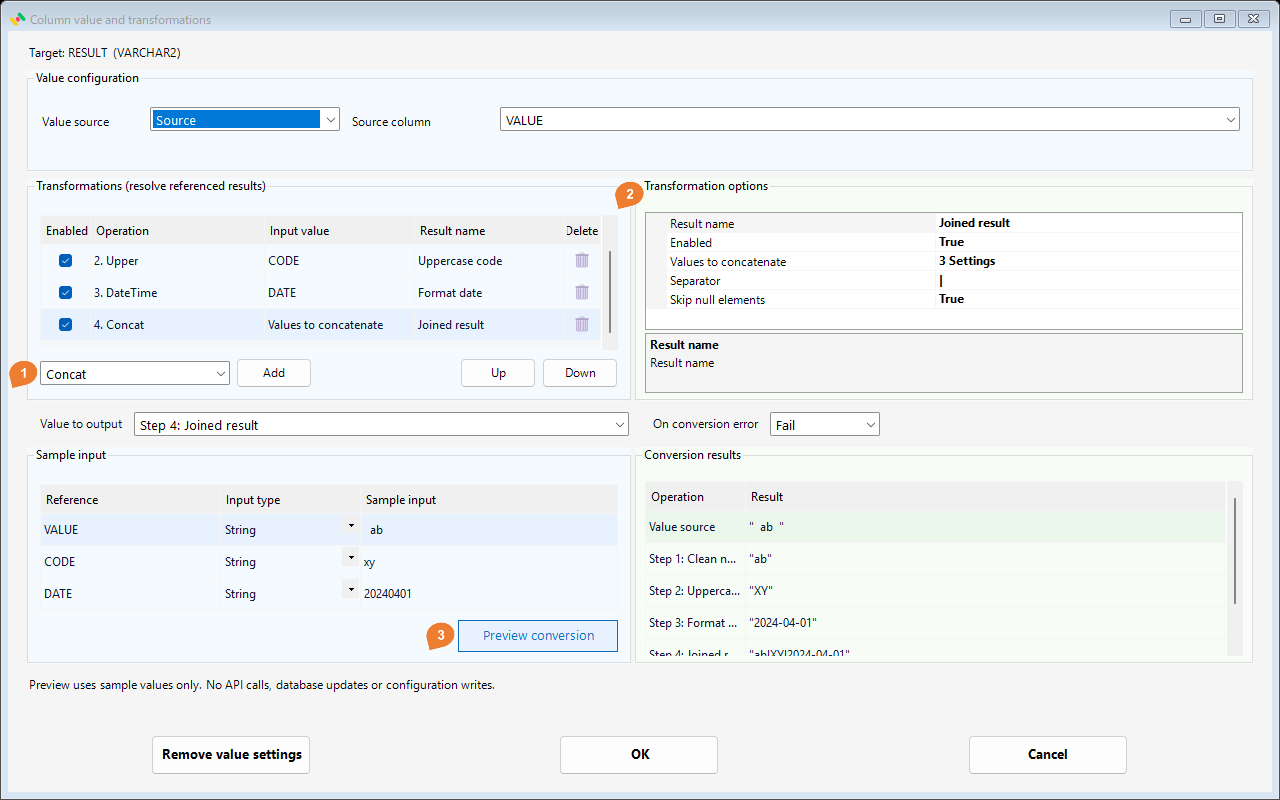
Select an operation in 1 and add it. Select its row and configure 2. Enter samples and use 3, Preview conversion. Click the image for full size.
See the Transformation reference for all 24 operations, purposes, configured examples, and detail dialogs.
| Goal | Transformation |
|---|---|
| Hide part of a value, such as a phone number | Masking. If the retained length reaches the input length, the whole input is masked. |
| Conceal values while keeping equal inputs matchable | Hashing. Normally choose HMAC-SHA256 (SDI management key) and a string destination of at least 64 characters. |
See Choosing a hash algorithm for the differences between algorithms and Consistent results across mappings and servers for sharing requirements.
Value source
| Mode | Configuration |
|---|---|
| Source | Select an ordinary source column or an API bind source such as BIND:id. |
| Constant | Specify a String, Number, Boolean, DateTime, or Null value. |
| System | Select MappingStartTime, RowUuid, or RunUuid. |
Enter string constants without quotation marks. Use String for 001 when leading zeros matter. An empty string and NULL are different values. Null does not use a text field.
Only fields relevant to the chosen mode are shown. Switching modes retains drafts within the dialog; only the selected mode is saved and executed. The mapping start time and run UUID are shared within one mapping execution, including per-input-row processing.
The mapping grid summarizes constants and system values in its source cell. Use the detail icon to edit them.
Steps and output
- Select an operation and click Add.
- Select its row, then set Input value, Result name, and operation-specific options.
- Set Value to output to the value that should be written to the target column.
| Input / value mode | Meaning |
|---|---|
| Origin | The configured value source: source column, constant, or system value. |
| Column | An unmodified source value. Select the column from Reference. |
| Bind | The API bind value passed to the request. Select its variable name. |
| Literal | A typed fixed value. |
| StepResult | The result of an earlier enabled step. Select its step name. |
Use “…” on Input value or a parameter to configure the acquisition mode. Column, Bind, and StepResult use Reference; Literal uses its type and value. Origin does not require a reference or literal value.
Concat and Coalesce use the individual entries in Values to concatenate as their inputs. Add an Origin entry if you want the configured value source included. Condition operations likewise read their configured condition and branch values.
Each result is retained while processing that input row. You can transform several source columns independently and reference their results later; see combine independent results. Source values and other target columns are not modified.
Value to output selects Origin or an enabled step result. Only results required by that output and its dependencies are evaluated. A preview step marked as not used is not needed by the selected output.
Reorder, disable, and delete
Up and Down move the selected step. Clearing Enabled disables it. A row’s trash icon deletes that row. Answering No in the confirmation retains the steps and output selection.
When deleting the physical last row that is also the output, the output moves to the nearest preceding enabled step. With no enabled steps remaining, it returns to Origin. The confirmation names the replacement output. An output already pointing elsewhere stays unchanged.
You cannot delete or disable a result used by another step, or move a consumer before its dependency. To delete a non-final output step, first choose another output.
Example: delete an intermediate step
Suppose step 1 (Concat) feeds step 2 (Upper), which feeds step 3 (Replace blanks and NULL). To delete step 2, first change the reference in step 3.
- Select step 3, Replace blanks and NULL, and click “…” for Input value under Transformation options.
- Choose StepResult and change Reference from step 2 (Upper) to step 1 (Concat), then click OK.
- Click the trash icon at the right end of step 2 and choose Yes in the confirmation.
- Use Preview conversion to check the result after deletion.
This example passes the concatenated result directly to step 3, skipping uppercase conversion. You can choose Origin, a source column, or another input instead, depending on the desired result.
If several settings reference the step, change all references before deleting it. Check Input value as well as references inside Values to concatenate, conditions, replacement values, and other parameters. If Value to output selects the intermediate step being deleted, change that selection too. References are not automatically redirected to the preceding step.
Preview with samples
Set Input type and Sample input for each reference, then choose Preview conversion. The results show the origin, step results, and final output.
String results are quoted so that empty strings, whitespace, numbers, and NULL can be distinguished. Select sample type Null to supply NULL; typing the String NULL is different.
In an example table, VALUE = "abc" means choose String as Input type for the VALUE row and enter only abc in Sample input. Do not enter VALUE = or quotation marks. Typing \t or \n into Sample input does not insert an actual tab or line break. The Tab key moves to the next cell.
See Sample notation and actual input for empty strings, whitespace, NULL, and the different interpretation used by regular-expression fields.
Preview performs no API calls, database updates, or configuration writes. Samples and preview results are not saved as part of the mapping.
On conversion error
| Policy | Behavior |
|---|---|
| Fail | Report a conversion error and follow normal mapping error handling. |
| Null | Use NULL as this column’s result. |
| Default | Use the specified typed default as this column’s result. |
Default type and value are shown only for Default. A Null default does not use a text input. An explicitly NULL value or NULL fallback cannot be configured for a non-nullable target.
Examples of errors include invalid date formats, an out-of-range substring, and an unmatched code. See the operation notes in the Transformation reference.
Apply, save, and remove settings
OK applies the detail settings to the mapping form. Save on the mapping form writes them to the configuration file.
Cancel, the titlebar close button, and Esc use the same save confirmation as other settings forms when there are changes. Yes validates and applies to the mapping form, No discards, and Cancel resumes editing. Unchanged settings and sample-only edits do not prompt.
Remove value settings asks for confirmation before removing the column’s value and transformation settings and restoring its source mapping. The configuration file is unchanged until the mapping form is saved.
Refreshing columns on the same destination retains settings for matching target names. Changing the connection or RDB table does not transfer them automatically.
Execution notes
- Columns without value settings output their selected source column.
- Zero source rows produce zero output rows even when constants are configured.
- Source-read whitespace trimming or empty-value normalization occurs before these transformations.
- When a mapping supplies input to a later mapping, it supplies extracted source values, not another target column’s transformed results.
- Raw-file output does not support column value settings.
- With per-input-row retrieval and output, earlier rows may already have been written when a later row fails.