
Salesforce Advanced Settings
Overview
This page describes the advanced settings for data acquisition from Salesforce, as well as the settings for saving execution results and writing back Salesforce IDs to the source database after data updates (such as Upsert).
By outputting an update result file, you can record success/failure, error details, and Salesforce IDs, which can be utilized for operational monitoring and troubleshooting. Additionally, by reflecting the Salesforce ID assigned or confirmed on the Salesforce side back into a specific column of the source database, you can ensure smooth subsequent updates and data reconciliation.
Salesforce Advanced Settings
Salesforce Advanced Settings (For Source)
| No | Item | Description |
|---|---|---|
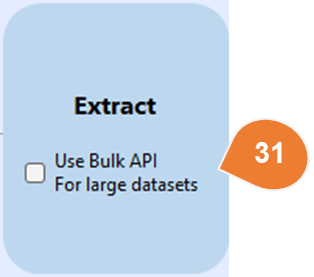
| 31 | Use Bulk API | Use Bulk API (Enabled) Data is acquired using the Salesforce Bulk API. This is suitable for large-scale objects or full data extraction, as it can extract large volumes of data (tens of thousands of records or more) quickly and efficiently. Use Bulk API (Disabled) Data is acquired using the standard Salesforce APIs (REST / SOAP). This is suitable for small data volumes where real-time performance is prioritized. |
Salesforce Advanced Settings (For Target)
| No | Item | Description |
|---|---|---|
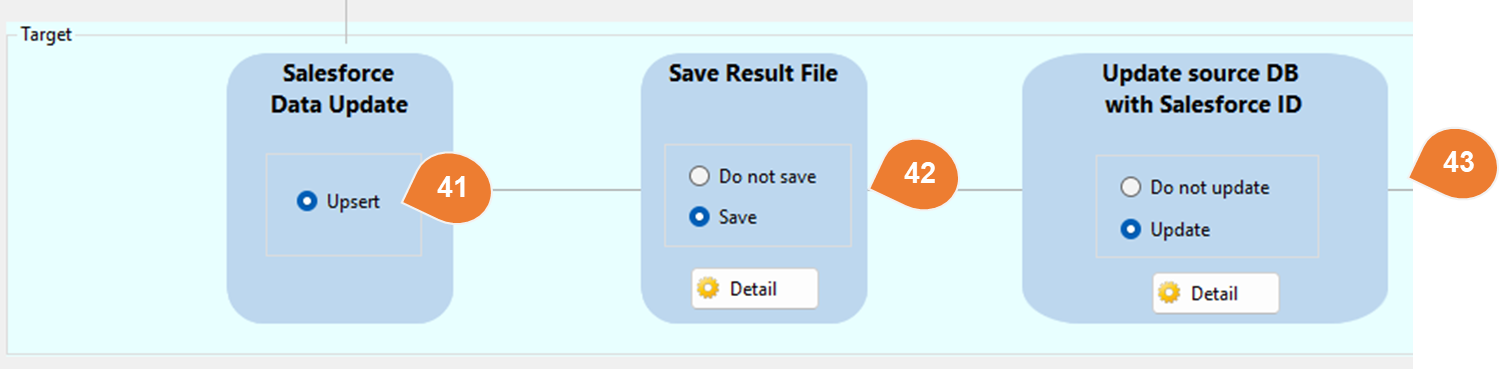
| 41 | Data Update Method (Upsert) | The data update method to Salesforce is set to Upsert. Based on the specified key (Salesforce ID or External ID), existing records are updated, and non-existent records are newly registered. Updates are always performed using the Bulk API during Upsert execution. |
| 42 | Save Update Results to File | Select whether to save the results of updates to Salesforce (success/failure, error details, Salesforce ID, etc.) as a result file.Do not save: No result file is output.Save: Outputs update results to a file. Details such as destination, filename, and content can be configured in the [Detailed Settings]. |
| 43 | Update Source DB ID Column with Salesforce ID | Select whether to reflect (update) the Salesforce ID assigned/confirmed in Salesforce back to a specific column in the source database. Use this when you want to write back the Salesforce ID to the source DB after an Upsert.Do not update: The ID column in the source DB is not updated.Update: Updates the specific column in the source DB with the Salesforce ID obtained from the update results (configured in [Detailed Settings]). |
Save Salesforce Update Results to File
| No | Item | Description |
|---|---|---|
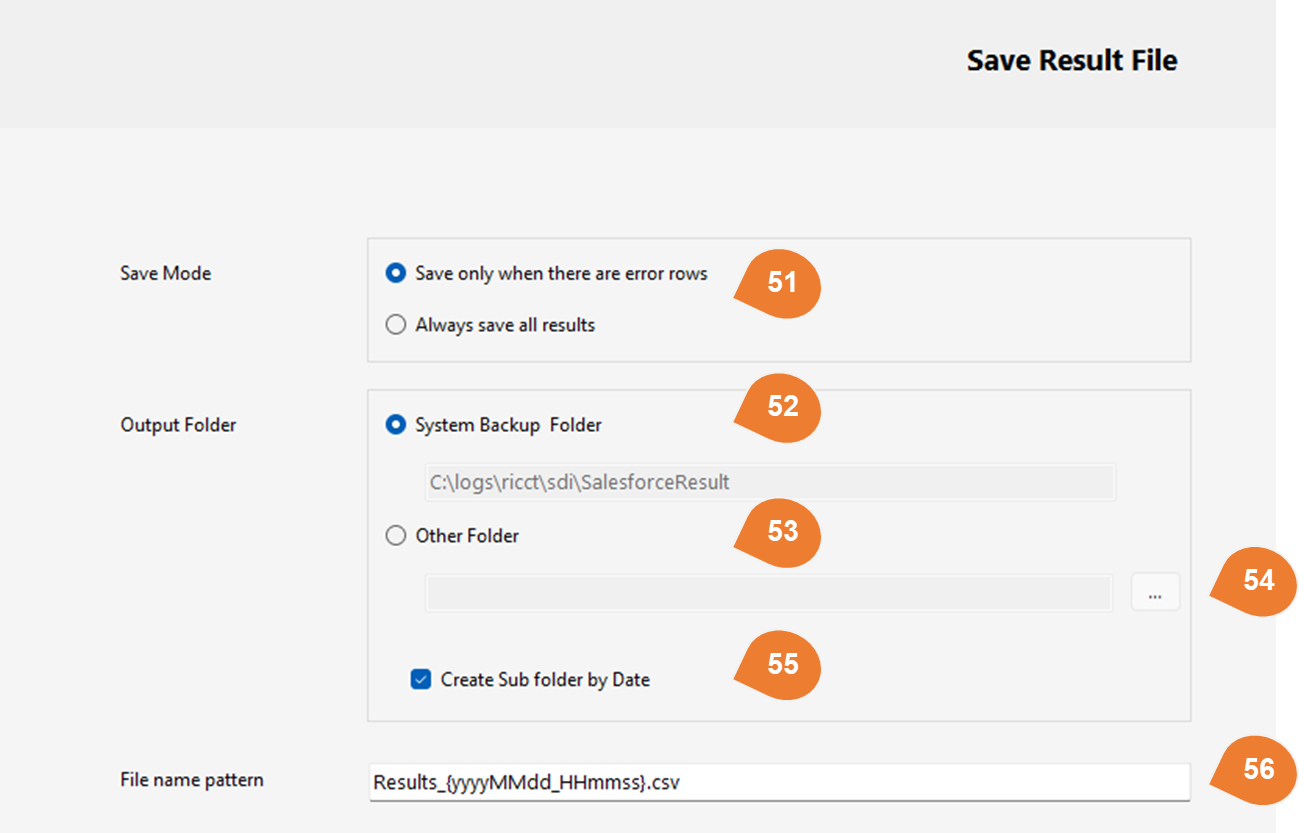
| 51 | Save Mode | Select when to save the update result file.Save only if there are error rows: Outputs a result file only when failures or errors occur.Save all results: Outputs a file every time for all rows, including both success and failure. |
| 52 | Output Folder: System Backup Folder | Outputs to the folder configured in the system settings. The default path is displayed, and typically no changes are needed. |
| 53 | Output Folder: Other Folder | Select this to output the result file to an arbitrary folder. Specify the destination folder in the input field below. |
| 54 | Browse Folder | When "Other Folder" is selected, you can specify the output destination via a folder selection dialog. |
| 55 | Create Subfolders by Date | If checked, subfolders named by date (e.g., 20251223) will be automatically created under the output folder. |
| 56 | Filename Pattern | Specify the naming rule (pattern) for the result files. You can include the output time in the filename. Example: If set to Results_{yyyyMMdd_HHmmss}.csv and output on March 5, 2019, at 18:32:47, the filenames will be:Insert Success: Results_20190305_183247_insert_success.csvUpdate Success: Results_20190305_183247_update_success.csvUpsert Success: Results_20190305_183247_upsert_success.csvInsert Failure: Results_20190305_183247_insert_fail.csvUpdate Failure: Results_20190305_183247_update_fail.csvUpsert Failure: Results_20190305_183247_upsert_fail.csvReference: Custom date and time format strings |
Update Source DB ID Column with Salesforce ID
| No | Item | Description |
|---|---|---|
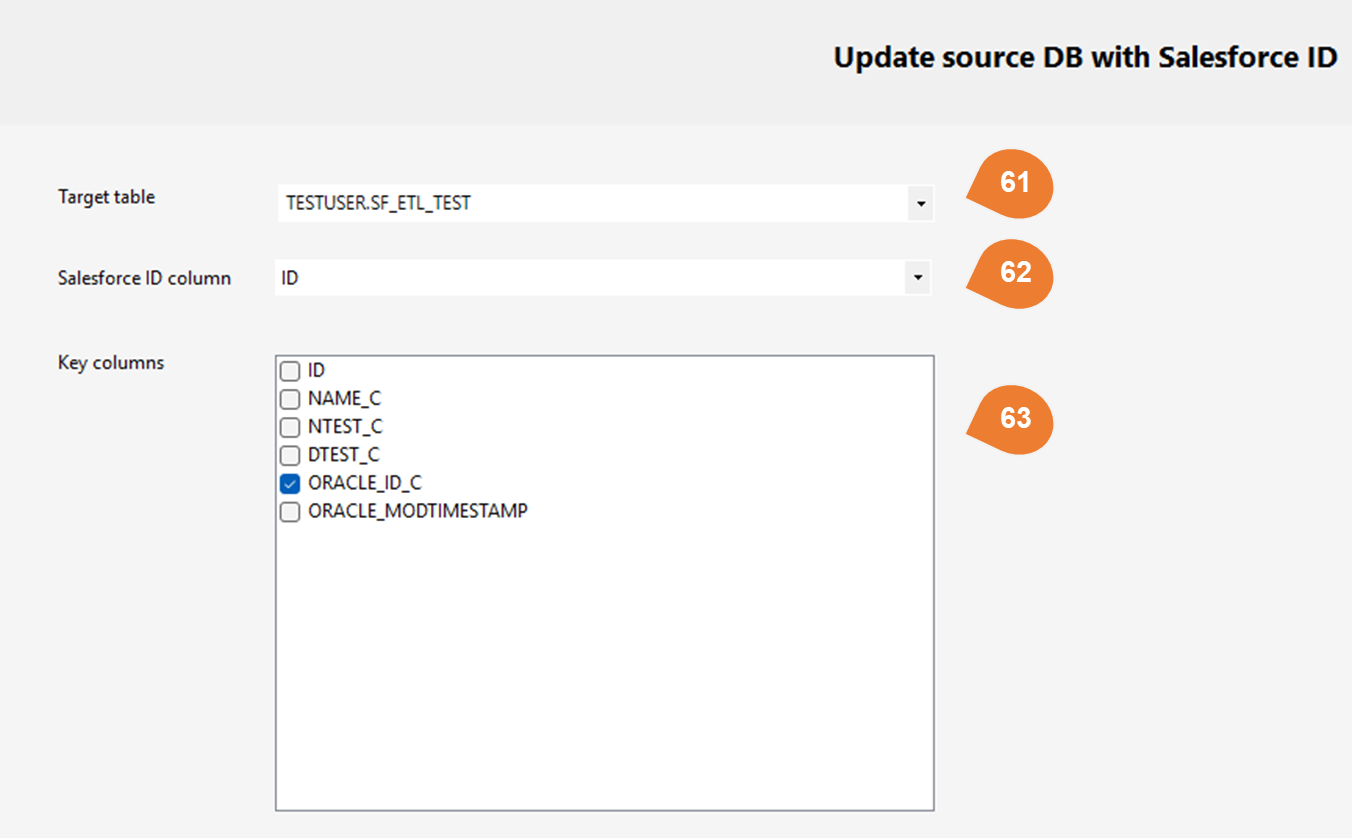
| 61 | Target Table | Select the table in the source DB where the Salesforce ID should be written back. An UPDATE statement will be executed against this table using the following settings. |
| 62 | Salesforce ID Column Name | Select the column in the source DB that will store the Salesforce ID. The Salesforce ID returned from the Upsert result will be updated in this column. |
| 63 | Key Column | Select the key column (matching key) used to identify which row to update in the source DB. The system matches the update results with the source DB rows and updates the Salesforce ID column (No. 62) for the corresponding row. ※Typically, select a column that is unique within the source data (e.g., ORACLE_ID). |