
CSV, Excel, JSON, XML configuration
Overview
SDI supports importing from and exporting to CSV, Excel, JSON, and XML files.
When using a CSV, Excel, JSON, or XML file, select 'File' as the location, choose the appropriate data type, and configure the detailed settings.
Supported storage options include file systems, FTP/FTPS, SFTP, AWS S3, OCI Object Storage, GCP Cloud Storage and Azure Blob Storage.
Configuration
File system
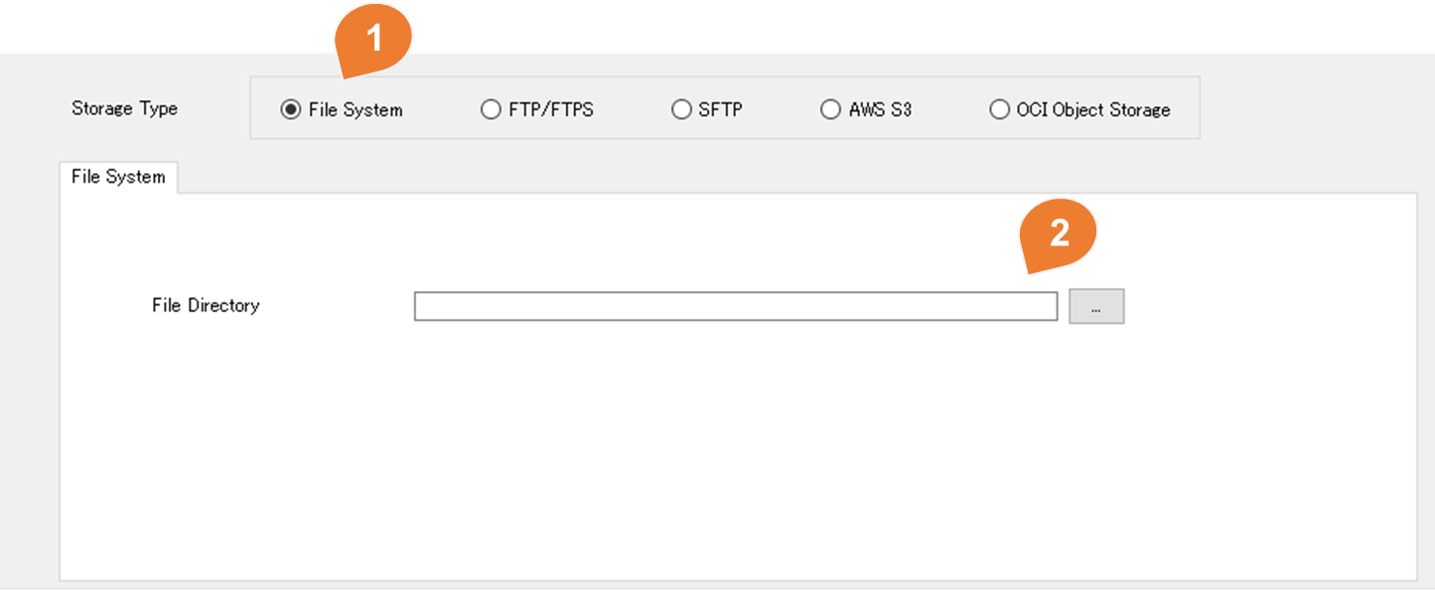
| No | Item | Description |
|---|---|---|
| 1 | Storage Type | Select File System |
| 2 | File Directory | Select CSV file save folder |
FTP/FTPS
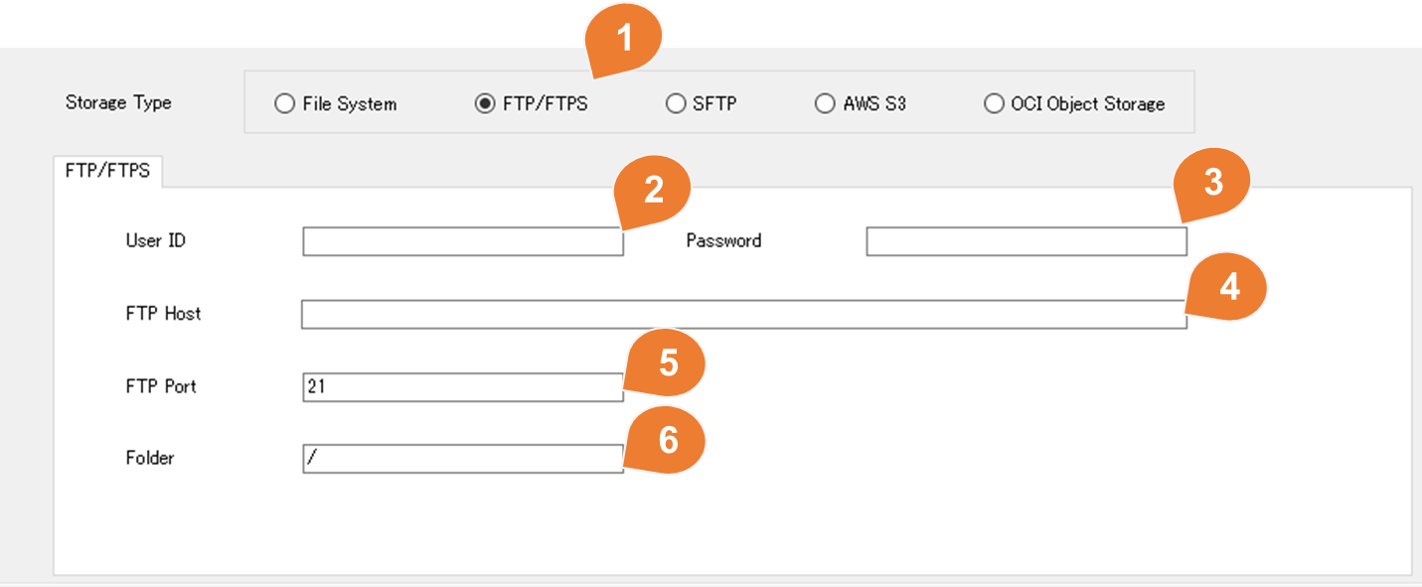
| No | Item | Description |
|---|---|---|
| 1 | Storage Type | Select FTP/FTPS |
| 2 | User ID | FTP login User ID |
| 3 | Password | FTP login password |
| 4 | FTP Host | |
| 5 | FTP Port | |
| 6 | Folder | FTP Folder |
SFTP
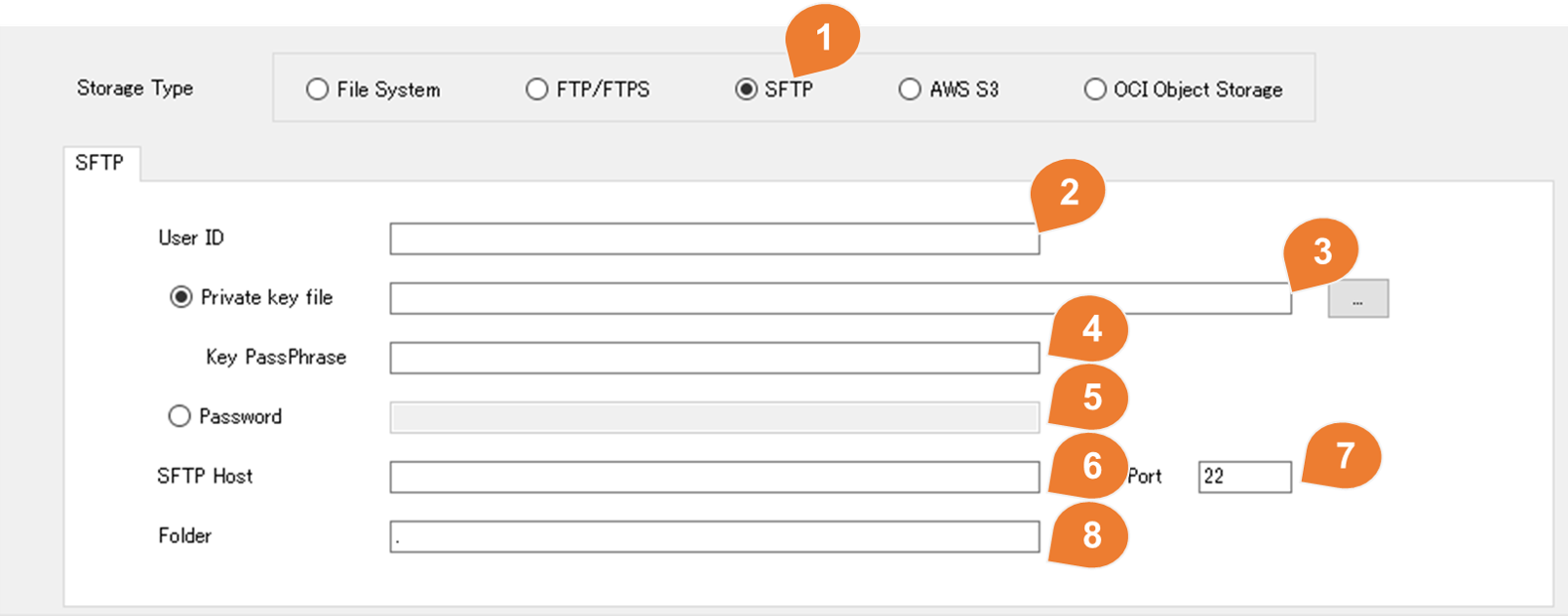
| No | Item | Description |
|---|---|---|
| 1 | Storage Type | Select SFTP |
| 2 | User ID | SFTP login User ID |
| 3 | Private key | If the SFTP server uses key authentication, check Private key and then specifies the private key file. |
| 4 | Key PassPhrase | If a passphrase is set for the private key file, enter the passphrase. If no passphrase is set, leave it blank. |
| 5 | Password | If the SFTP server uses password authentication, check Password before entering the SFTP user password. |
| 6 | SFTP Host | |
| 7 | SFTP Port | |
| 8 | Folder | SFTP Folder |
AWS S3
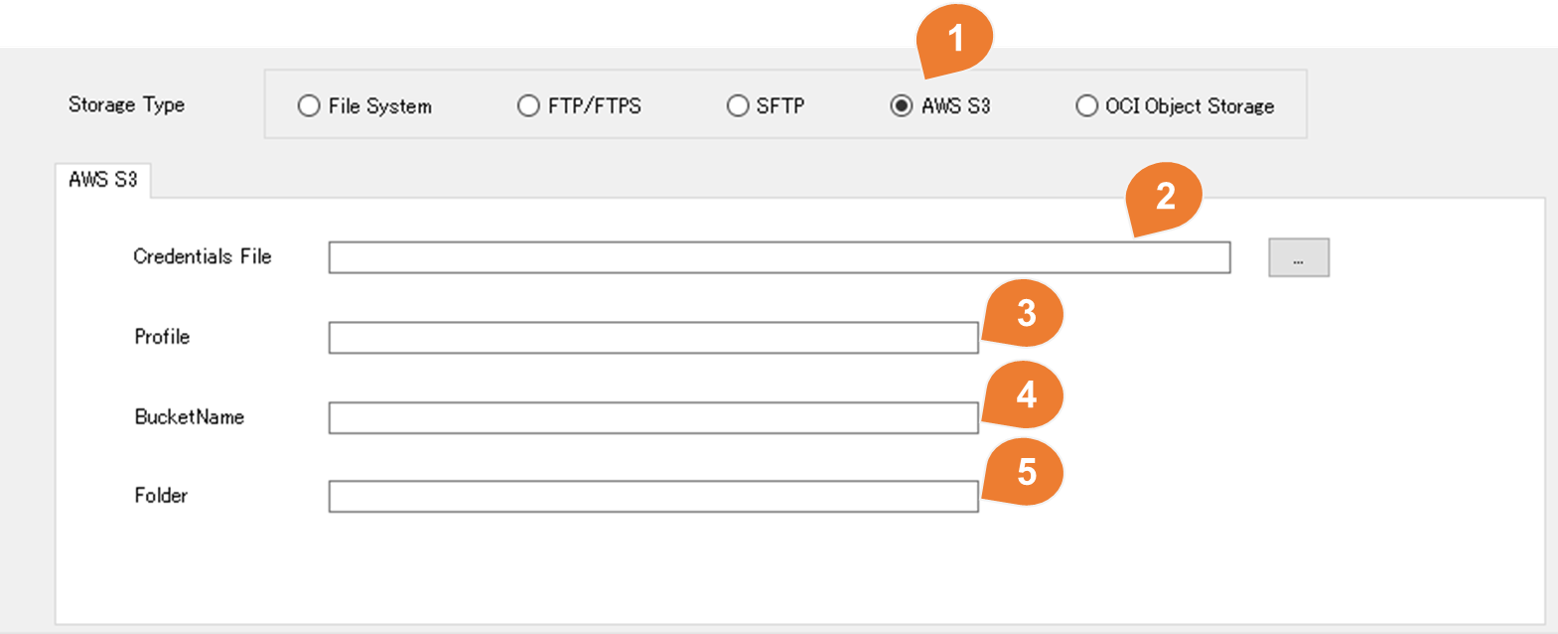
Please note when creating AWS Credentials File
Normally, the OS user performing ODI Studio and the OS user executing worker agents are different. Save your AWS Credentials file to a folder that can be accessed by both OS users.
If you use the default configuration file location from the official documentation, the worker agent may not be accessible.
Reference:Named profiles for the AWS CLI
AWS Credentials File example:
[default]
aws_access_key_id=AKIAIOSFODNN7EXAMPLE
aws_secret_access_key=wJalrXUtnFEMI/K7MDENG/bPxRfiCYEXAMPLEKEY
region=ap-northeast-1
[user1]
aws_access_key_id=AKIAI44QH8DHBEXAMPLE
aws_secret_access_key=je7MtGbClwBF/2Zp9Utk/h3yCo8nvbEXAMPLEKEY
region=ap-northeast-1
| No | Item | Description |
|---|---|---|
| 1 | Storage Type | Select AWS S3 |
| 2 | Credentials File | Specifies the AWS Credentials File |
| 3 | Profile | Profile name in AWS Credentials File. * Case sensitive |
| 4 | BucketName | S3 BucketName |
| 5 | Folder | S3 Folder name. * Leave blank to use the root directory. |
OCI Object Storage
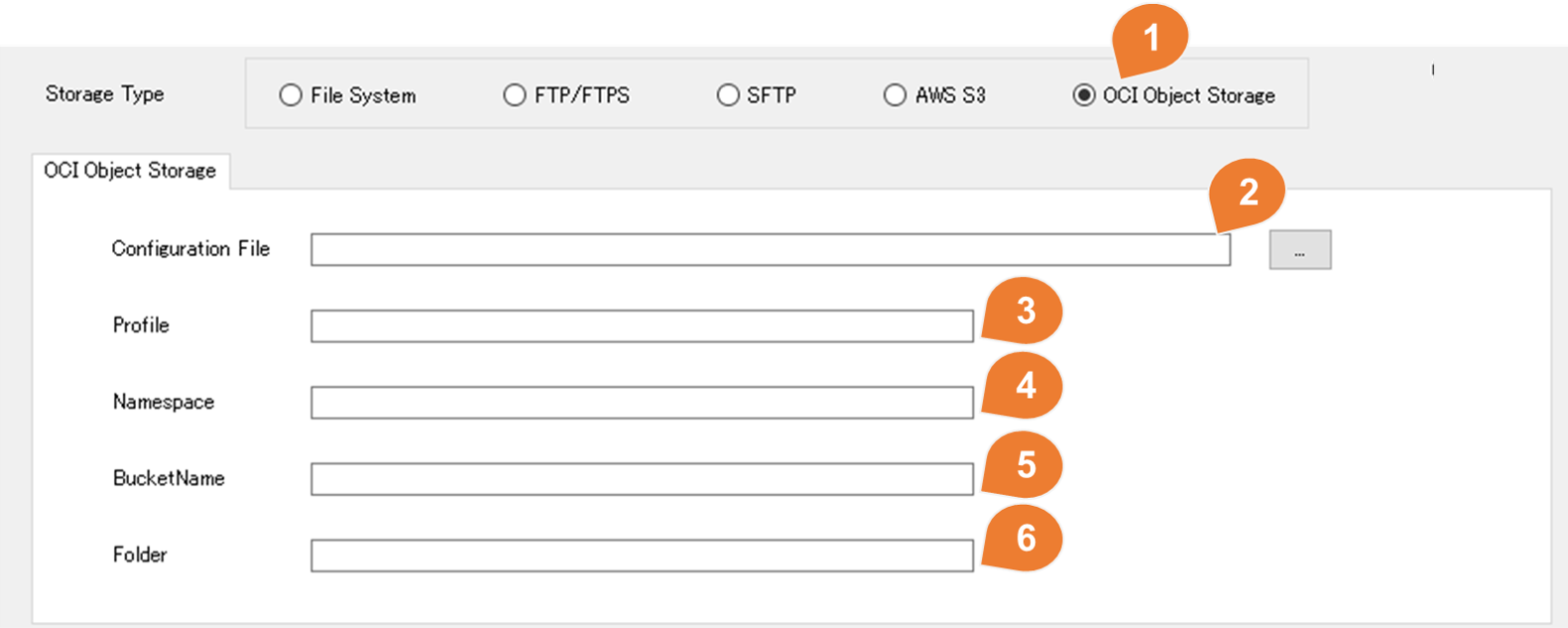
Please note when creating OCI Configuration File
Normally, the OS user performing ODI Studio and the OS user executing worker agents are different. Save your OCI Configuration File to a folder that can be accessed by both OS users.
If you use the default configuration file location from the official documentation, the worker agent may not be accessible.
Reference:SDK and CLI Configuration File
OCI Configuration File Example:
[default]
user=ocid1.user.oc1..aaaaaaaamaaaaaaaaaaaaaaaaaaaaaaaaaaaaaaaaaaaaaaaaaaaaaaaaaaaa
fingerprint=a8:63:a7:a2:89:a9:a3:98:a0:aa:a4:20:a7:ab:0a:0a
tenancy=ocid1.tenancy.oc1..aaaaaaaamaaaaaaaaaaaaaaaaaaaaaaaaaaaaaaaaaaaaaaaaaaaaaa
region=ap-tokyo-1
key_file=C:\keys\oci\test_1.pem
[user1]
user=ocid1.user.oc1..bbbbbbbbmbbbbbbbbbbbbbbbbbbbbbbbbbbbbbbbbbbbbbbbbbbbbbbbbbbbb
fingerprint=b8:63:b7:b2:89:b9:b3:98:b0:bb:b4:20:b7:bb:0b:0b
tenancy=ocid1.tenancy.oc1..aaaaaaaamaaaaaaaaaaaaaaaaaaaaaaaaaaaaaaaaaaaaaaaaaaaaaa
region=ap-tokyo-1
key_file=C:\keys\oci\test_2.pem
| No | Item | Description |
|---|---|---|
| 1 | Storage Type | Select OCI Object Storage. |
| 2 | Configuration File | Specifies the OCI Configuration File. |
| 3 | Profile | Profile name in OCI Configuration File. * Case sensitive. |
| 4 | Namespace | OCI Object storage Namespace Name |
| 5 | BucketName | OCI Object storage BucketName |
| 6 | Folder | OCI Object storage Folder name. * Leave blank to use the root directory. |
GCP Cloud Storage
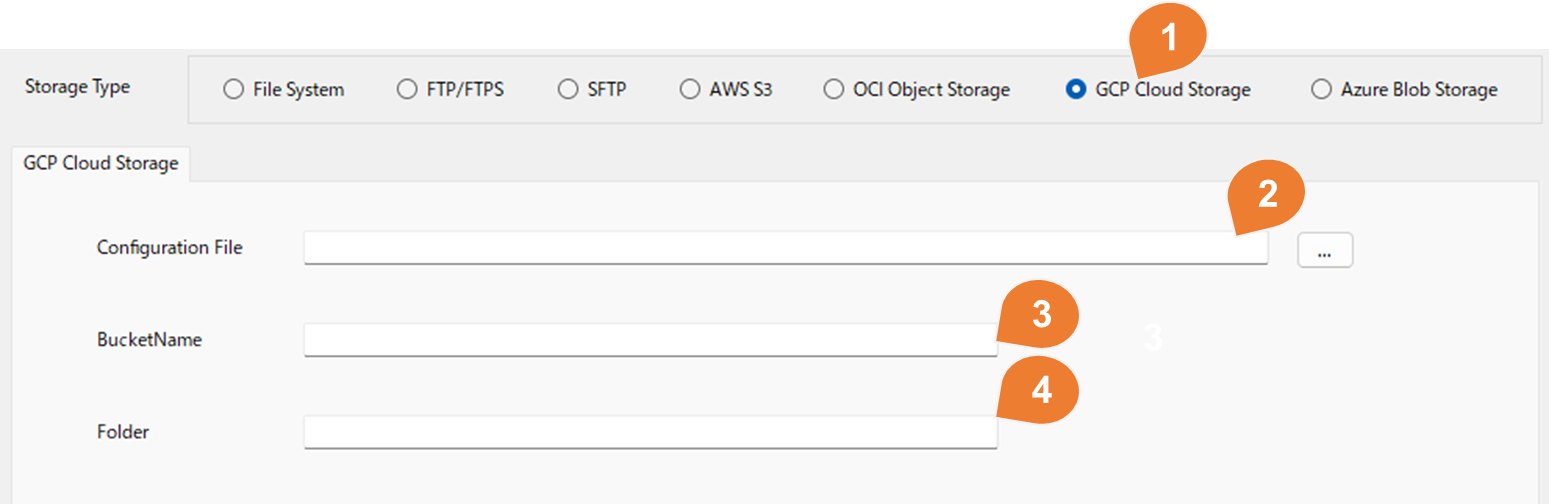
Notes on Creating the GCP Configuration File
In typical scenarios, the OS user running ODI Studio and the OS user running the worker agent are different.
Please save the service account key (JSON file) in a folder that is accessible by both OS users.
Additionally, grant the service account appropriate permissions for the target bucket (e.g., Storage Object Viewer / Admin, etc.).
| No | Item | Description |
|---|---|---|
| 1 | Storage Type | Select GCP Cloud Storage |
| 2 | Configuration File | Specify the service account key (JSON file) for GCP authentication. Example: xxxxx.json |
| 3 | BucketName | Enter the GCP Cloud Storage bucket name to be used. |
| 4 | Folder | Enter the folder (prefix) to be used. ※Leave blank to use the root directory. |
Azure Blob Storage
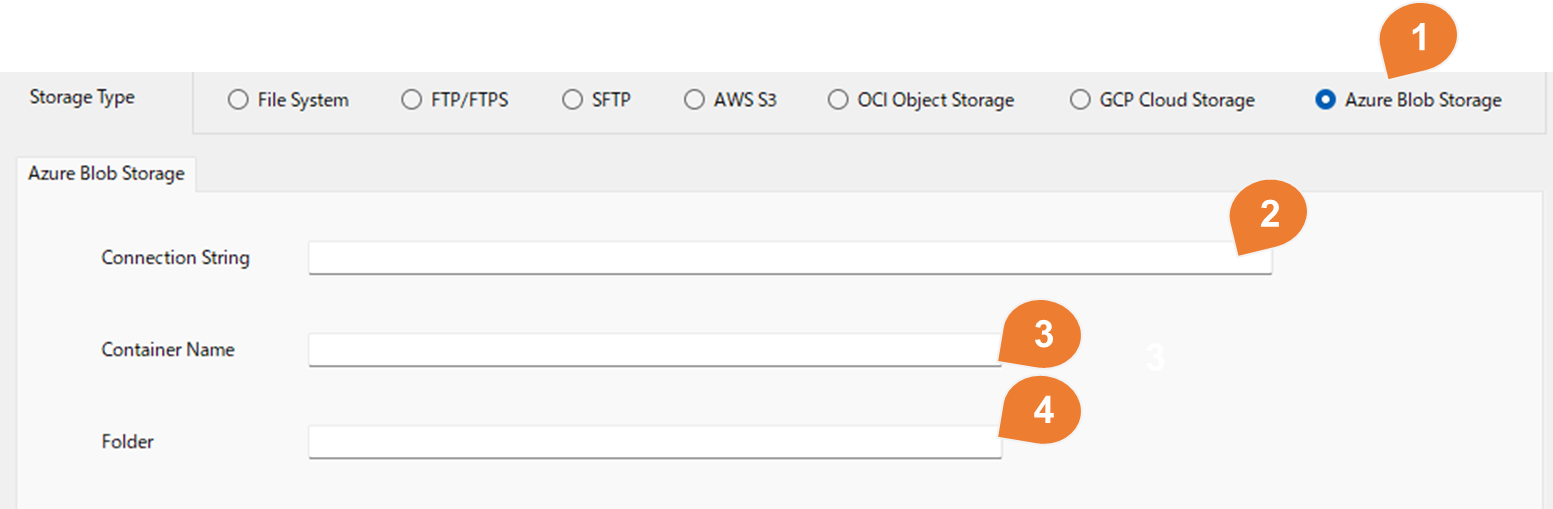
| No | Item | Description |
|---|---|---|
| 1 | Storage Type | Select Azure Blob Storage |
| 2 | Connection String | Enter the connection string for the Azure Storage account. Example: DefaultEndpointsProtocol=https;AccountName=xxxx;AccountKey=xxxx;EndpointSuffix=core.windows.net |
| 3 | Container Name | Enter the Blob container name to be used. |
| 4 | Folder | Enter the folder (prefix) to be used. ※Leave blank to use the root directory. |