Studio startup password authentication
Set a shared password for people using Studio. Authentication is disabled by default. From the home form, open Preferences → Studio startup password authentication.
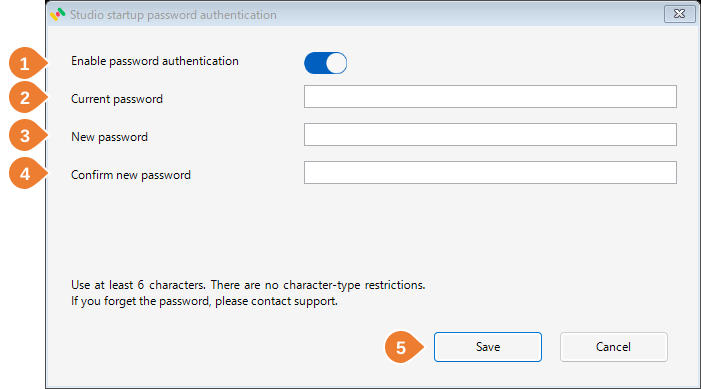
| No | Item | Description |
|---|---|---|
| 1 | Enable password authentication | Use the switch: blue is ON and gray is OFF. Select Save to apply the setting. |
| 2 | Current password | Shown when authentication is enabled. Required to change or disable authentication. |
| 3 | New password | Enter a password when enabling authentication or changing the password. |
| 4 | Confirm new password | Enter the same new password again. |
| 5 | Save | Validate input and save authentication settings. |
Enable authentication
- Turn on the Enable password authentication switch.
- Enter the new password twice and select Save.
- Enter this password when starting Studio.
Use at least 6 characters. There are no character-type restrictions: Japanese characters, symbols, and spaces are allowed. Passwords are case-sensitive, and leading or trailing spaces are significant.
Change the password or disable authentication
| Action | Steps |
|---|---|
| Change the password | Leave the switch ON. Enter the current password and the new password twice, then select Save. |
| Disable authentication | Turn the switch OFF. Enter the current password, then select Save. A new password is not required. |
Changing the switch alone does not apply the setting. Select Cancel before saving to discard changes and close the form.
During saving, a wait cursor and Saving settings. Please wait. are displayed. Buttons and input fields are disabled. If an error appears, review it and retry.
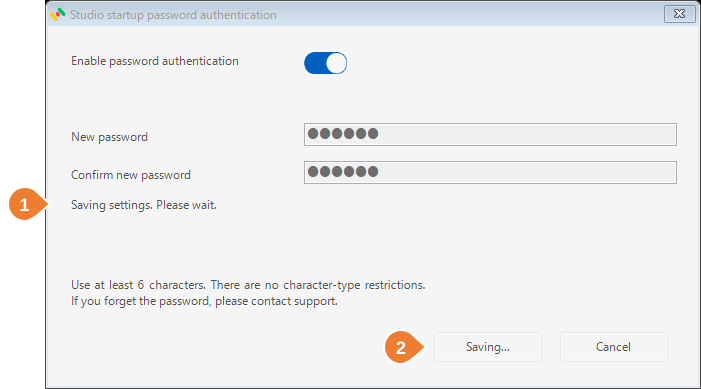
1 marks the saving message; 2 marks the disabled Saving... button.
Start Studio
When authentication is enabled, enter the Studio authentication password before the home form opens. Select OK to authenticate and open the home form. Select Cancel to exit Studio.
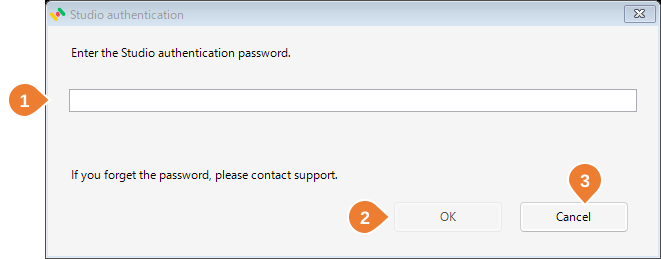
| No | Item | Description |
|---|---|---|
| 1 | Password input | Enter the Studio authentication password. The input is masked. |
| 2 | OK | Verify the password and continue after successful authentication. |
| 3 | Cancel | Exit Studio during startup, or keep values hidden when confirming a password reveal. |
Reveal passwords or keys
When Studio authentication is enabled, the following actions require the Studio authentication password each time values are revealed, including after successful startup authentication. Canceling the confirmation keeps values hidden.
| Form | Reveal control | Values |
|---|---|---|
| Connection configuration | Show passwords and secrets | Passwords, API keys, and other secrets |
| Mail settings | Show passwords and secrets | SMTP password |
| Mapping mail processing details | Show beside the ZIP password | Attached ZIP file password |
| Customer-managed key configuration | Show keys | Management keys entered in the form |
Failed attempts and lockout
| Consecutive failed attempts | Lock duration |
|---|---|
| 1–4 | None |
| 5–6 | 1 minute |
| 7–8 | 5 minutes |
| 9 or more | 15 minutes |
Startup, password reveal, and authentication settings use the same failure counter. Studio processes using the same local configuration share this counter, which survives Studio restarts. Expiration of a lock does not reset the count; successful authentication resets it to zero. Attempts during a lock neither authenticate nor increase the counter.
Storage, backup, and recovery
Authentication settings are local to this computer. Configure Studio authentication on each computer, even when using a shared configuration folder. The authentication password is not stored as plaintext and is managed independently of sensitive-data encryption keys.
The storage folder is %ProgramData%\RiCCT\Sdi. The usual file locations are:
C:\ProgramData\RiCCT\Sdi\SdiWorkerBasic.config
C:\ProgramData\RiCCT\Sdi\StudioAuthentication.config
Enter %ProgramData%\RiCCT\Sdi in the File Explorer address bar to open the folder. Back up these two files as a pair. If saving is interrupted, the next Studio startup checks the saved state and performs recovery automatically when needed.
If you forget the password or see “An invalid operation was detected. Please contact support.”, contact support. Do not manually edit or delete these files.
Unattended Worker and CLI executions do not require the Studio authentication password. Upgrade Studio, Worker, and CLI together.