Transformation reference
Column mapping settings provides 24 transformation types. Each example shows an actual configured dialog and preview using sample data. Click an image to enlarge it on this page. Click the image, backdrop, or × button, or press Esc, to close it and return to the same reading position.
Using the examples
- Choose the source column as Value source.
- Select the transformation from list 1, then click Add.
- Select the step and configure 2, Transformation options, using the table below. The “…” button opens value or condition settings.
- Select this step result as Value to output.
- Enter the sample types and values, then click 3, Preview conversion.
- Choose OK to apply the details, then Save on the mapping form to persist them.
In a table, VALUE = "abc" means select String as Input type and enter only abc in Sample input for the VALUE row. Do not enter VALUE = or the quotation marks. Quotes around preview results are display notation too.
Sample notation and actual input
| Notation | What to enter |
|---|---|
"abc" |
Choose String and enter only abc. |
"" |
Choose String and leave the field empty; do not enter two quote characters. |
" " |
Choose String and enter three spaces. |
NULL |
Choose Null and leave the value field empty. This differs from the String NULL. |
123 |
To test a number, choose Number and enter 123. |
Backslash notation depends on the field. Sample input and literal values do not translate \t or \n into actual tabs or line breaks. The Tab key moves between cells. To check multiline values, use source data containing actual line breaks.
| Field | Notation and meaning |
|---|---|
| Sample input / literal | \t is a backslash followed by t; \n is a backslash followed by n. |
| RegexReplace / RegexExtract pattern | \t matches a tab, \n matches a line feed, and \s+ matches a run of whitespace. |
| RegexReplace replacement text | $1 inserts capture group 1. \t and \n do not insert a tab or line break. |
See Steps and output for the shared Input value, Result name, and Enabled fields. Tables below list operation-specific fields. For a literal in a “…” editor, choose Literal, set its type, and enter the example value.
Choose a transformation
| Transformation | Purpose |
|---|---|
| Replace blanks and NULL | Replace NULL, empty strings, or whitespace-only strings with a specified value. |
| Trim | Remove unwanted whitespace around a name or code. |
| Upper | Normalize alphabetic codes to uppercase. |
| Lower | Normalize alphabetic identifiers or an email domain to lowercase. |
| PadLeft | Pad the left of codes to a consistent width. |
| PadRight | Pad the right side for fixed-width output. |
| Replace | Replace a literal string, such as hyphens in telephone numbers. |
| RegexReplace | Replace a pattern, such as runs of whitespace. |
| Substring | Extract a fixed range from a code. |
| RegexExtract | Extract part of a value using a pattern. |
| Concat | Join columns, literals, and transformed results into one string. |
| Split | Retrieve one item from a delimited string. |
| ConvertType | Convert values to another type, such as numeric text to Number. |
| DateTime | Configure date formatting, time-zone conversion, and date arithmetic. |
| Calculate | Calculate using two values, such as unit price multiplied by quantity. |
| Round | Round a number to a specified number of decimal places. |
| Ceiling | Return the smallest integer greater than or equal to the input. |
| Floor | Return the largest integer less than or equal to the input. |
| Condition | Choose an output value according to a condition. |
| CodeMap | Translate codes between systems. |
| Coalesce | Select the first non-NULL candidate from a list. |
| ConditionResult | Output whether a condition is true or false. |
| Masking | Hide all or part of a name, phone number, or code with a chosen character. |
| Hashing | Produce a fixed-length hash string for matching equal input values. |
Replace blanks and NULL
Replace NULL, empty strings, or strings containing only whitespace such as spaces and tabs with a specified value. Select each target independently.
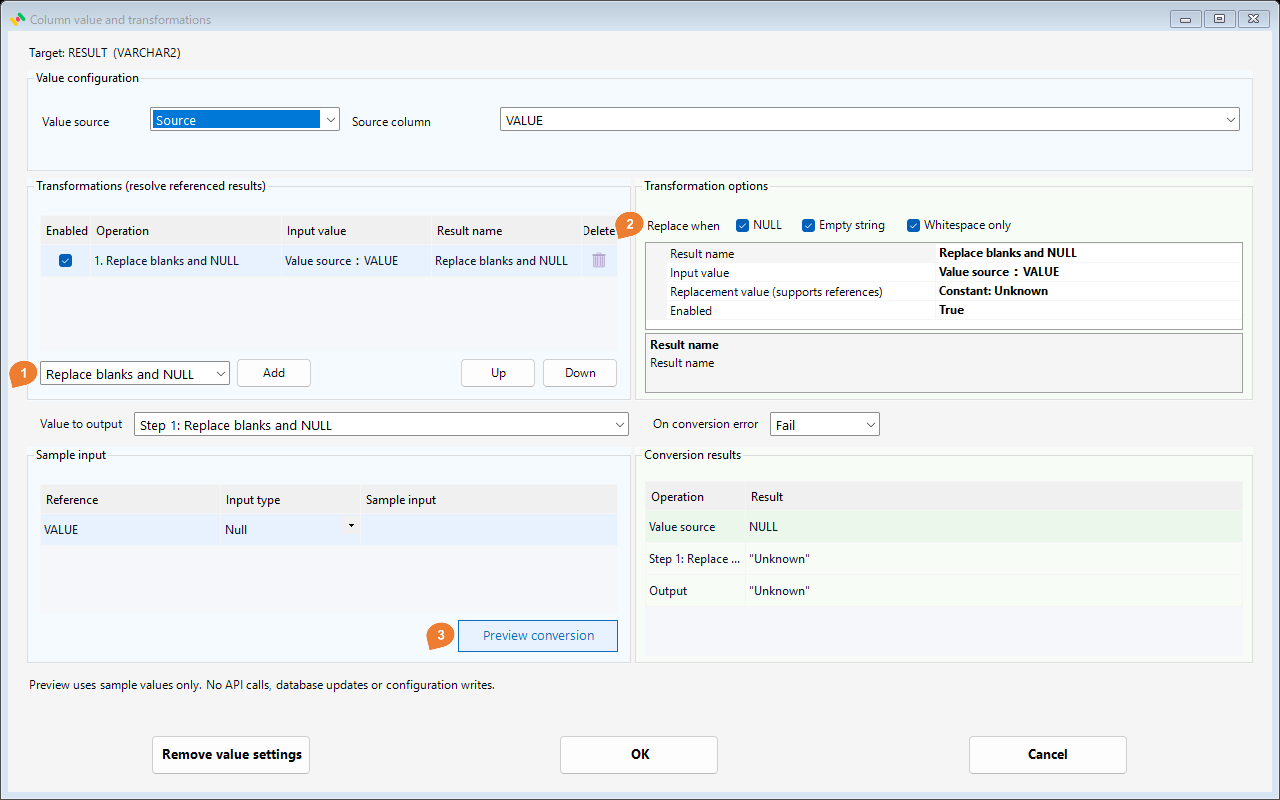
Configure
Select one or more of NULL, Empty string, and Whitespace only under Replace when. All three are selected for a new step. Open Replacement value with “…”, choose Literal, type String, and enter Unknown. A source column, Bind reference, or earlier step result can also provide the replacement.
| Target | Matches |
|---|---|
| NULL | A missing value, distinct from the text "NULL". |
| Empty string | A zero-length string "". |
| Whitespace only | One or more whitespace characters, including spaces, tabs, or line breaks. Excludes an empty string. |
| Setting | Example |
|---|---|
| Replacement value (supports references) | Constant: Unknown |
Try it
| Sample input | Final result |
|---|---|
VALUE = NULL |
"Unknown" |
VALUE = empty string (choose String and leave the input blank) |
"Unknown" |
VALUE = three spaces |
"Unknown" |
VALUE = "ABC" |
"ABC" |
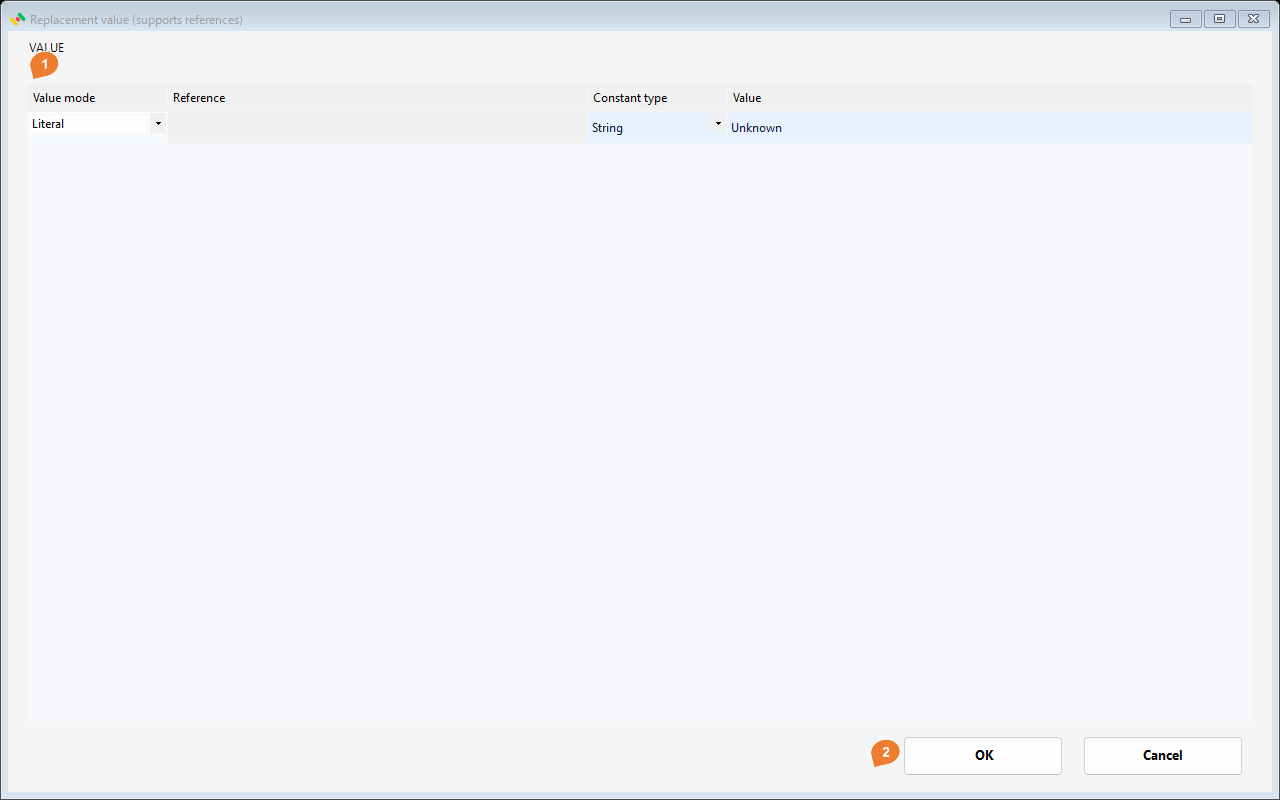
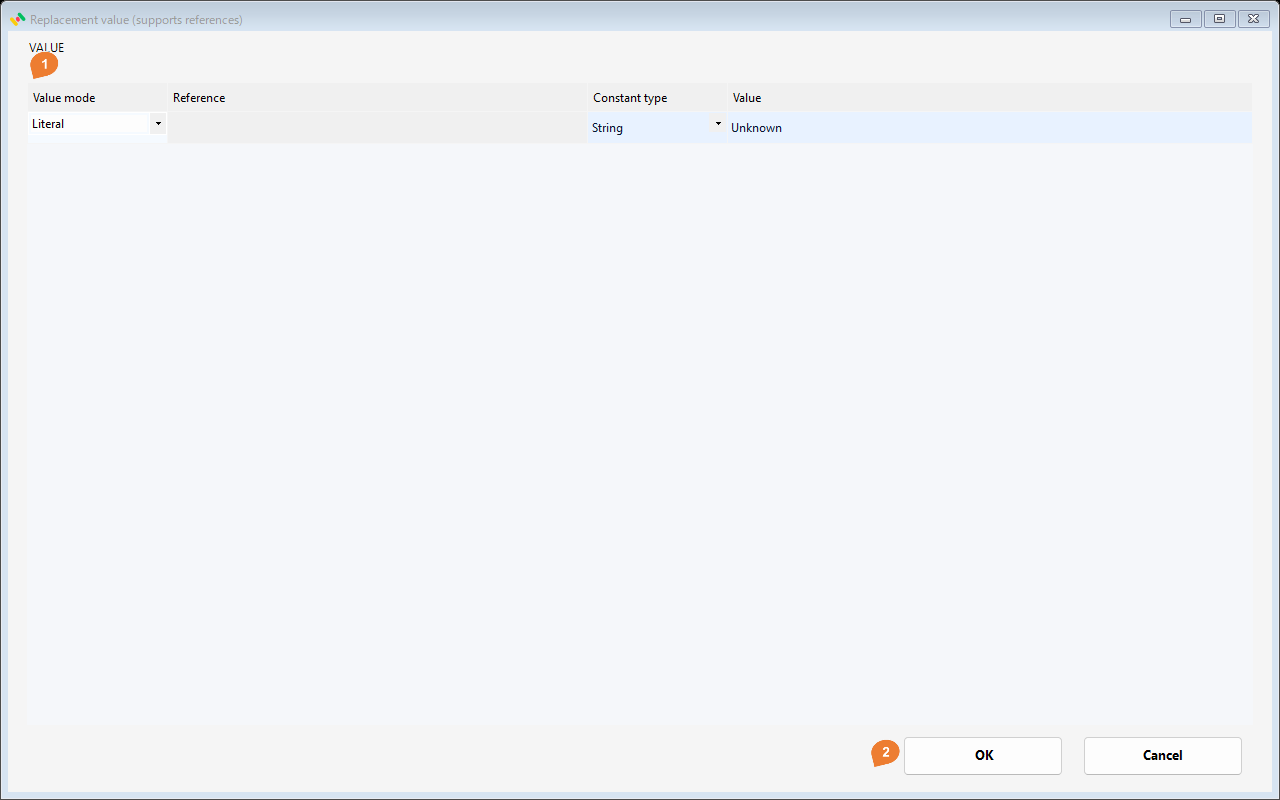
In child area 1, set the mode, reference, literal type, and value as applicable; use 2, OK, to return. Column and Bind references use the dropdown. Literal values do not use Reference.
Notes
Only selected value types are replaced; other values are unchanged. Select at least one target. All selected targets use the same replacement. To assign different replacements, add separate steps with different target selections.
Examples with a single selected target
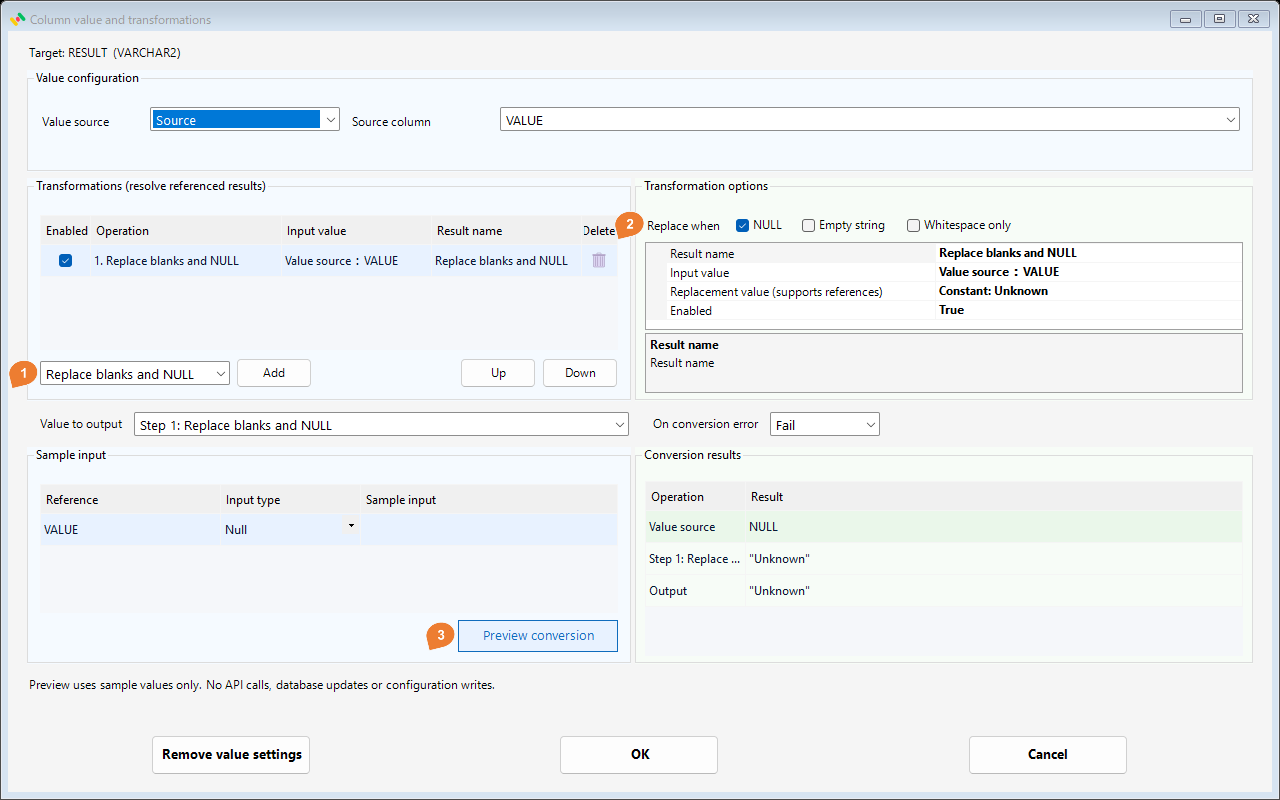
Replace NULL only
Select only the matching target.
| Input | Result |
|---|---|
NULL |
"Unknown" |
Replace empty strings only
Select only the matching target.
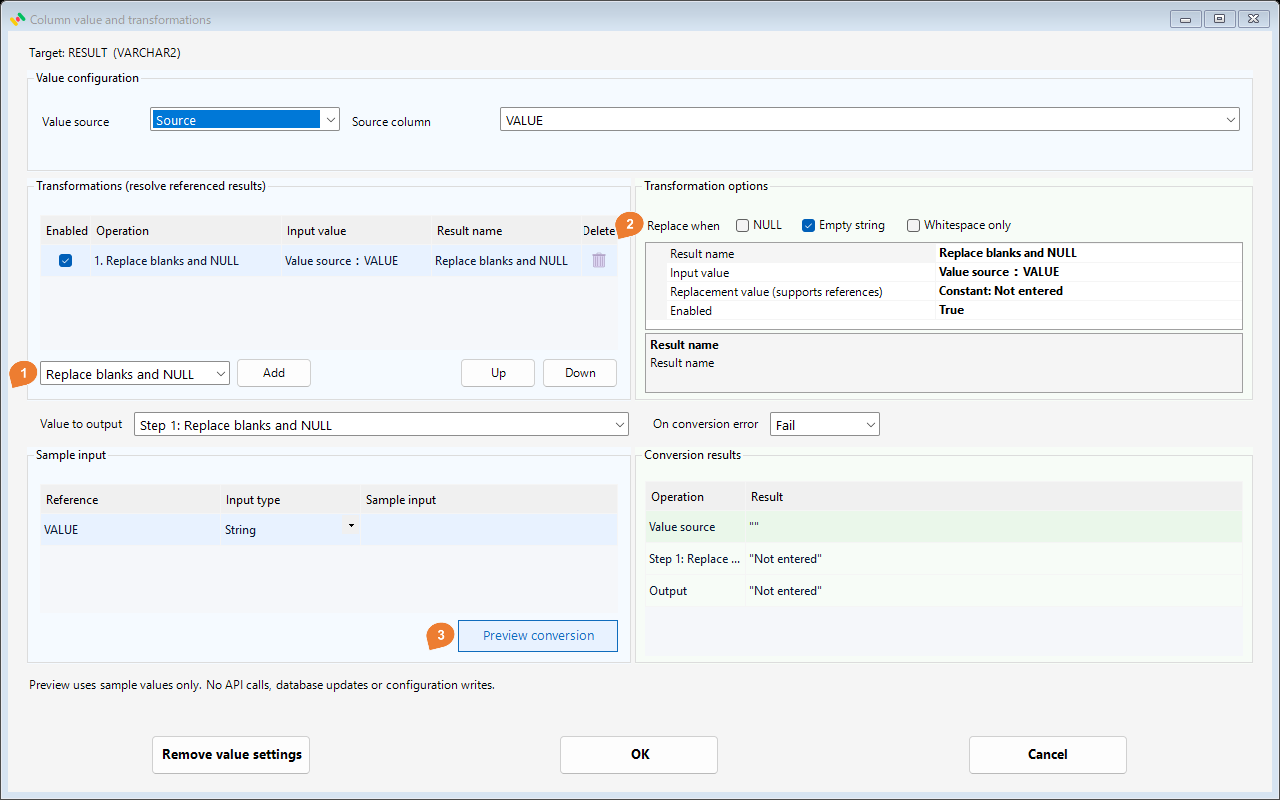
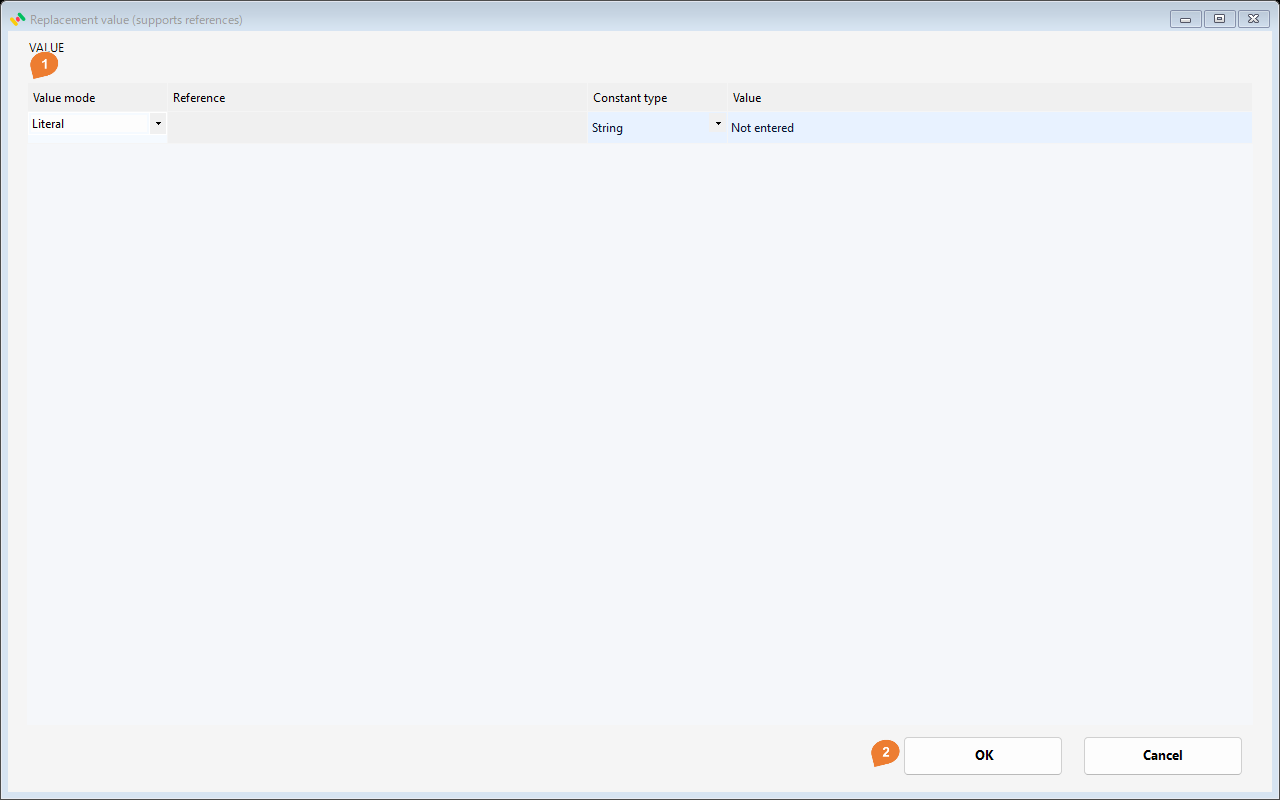
| Input | Result |
|---|---|
"" |
"Not entered" |
Replace whitespace-only strings only
Select only the matching target.
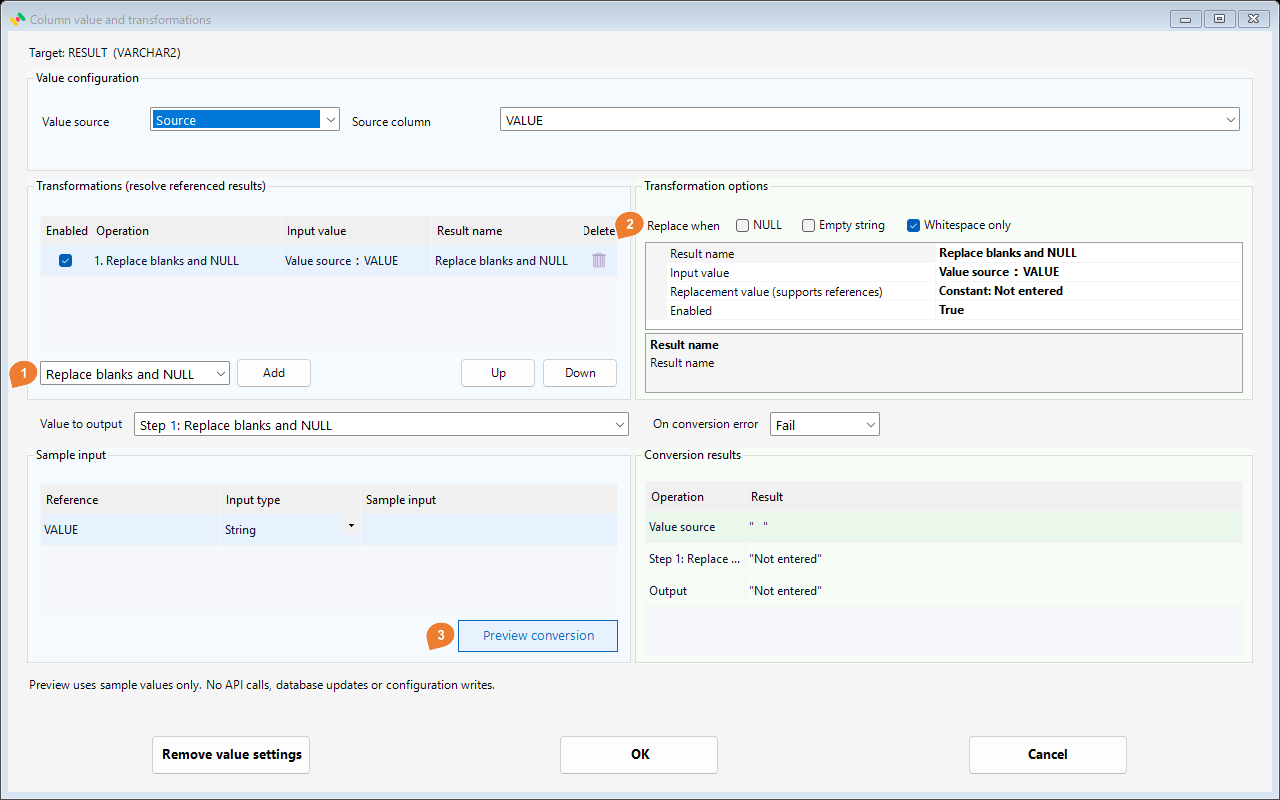
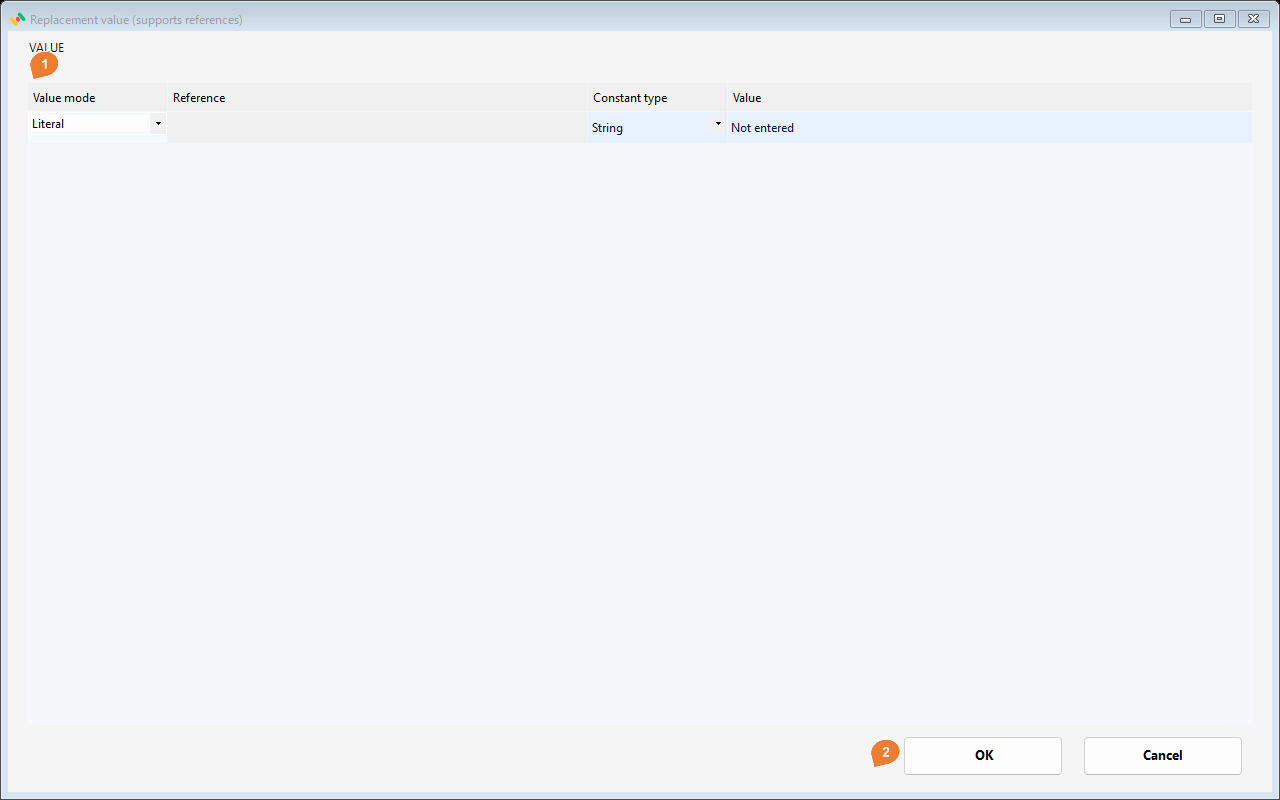
| Input | Result |
|---|---|
" " |
"Not entered" |
Trim
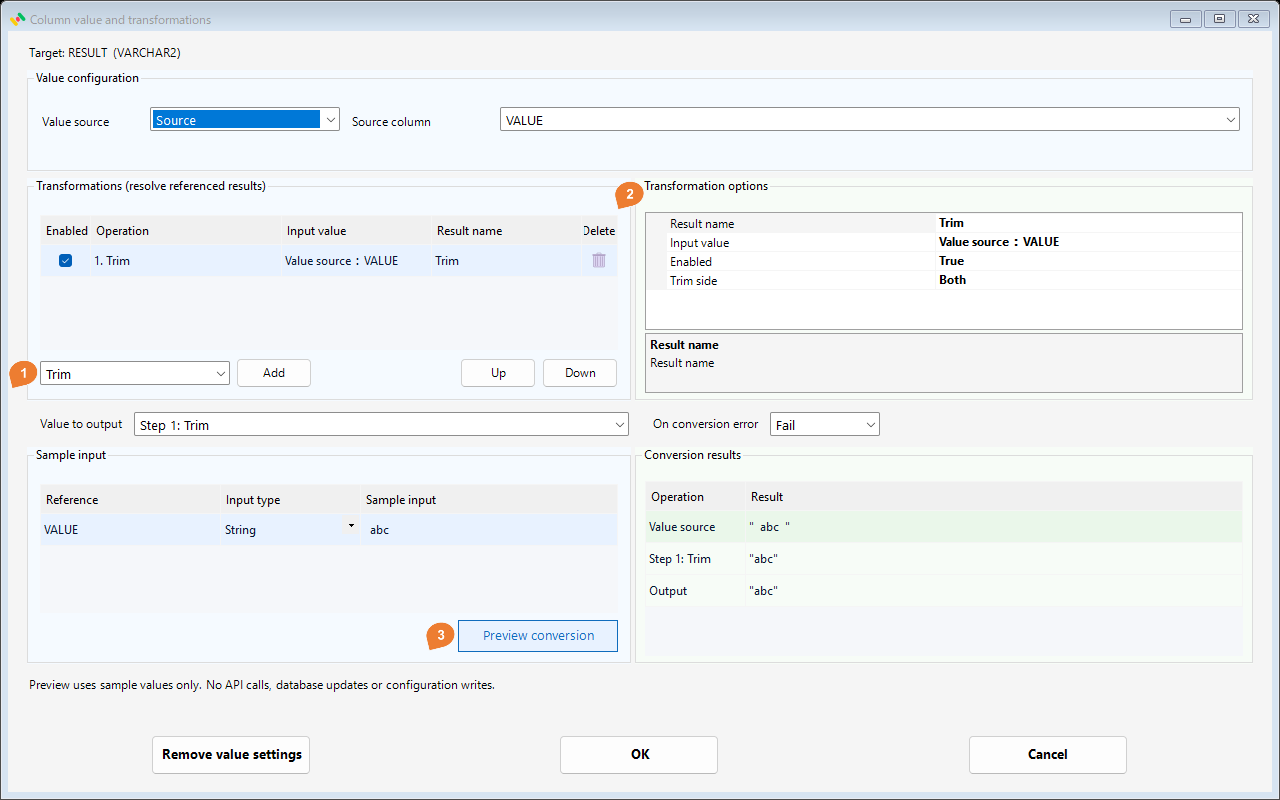
Remove unwanted whitespace around a name or code.
Configure
Choose Both, Start, or End for Trim side. The example uses Both.
| Setting | Example |
|---|---|
| Trim side | Both |
Try it
| Sample input | Final result |
|---|---|
VALUE = " abc " |
"abc" |
Notes
Whitespace inside the string is preserved. Leading or trailing tabs and line breaks are also trimmed. To uppercase the cleaned value, use this result as the input of a later Upper step.
Upper
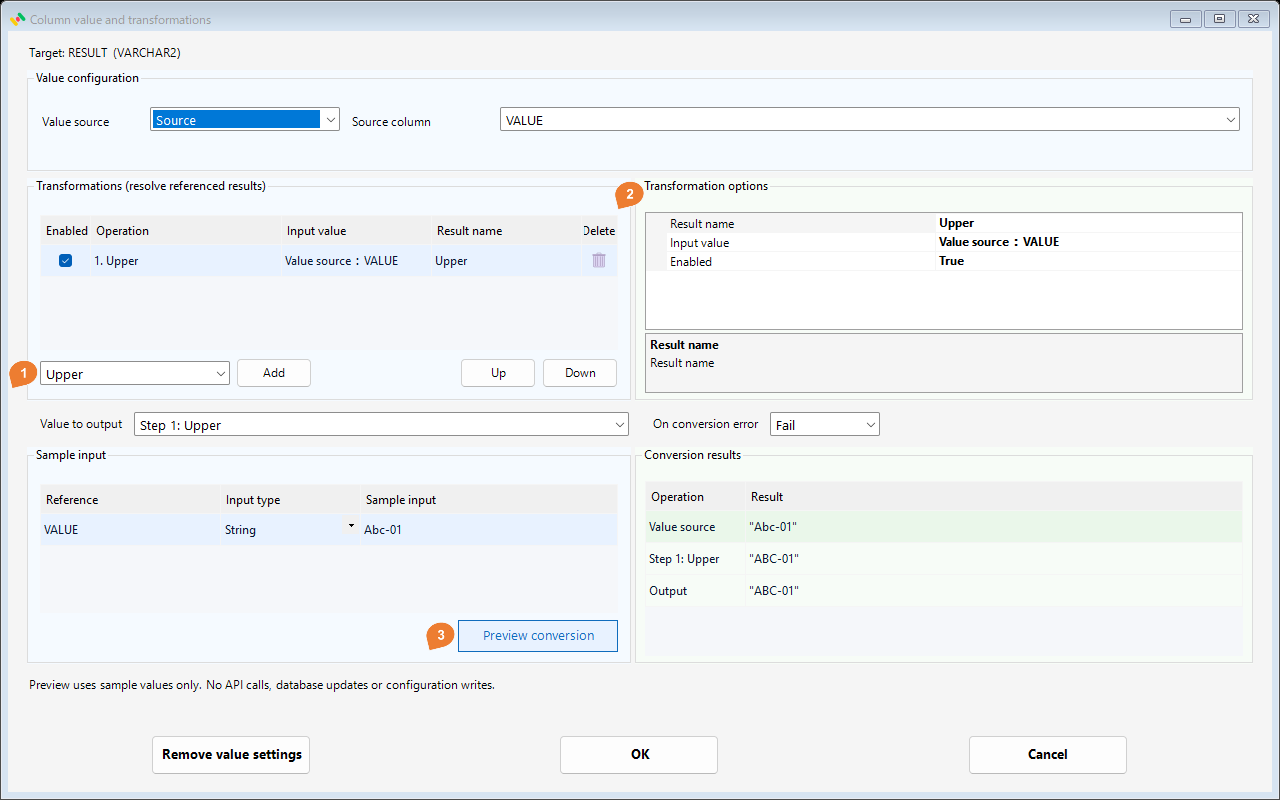
Normalize alphabetic codes to uppercase.
Configure
Choose the source column or earlier result as Input value. Upper has no additional operation-specific options.
There are no operation-specific fields. Check the input value and selected output step.
Try it
| Sample input | Final result |
|---|---|
VALUE = "Abc-01" |
"ABC-01" |
Notes
Digits and punctuation are preserved. Casing is culture-invariant; this operation has no culture selector. NULL stays NULL.
Lower
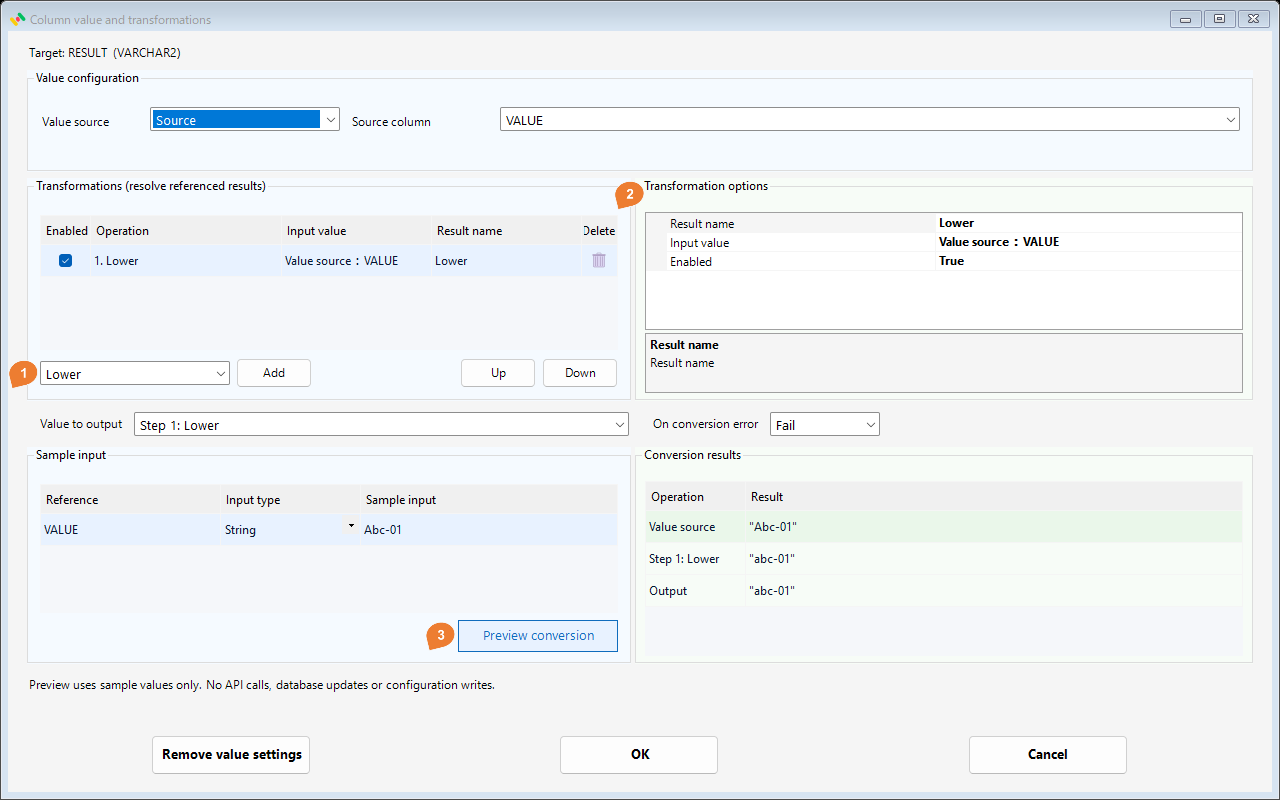
Normalize alphabetic identifiers or an email domain to lowercase.
Configure
Select the column or earlier result as Input value. Lower has no additional operation-specific options.
There are no operation-specific fields. Check the input value and selected output step.
Try it
| Sample input | Final result |
|---|---|
VALUE = "Abc-01" |
"abc-01" |
Notes
The whole input value is lowercased using invariant casing. To change only part of an address, combine extraction, casing, and concatenation. NULL stays NULL.
PadLeft
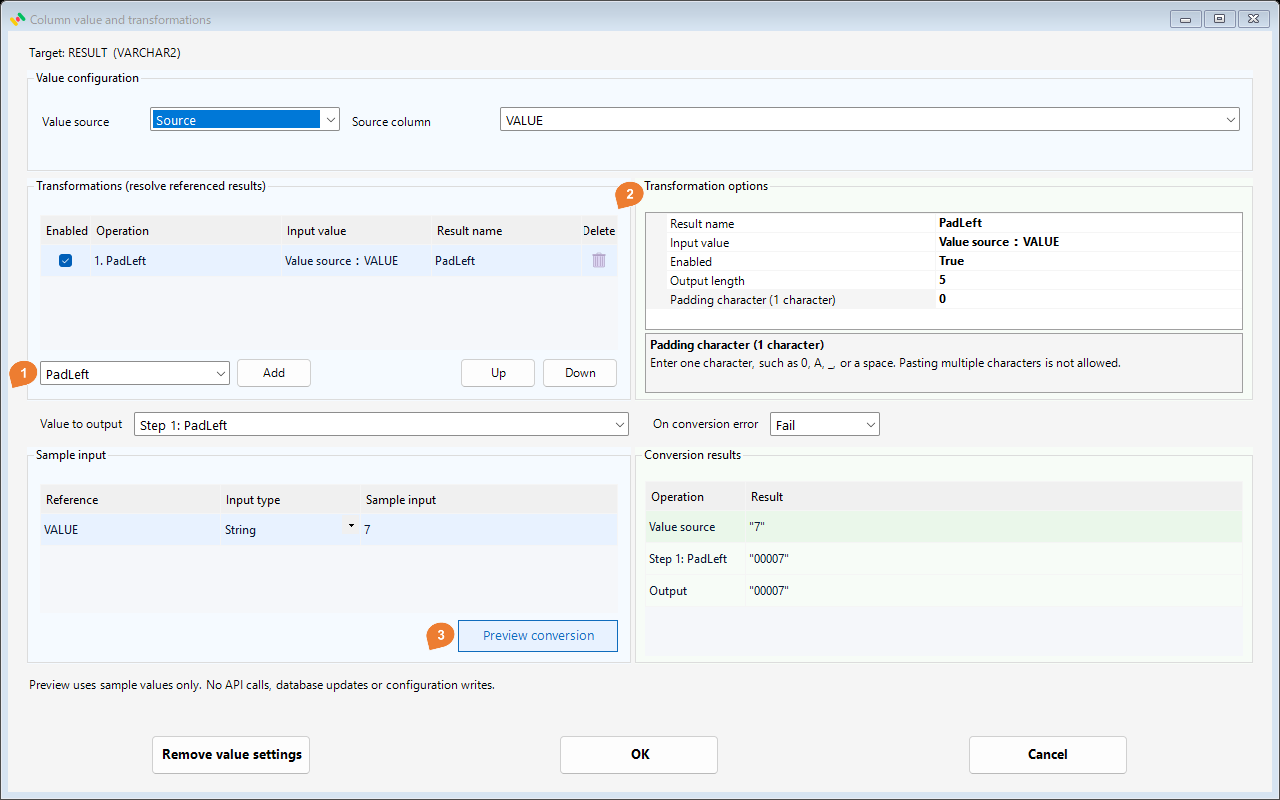
Pad the left of codes to a consistent width.
Configure
Set Output length to 5 and Padding character (1 character) to 0.
| Setting | Example |
|---|---|
| Output length | 5 |
| Padding character (1 character) | 0 |
Try it
| Sample input | Final result |
|---|---|
VALUE = "7" |
"00007" |
Notes
Output length is the total width, not the number of characters to add. Padding must be one character. Longer input is not truncated. Use a string destination when leading zeros must be retained. The field accepts one character and rejects multi-character paste. It must not be empty when previewing or accepting settings; one space is valid.
PadRight
Pad the right side for fixed-width output.
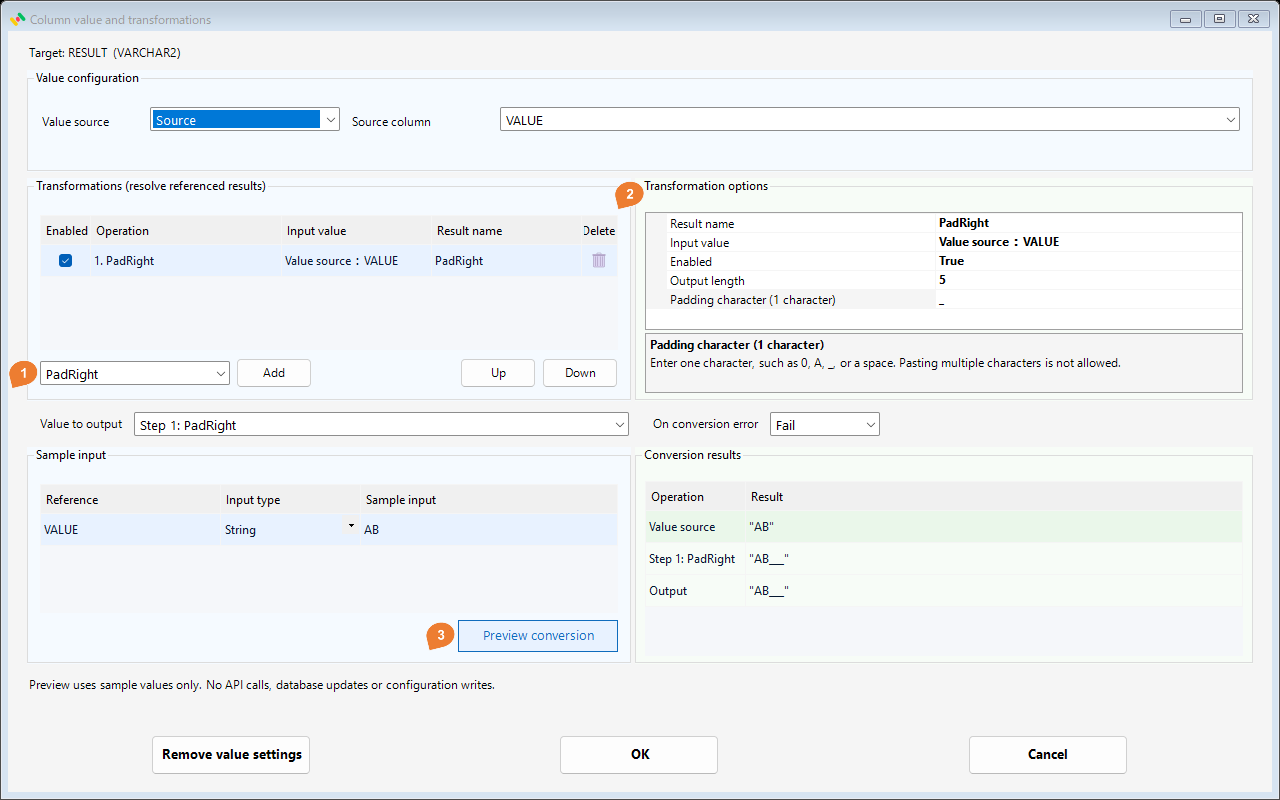
Configure
Set Output length to 5 and Padding character (1 character) to _.
| Setting | Example |
|---|---|
| Output length | 5 |
| Padding character (1 character) | _ |
Try it
| Sample input | Final result |
|---|---|
VALUE = "AB" |
"AB___" |
Notes
Input already at or above the width is unchanged. To pad with spaces, enter one actual space as the padding character. Width counts characters, not bytes. The field accepts one character and rejects multi-character paste. It must not be empty when previewing or accepting settings; one space is valid.
Replace
Replace a literal string, such as hyphens in telephone numbers.
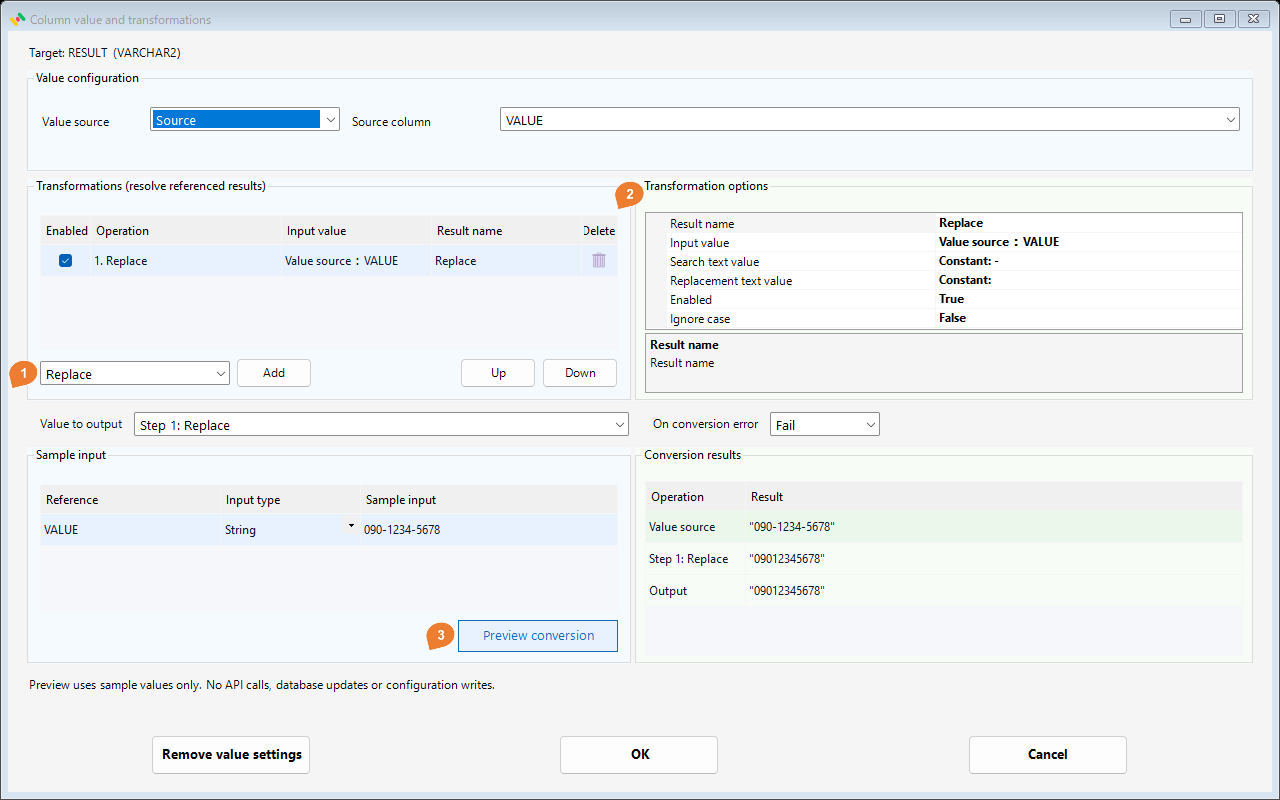
Configure
Set Search text value to the String literal - and Replacement text value to an empty String literal. Both parameters can also use a column or earlier result.
| Setting | Example |
|---|---|
| Search text value | Constant: - |
| Replacement text value | Constant: |
| Ignore case | False |
Try it
| Sample input | Final result |
|---|---|
VALUE = "090-1234-5678" |
"09012345678" |
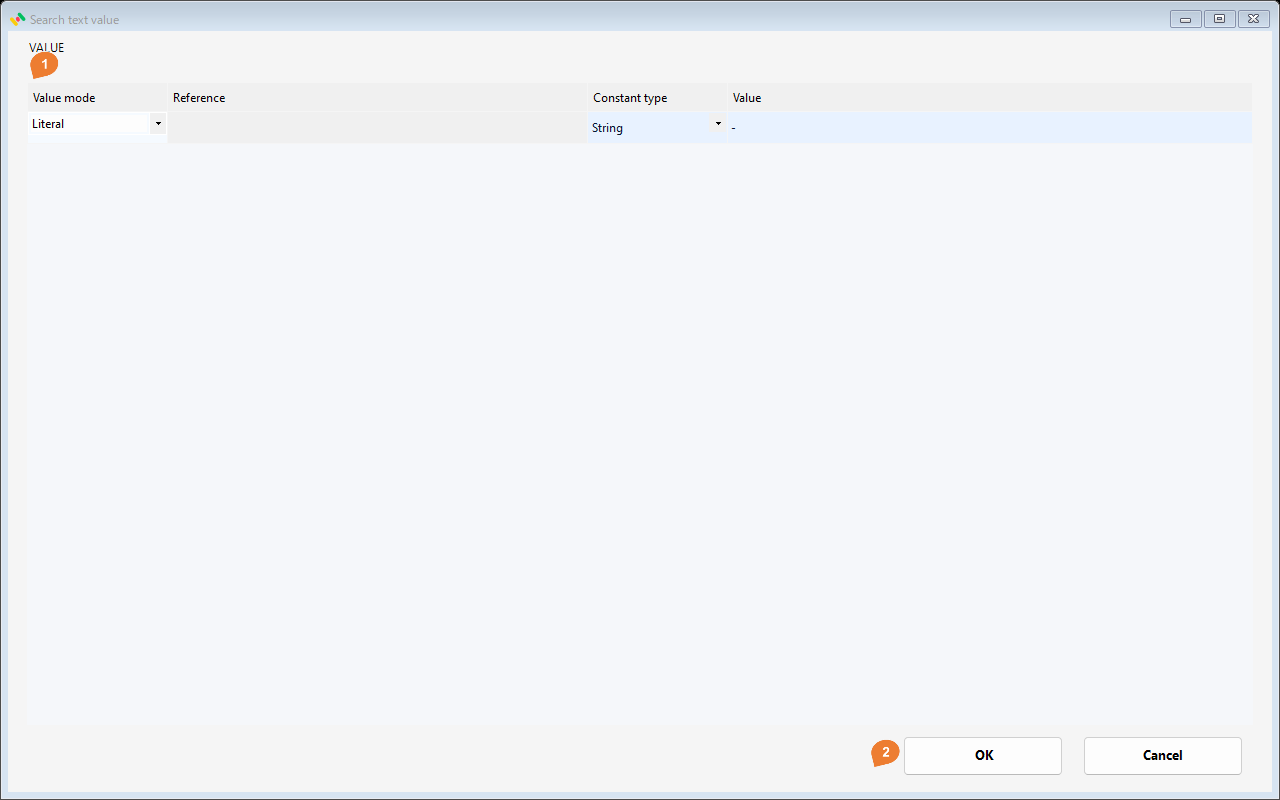
In child area 1, set the mode, reference, literal type, and value as applicable; use 2, OK, to return. Column and Bind references use the dropdown. Literal values do not use Reference.
Notes
All occurrences are replaced. Search text is literal, not a regular expression. Ignore case changes matching behavior. The search string must not be empty.
RegexReplace
Replace a pattern, such as runs of whitespace.
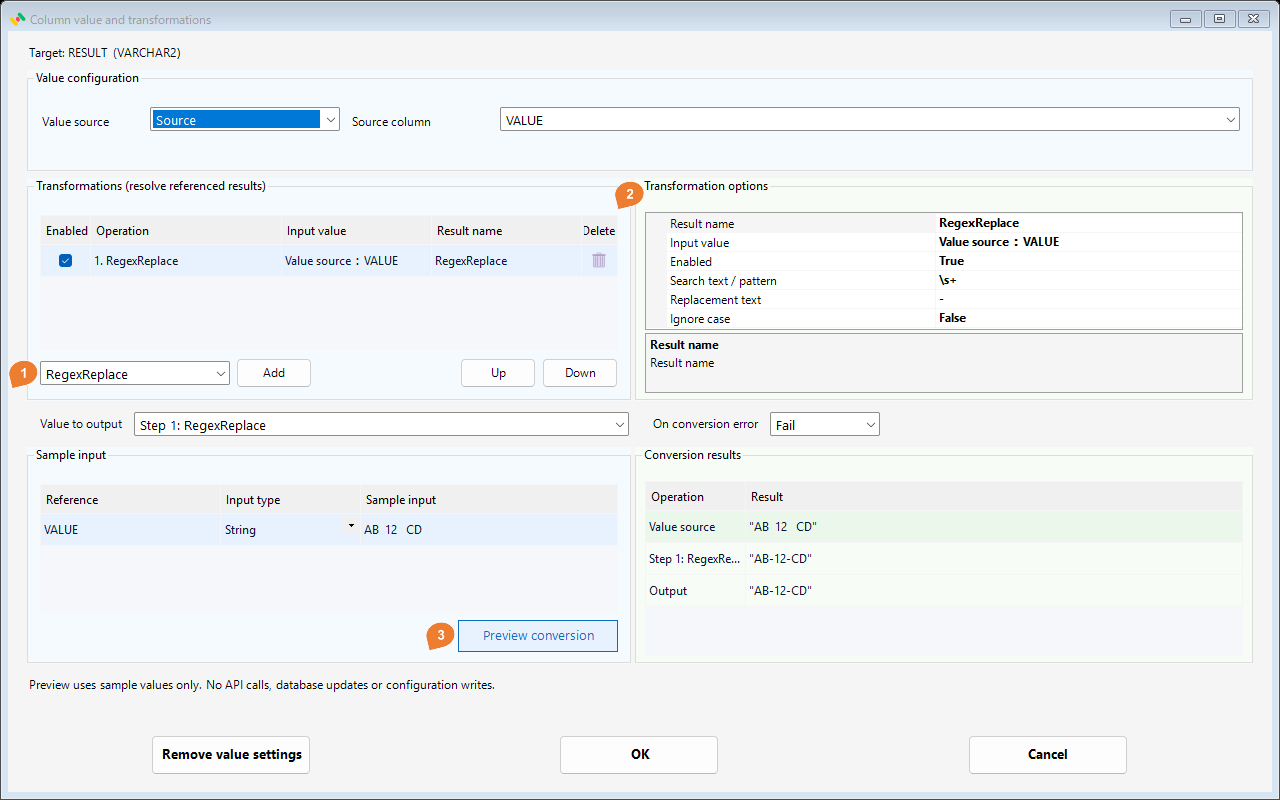
Configure
Enter \s+ as Search text / pattern and - as Replacement text. Enter one backslash in the UI.
| Setting | Example |
|---|---|
| Search text / pattern | \s+ |
| Replacement text | - |
| Ignore case | False |
Try it
| Sample input | Final result |
|---|---|
VALUE = "AB 12 CD" |
"AB-12-CD" |
Copy the following into Sample input for VALUE and choose Input type String. This example uses spaces only, with no tabs.
AB 12 CD
There are two spaces between AB and 12, and three between 12 and CD. Enter \s+ exactly as shown in Search text / pattern, using one backslash. Enter - in Replacement text, then click Preview conversion to obtain AB-12-CD.
In the Japanese screenshot, the backslash may look like a yen sign. The actual character is the ASCII backslash (U+005C); copy \s+ from this page. A full-width yen sign is a different character.
Notes
The example replaces each run of spaces with one hyphen. \s+ also matches actual tabs, line breaks, and other whitespace. Typing the two characters \t or \n into Sample input does not create a tab or line break. Patterns use .NET regular expressions; replacement text can reference capture groups with $1. Invalid patterns or a regex timeout cause a conversion error.
Substring
Extract a fixed range from a code.
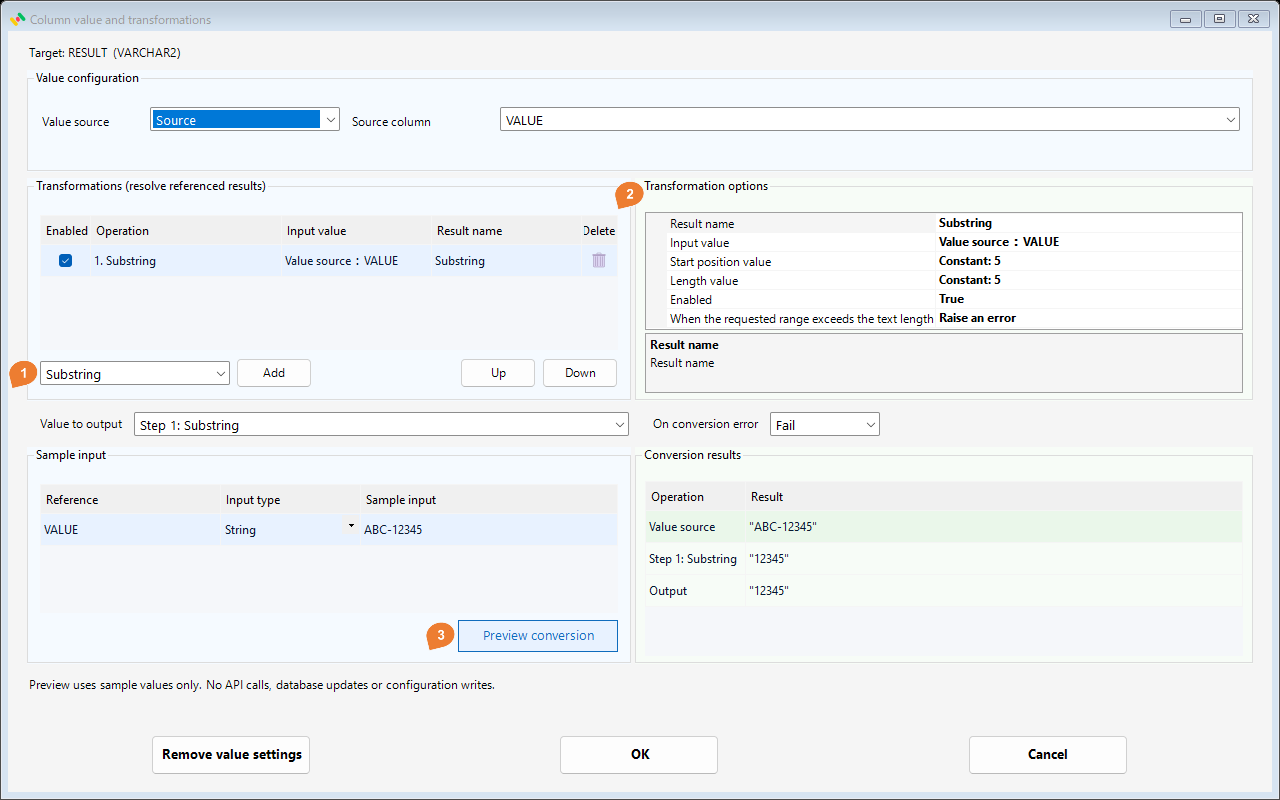
Configure
Set Start position value and Length value to Number literals of 5. Either parameter can also come from a column or earlier result.
| Setting | Example |
|---|---|
| Start position value | Constant: 5 |
| Length value | Constant: 5 |
| When the requested range exceeds the text length | Raise an error (default) / Return NULL |
Try it
| Sample input | Final result |
|---|---|
VALUE = "ABC-12345" |
"12345" |
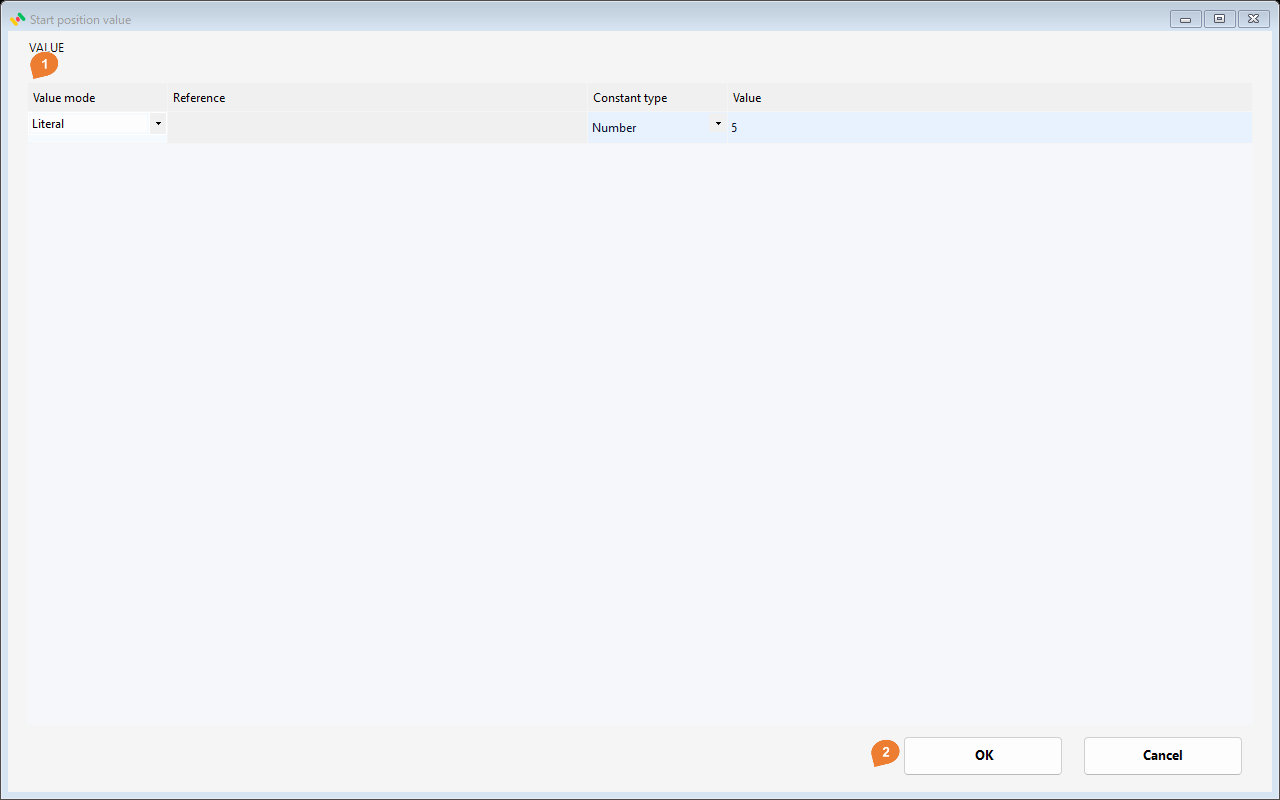
In child area 1, set the mode, reference, literal type, and value as applicable; use 2, OK, to return. Column and Bind references use the dropdown. Literal values do not use Reference.
Notes
Positions start at 1. A length of 0 at a valid start position returns an empty string. When a range exceeds the input, the selected out-of-range action applies. The range is never automatically shortened to the available characters.
For example, reading five characters from position 1 of ABC causes a conversion error with Raise an error, or returns NULL with Return NULL. A later Replace blanks and NULL step can replace that NULL with a chosen value.
This choice applies only to an unavailable range. Invalid settings, such as a start position of 0 or a negative length, remain errors. The form's On conversion error setting handles errors raised by Raise an error and other conversion failures.
RegexExtract
Extract part of a value using a pattern.
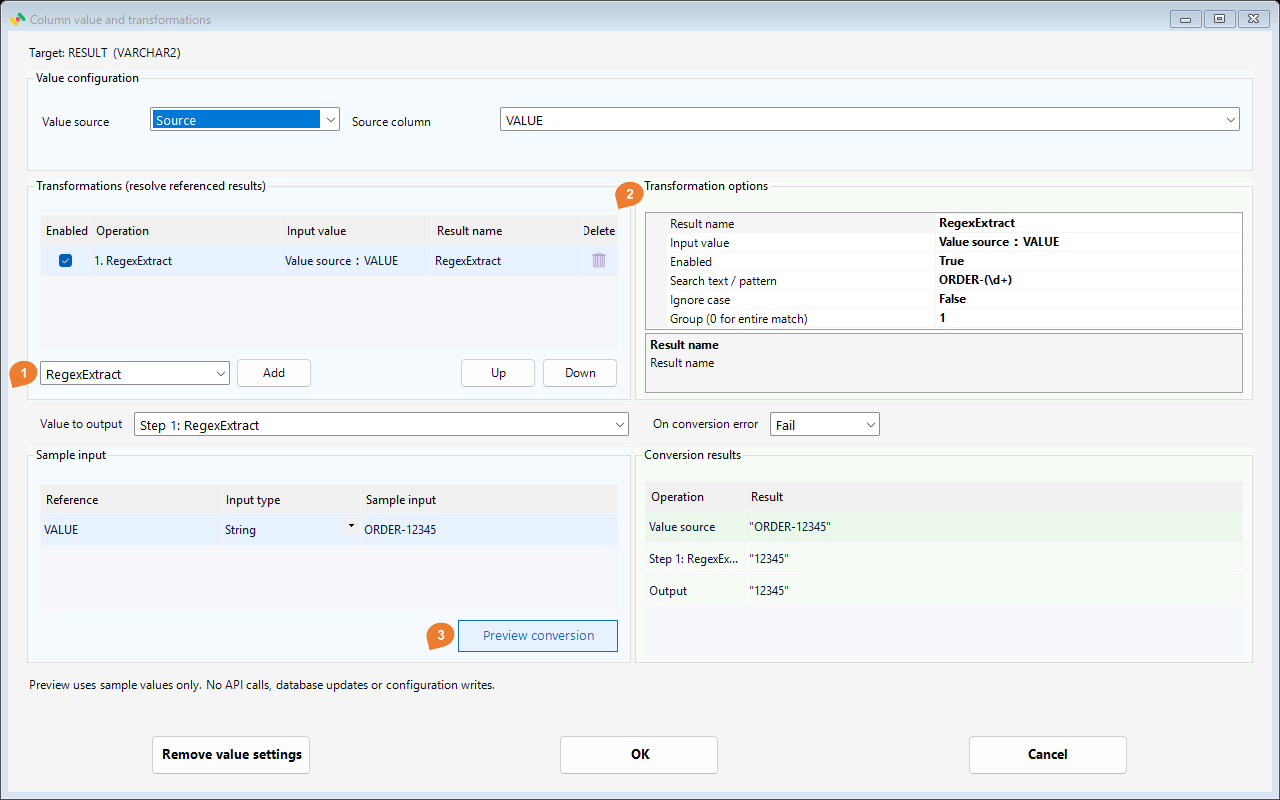
Configure
Use pattern ORDER-(\d+) and Group 1 to extract the captured digits.
| Setting | Example |
|---|---|
| Search text / pattern | ORDER-(\d+) |
| Ignore case | False |
| Group (0 for entire match) | 1 |
Try it
| Sample input | Final result |
|---|---|
VALUE = "ORDER-12345" |
"12345" |
Notes
Only the first match is used. Group 0 is the whole match; higher numbers select capture groups. No match, a missing group, or an unsuccessful group causes an error.
Concat
Join columns, literals, and transformed results into one string.
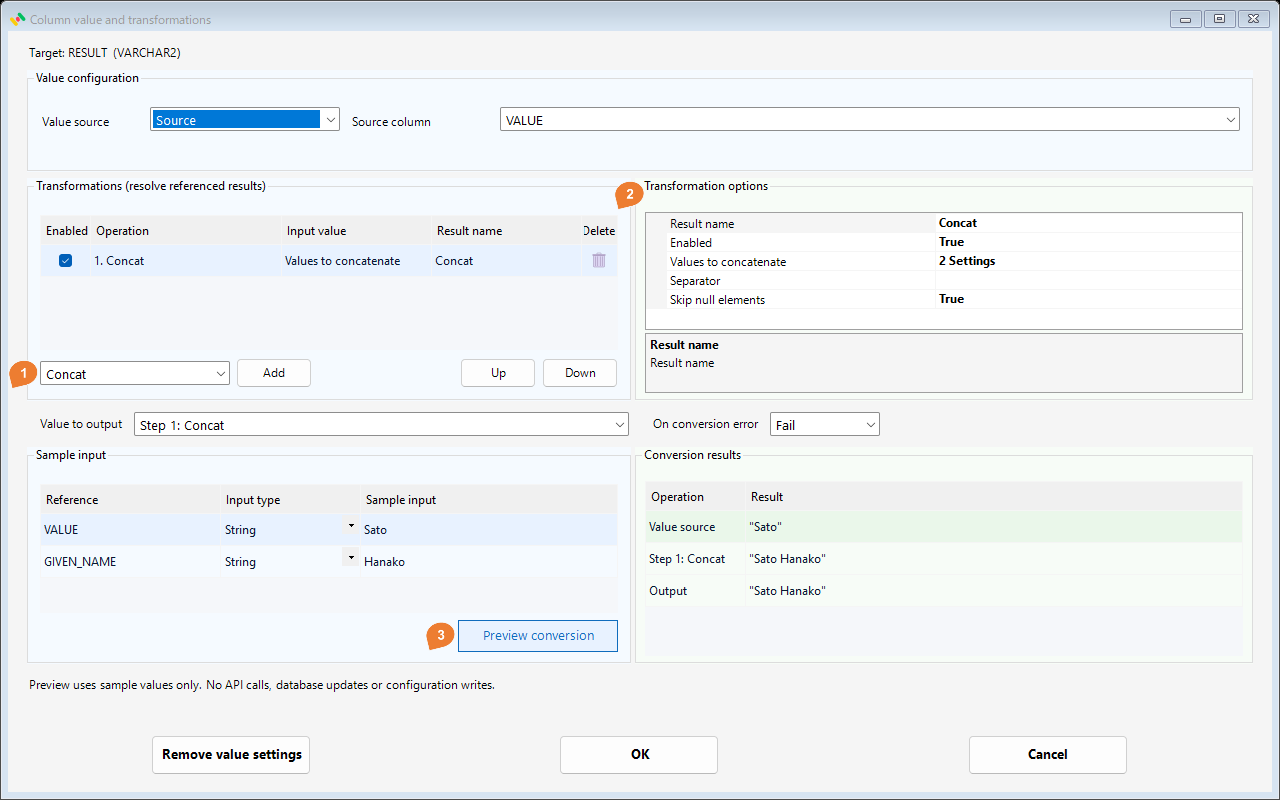
Configure
Open Values to concatenate with “…”. Add source columns VALUE and GIVEN_NAME in that order. Enter one actual space as Separator.
| Setting | Example |
|---|---|
| Values to concatenate | 2 Settings |
| Separator | |
| Skip null elements | True |
Try it
| Sample input | Final result |
|---|---|
VALUE = "Sato"GIVEN_NAME = "Hanako" |
"Sato Hanako" |
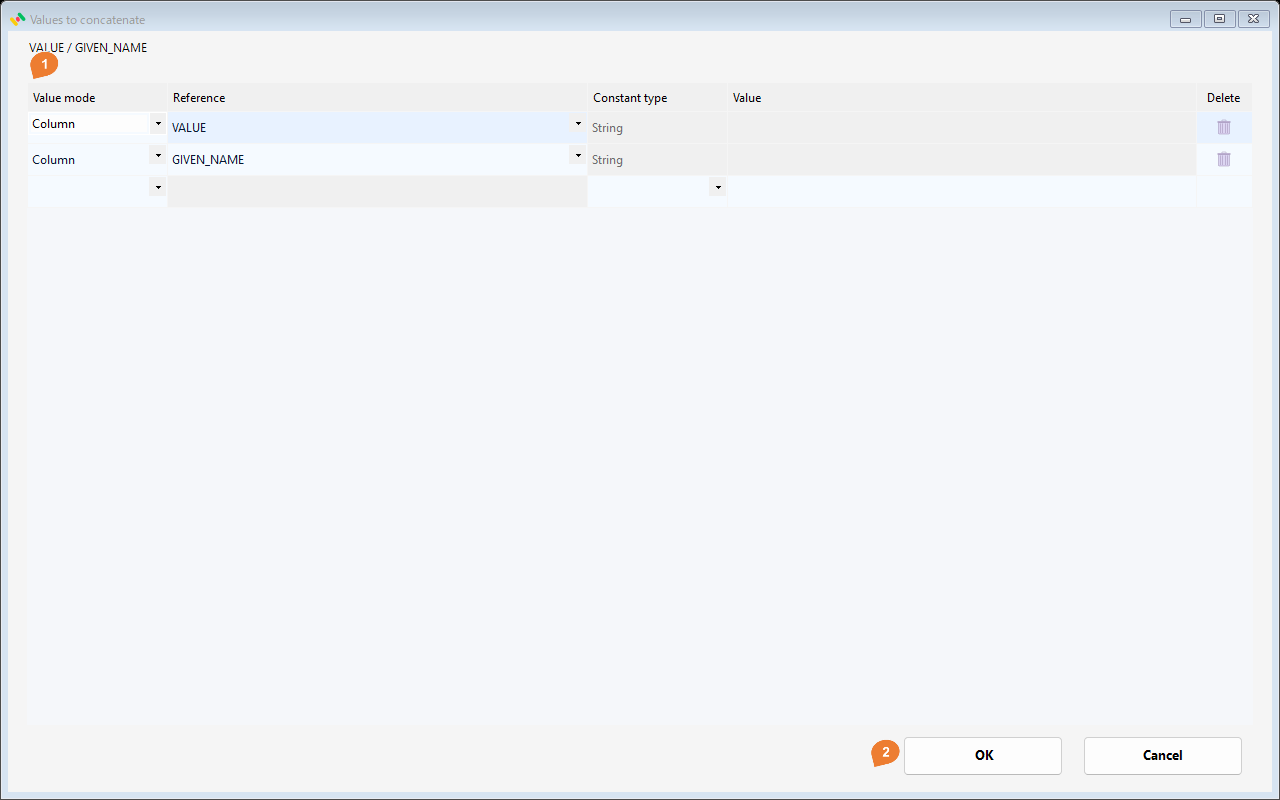
In child area 1, set the mode, reference, literal type, and value as applicable; use 2, OK, to return. Column and Bind references use the dropdown. Literal values do not use Reference.
Notes
Values are joined in list order. A blank separator inserts no characters. With Skip null elements = True, only NULLs are removed; empty strings remain. If it is False and any element is NULL, the result is NULL.
Split
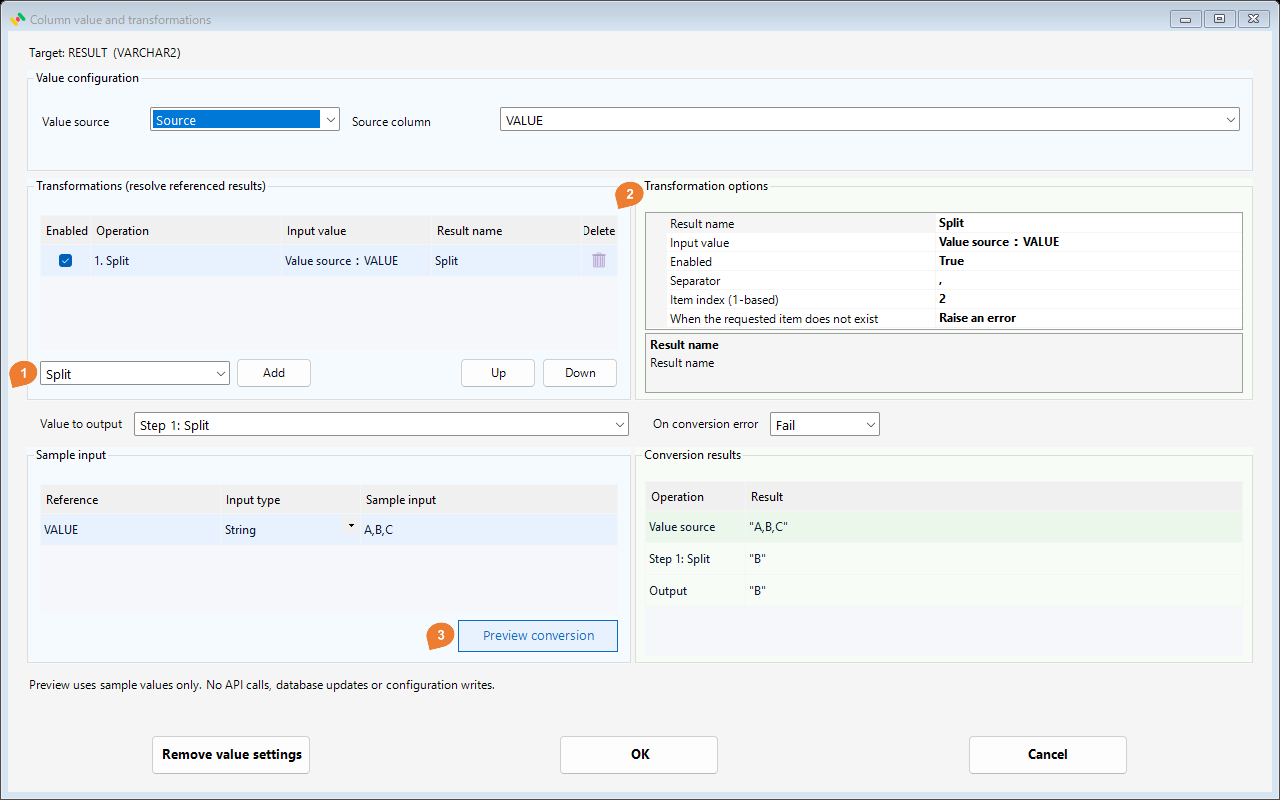
Retrieve one item from a delimited string.
Configure
Set Separator to , and Item index to 2.
| Setting | Example |
|---|---|
| Separator | , |
| Item index (1-based) | 2 |
| When the requested item does not exist | Raise an error (default) / Return NULL |
Try it
| Sample input | Final result |
|---|---|
VALUE = "A,B,C" |
"B" |
Notes
The index starts at 1 and includes empty items: item 2 of A,,C is empty. Separator is a literal string, not a regex. This operation does not create additional rows or columns.
For example, requesting item 3 of aaa_bbb with separator _ causes a conversion error with Raise an error, or returns NULL with Return NULL. A later Replace blanks and NULL step can replace that NULL with a chosen value. An existing empty item remains an empty string regardless of this choice.
An index of 0 or less, or an empty separator, remains a configuration error. The form's On conversion error setting handles errors raised by Raise an error and other conversion failures.
ConvertType
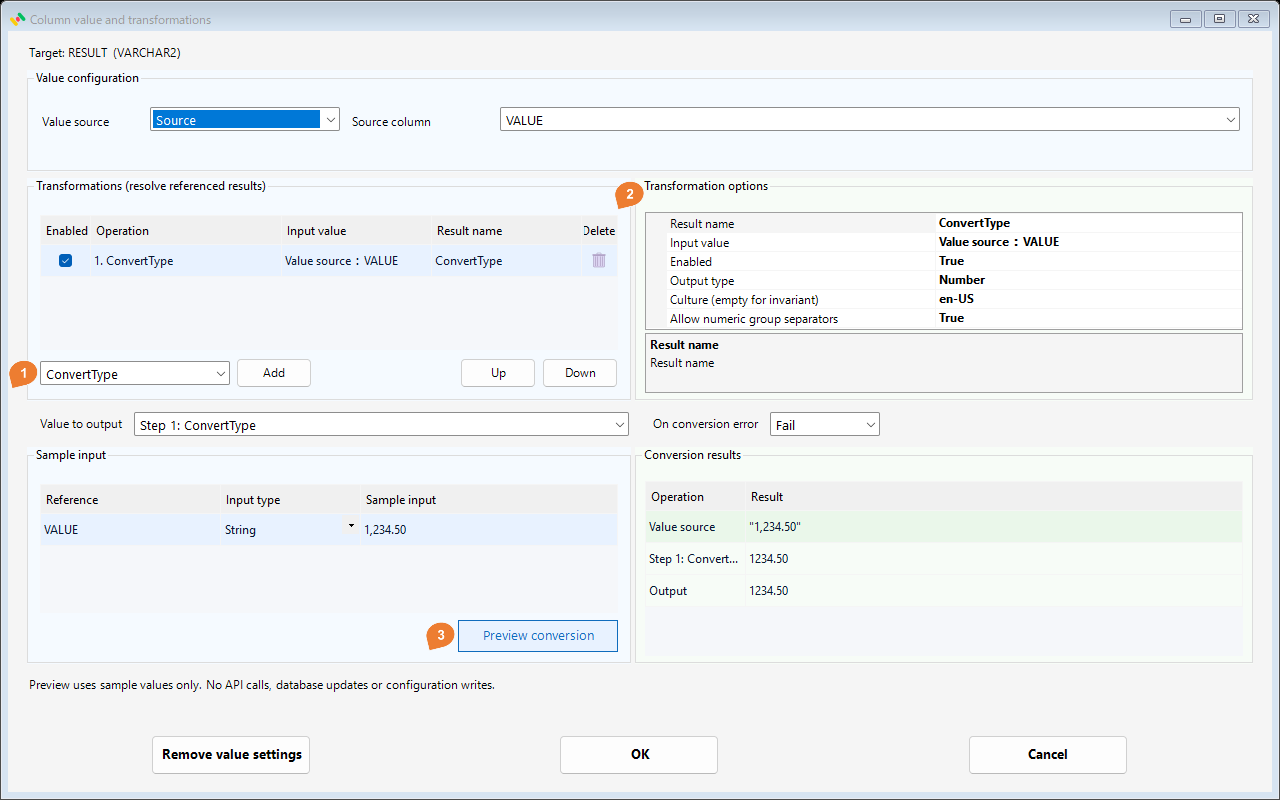
Convert values to another type, such as numeric text to Number.
Configure
Set Output type to Number, Culture to en-US, and Allow numeric group separators to True. Keep the sample input type String.
| Setting | Example |
|---|---|
| Output type | Number |
| Culture (empty for invariant) | en-US |
| Allow numeric group separators | True |
Try it
| Sample input | Final result |
|---|---|
VALUE = "1,234.50" |
1234.50 |
Notes
Output types are String, Number, Boolean, DateTime, and Null. An empty culture uses invariant formatting. Boolean conversion accepts true, false, 1, and 0. DateTime adds input-format and time-zone options. Use the DateTime transformation to create a date string with an explicit output format.
DateTime
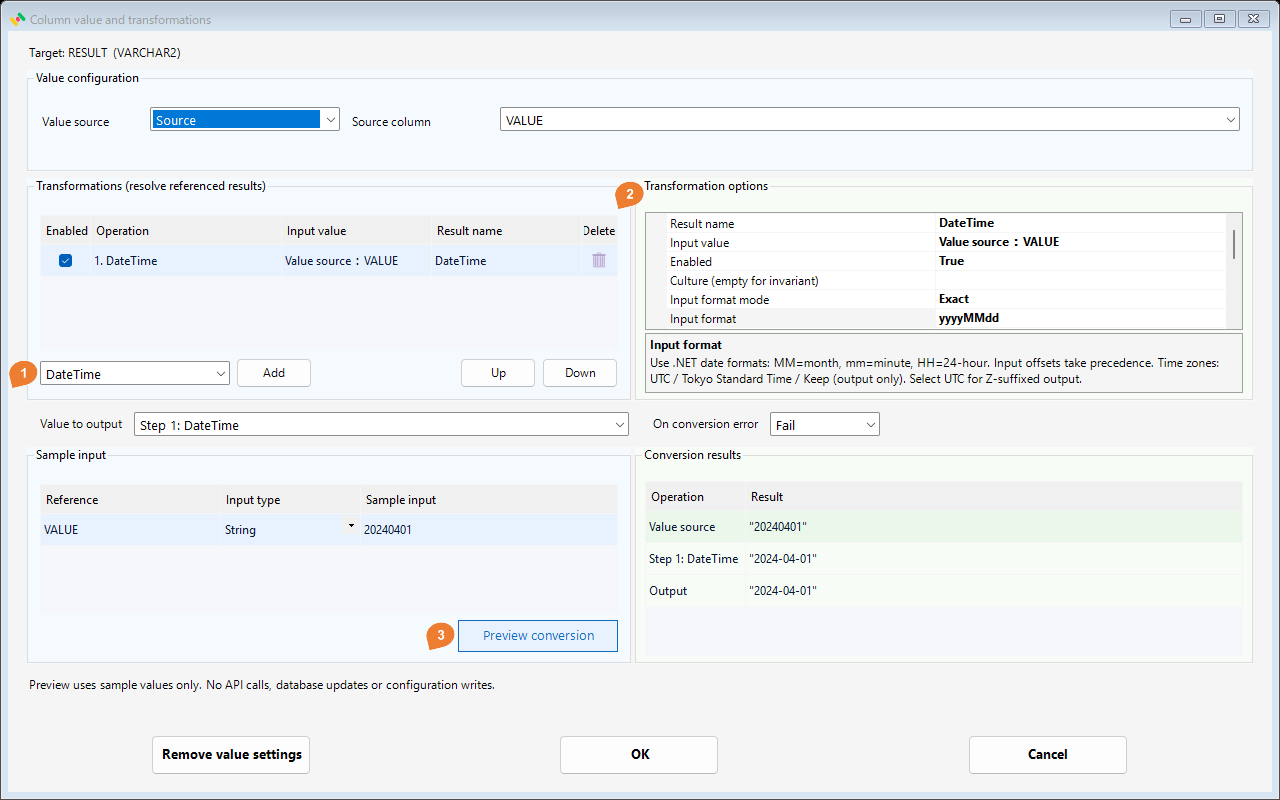
Configure date formatting, time-zone conversion, and date arithmetic.
Configure
Set Input format mode to Exact, Input format to yyyyMMdd, and Date only to True. Set Output mode to String and Output format to yyyy-MM-dd.
| Setting | Example |
|---|---|
| Culture (empty for invariant) | empty |
| Input format mode | Exact |
| Input format | yyyyMMdd |
| Date only | True |
| Input time zone | UTC |
| Output time zone | Keep |
| Output mode | String |
| Output format | yyyy-MM-dd |
| Years to add | 0 |
| Months to add | 0 |
| Days to add | 0 |
| Hours to add | 0 |
| Minutes to add | 0 |
| Seconds to add | 0 |
Try it
| Sample input | Final result |
|---|---|
VALUE = "20240401" |
"2024-04-01" |
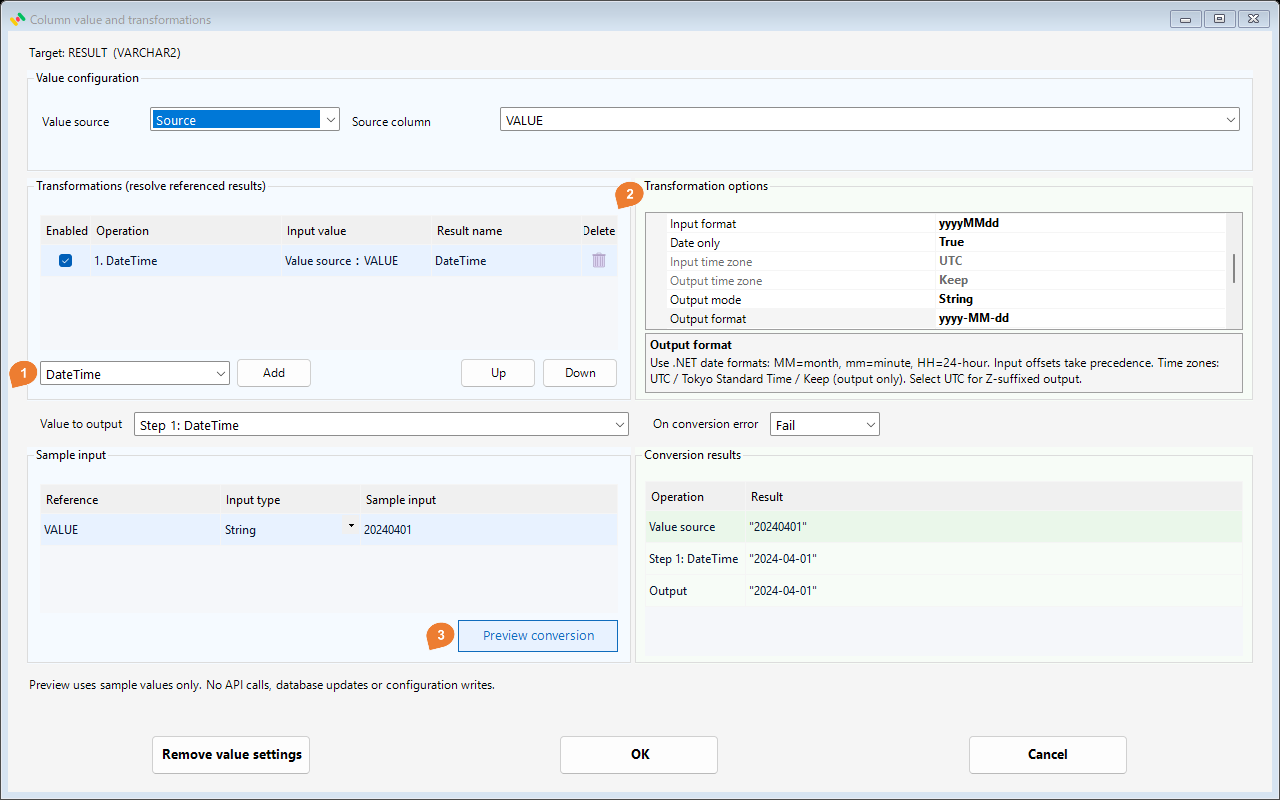
Input and output options are in the same property panel. Scroll it to reach Output mode and Output format.
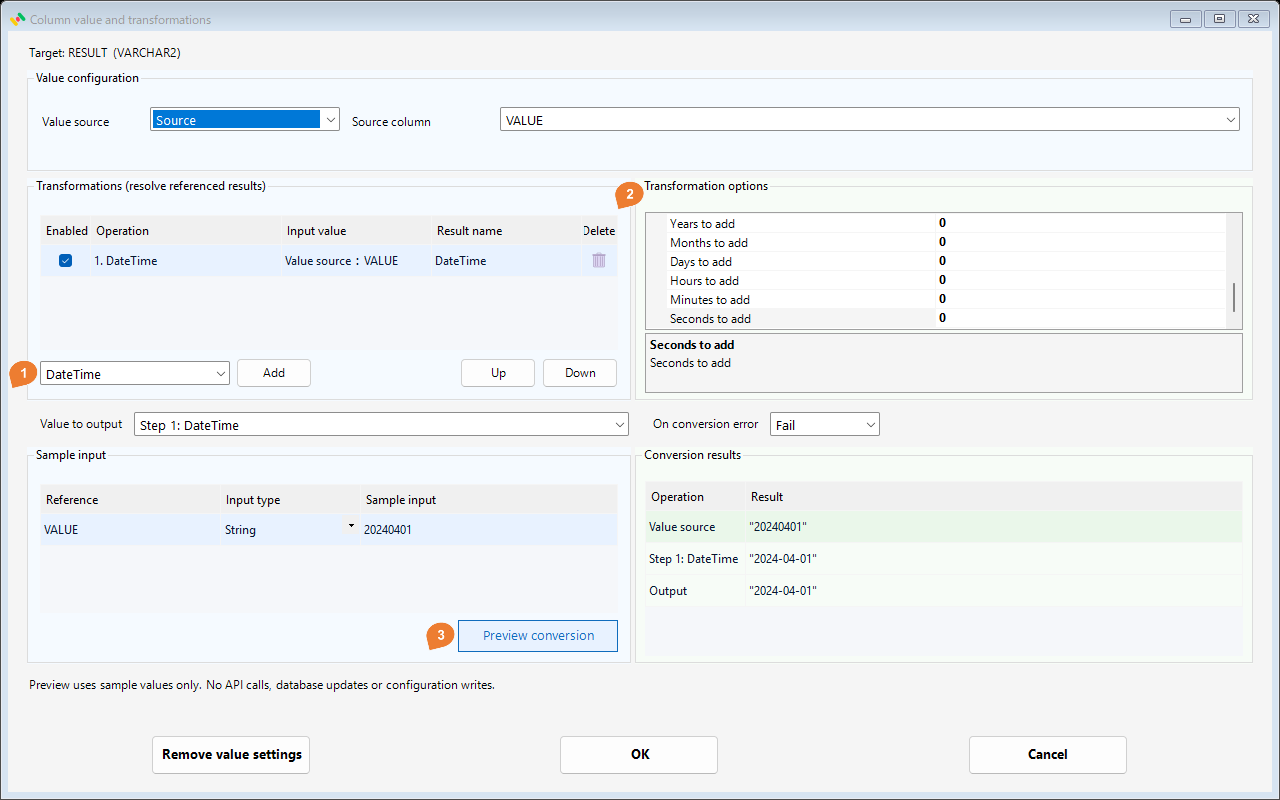
Additions apply in year, month, day, hour, minute, second order before output-zone conversion. Negative values subtract; Days to add = 1 selects the next day.
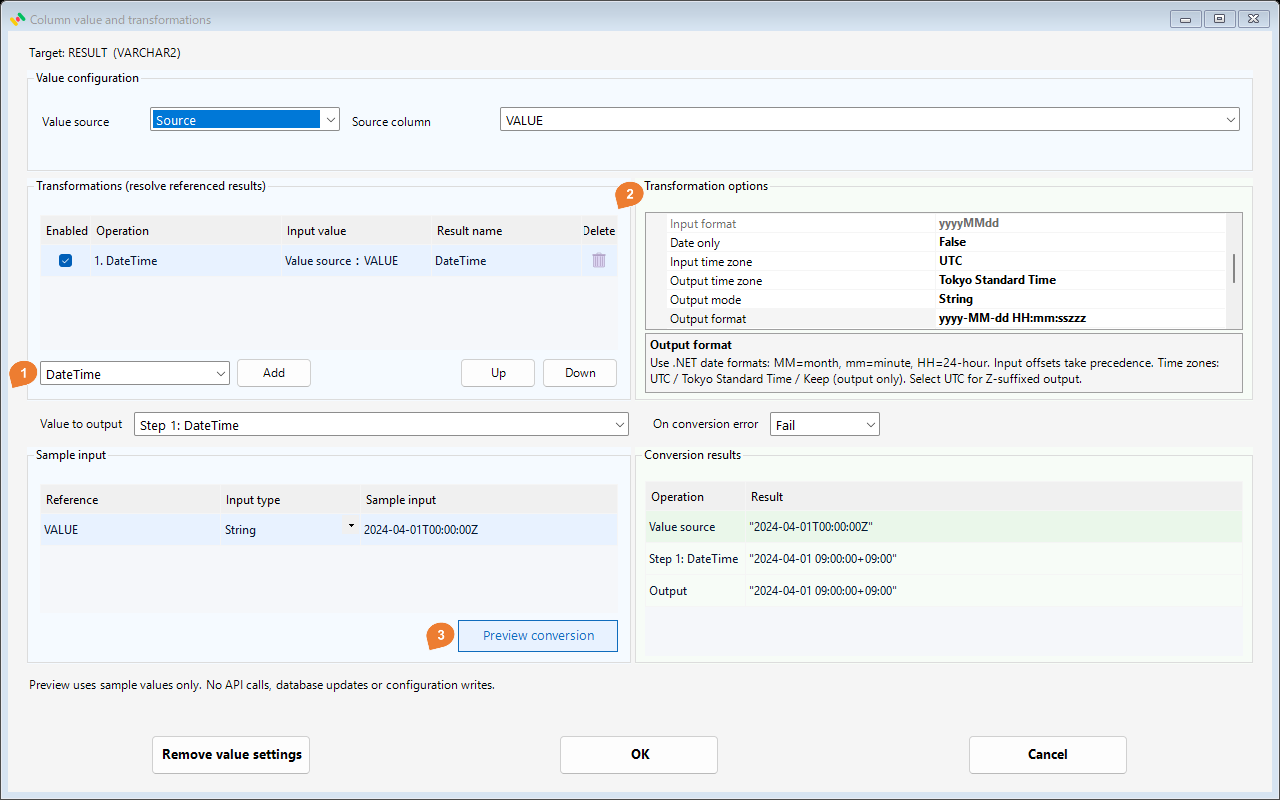
For time-zone conversion, input 2024-04-01T00:00:00Z, Output time zone = Tokyo Standard Time, and Output format = yyyy-MM-dd HH:mm:sszzz produce 2024-04-01 09:00:00+09:00. An input Z or offset takes precedence; otherwise Input time zone is used. Keep preserves the input offset. Choose UTC for a Z-suffixed output. Invalid or ambiguous daylight-saving times cause errors.
Notes
MM means month, mm means minute, and HH uses a 24-hour clock. Custom formats are accepted. Typed output does not use Output format. For Date only, keep the output time zone as Keep and hours/minutes/seconds additions at 0.
Calculate
Calculate using two values, such as unit price multiplied by quantity.
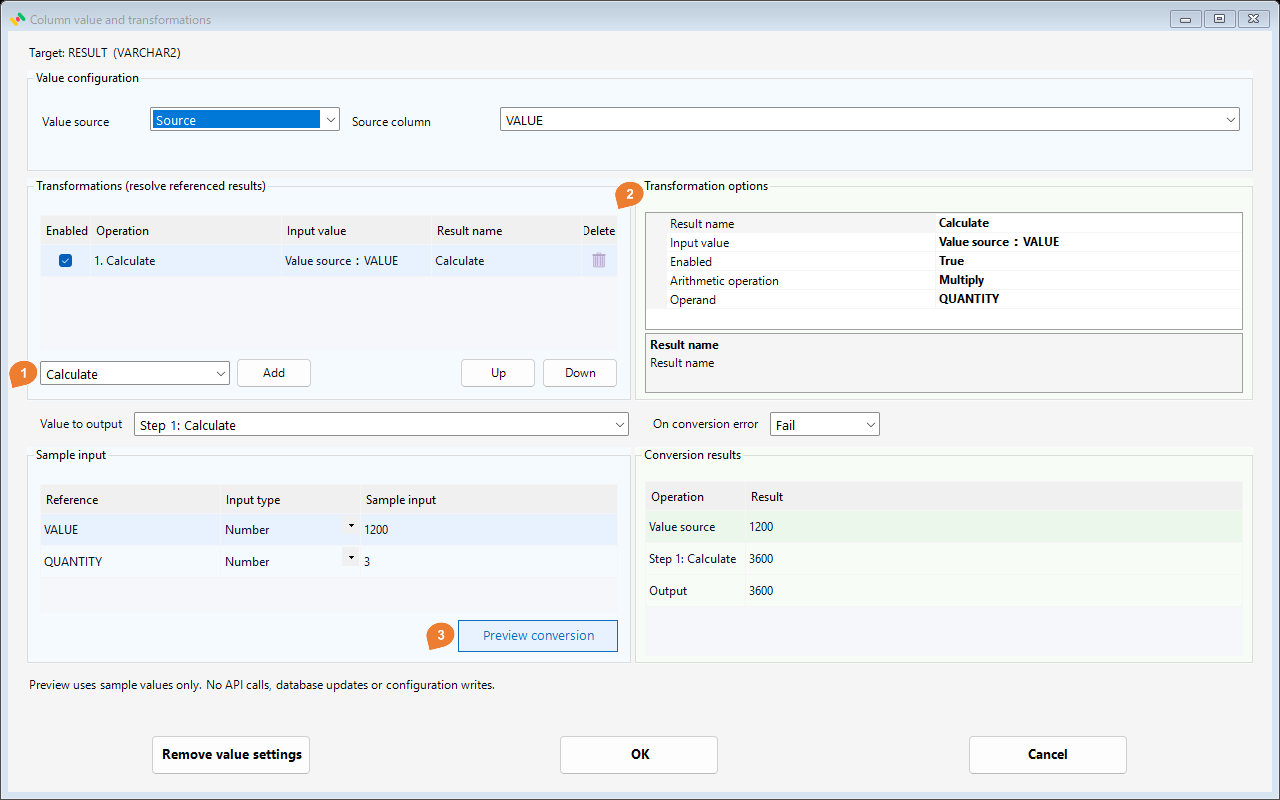
Configure
Use VALUE as the unit price, select Multiply, and open Operand with “…”. Choose Column and select QUANTITY.
| Setting | Example |
|---|---|
| Arithmetic operation | Multiply |
| Operand | QUANTITY |
Try it
| Sample input | Final result |
|---|---|
VALUE = 1200QUANTITY = 3 |
3600 |
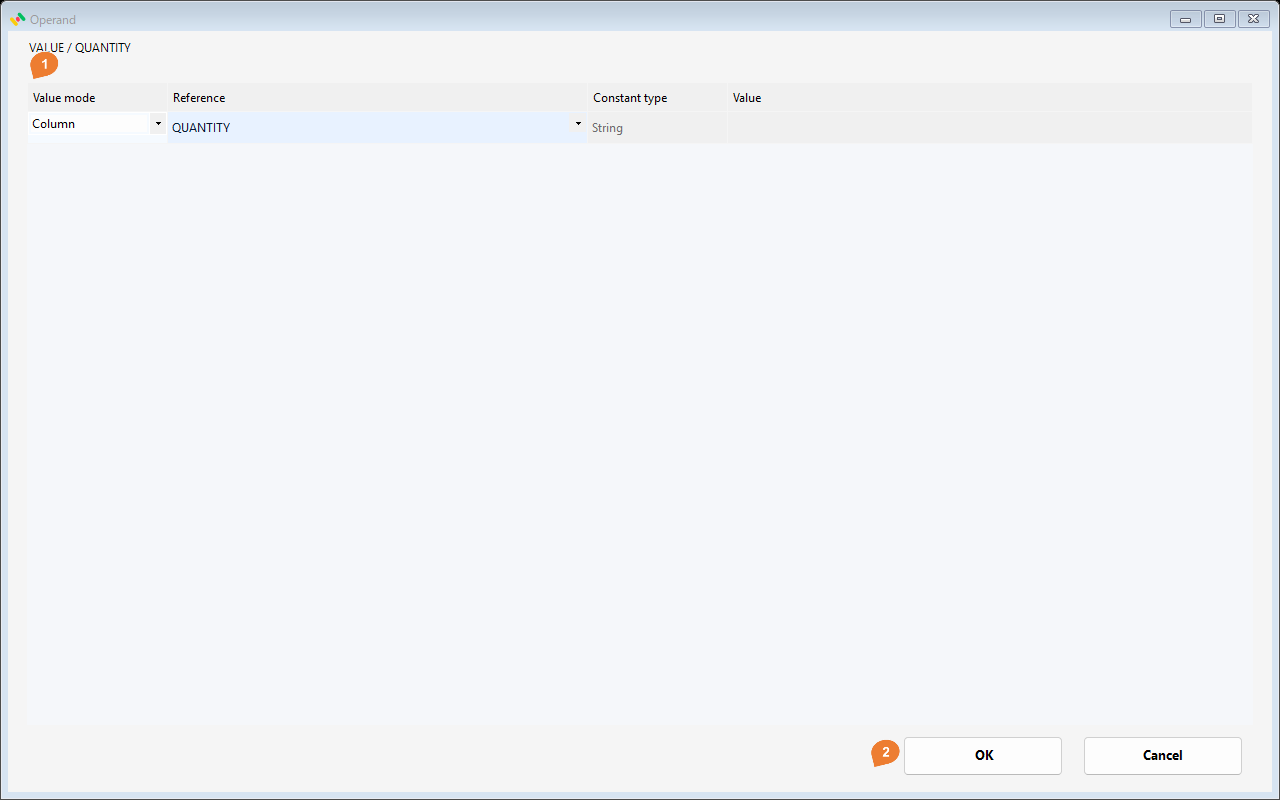
In child area 1, set the mode, reference, literal type, and value as applicable; use 2, OK, to return. Column and Bind references use the dropdown. Literal values do not use Reference.
Notes
Operations are Add, Subtract, Multiply, Divide, and Remainder. Subtraction and division use input minus/divided by operand. A NULL input or operand produces NULL. Division/remainder by zero and numeric overflow cause errors.
Round
Round a number to a specified number of decimal places.
Configure
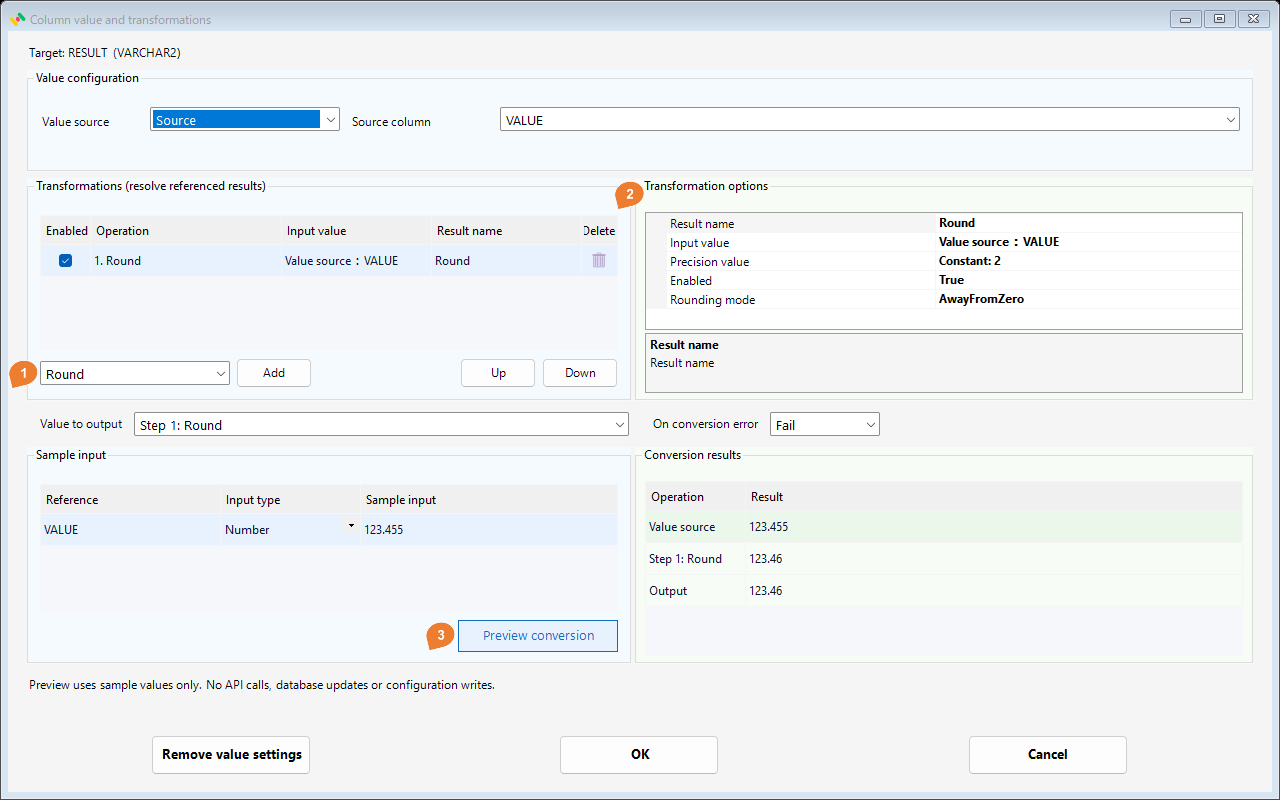
Set Precision value to the Number literal 2 and Rounding mode to AwayFromZero. Precision may also come from a column or earlier result.
| Setting | Example |
|---|---|
| Precision value | Constant: 2 |
| Rounding mode | AwayFromZero |
Try it
| Sample input | Final result |
|---|---|
VALUE = 123.455 |
123.46 |
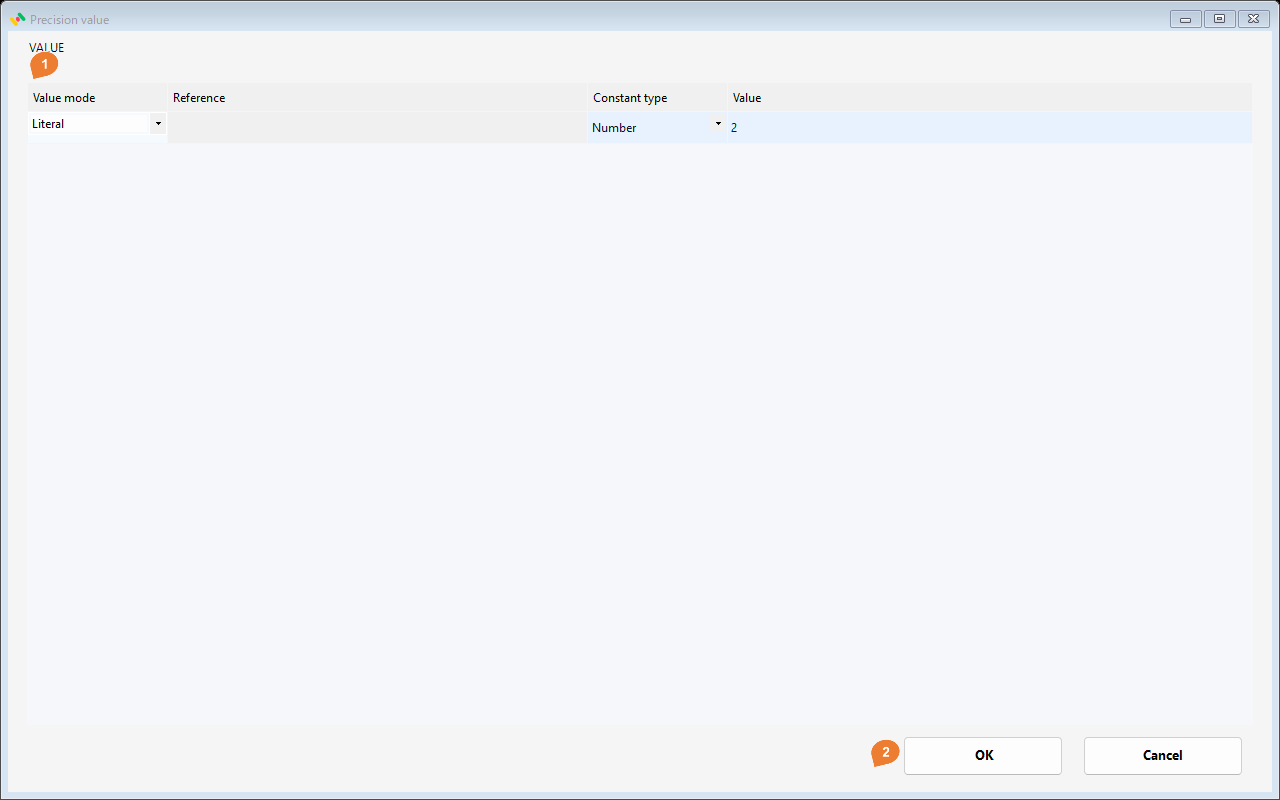
In child area 1, set the mode, reference, literal type, and value as applicable; use 2, OK, to return. Column and Bind references use the dropdown. Literal values do not use Reference.
Notes
Precision is 0–28 decimal places. AwayFromZero rounds midpoint values away from zero; ToEven chooses the even last digit. For 123.445 at two places, the results are 123.45 and 123.44 respectively.
Ceiling
Return the smallest integer greater than or equal to the input.
Configure
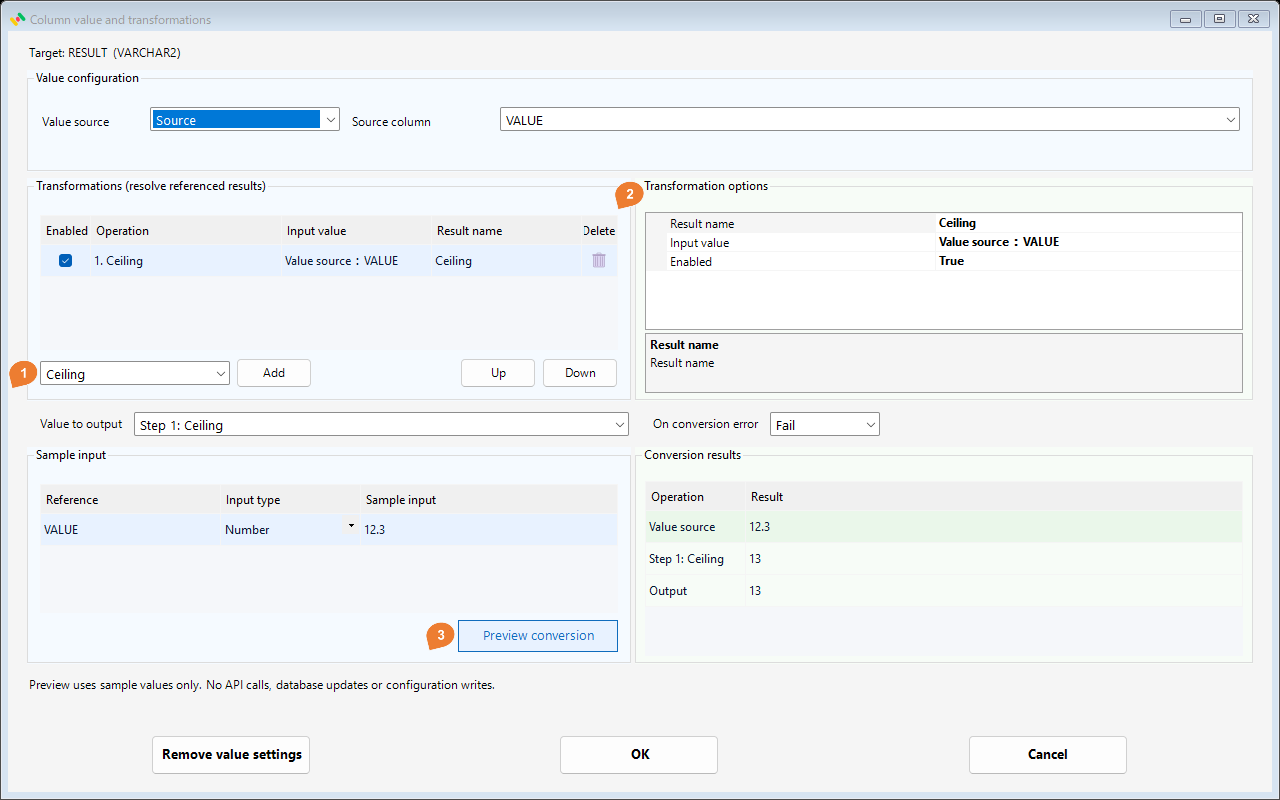
Select a numeric column or calculation result as Input value. Ceiling has no additional operation-specific options.
There are no operation-specific fields. Check the input value and selected output step.
Try it
| Sample input | Final result |
|---|---|
VALUE = 12.3 |
13 |
Notes
This rounds to an integer; it does not accept a decimal-place parameter. A negative value such as -12.3 becomes -12, rounding toward positive infinity.
Floor
Return the largest integer less than or equal to the input.
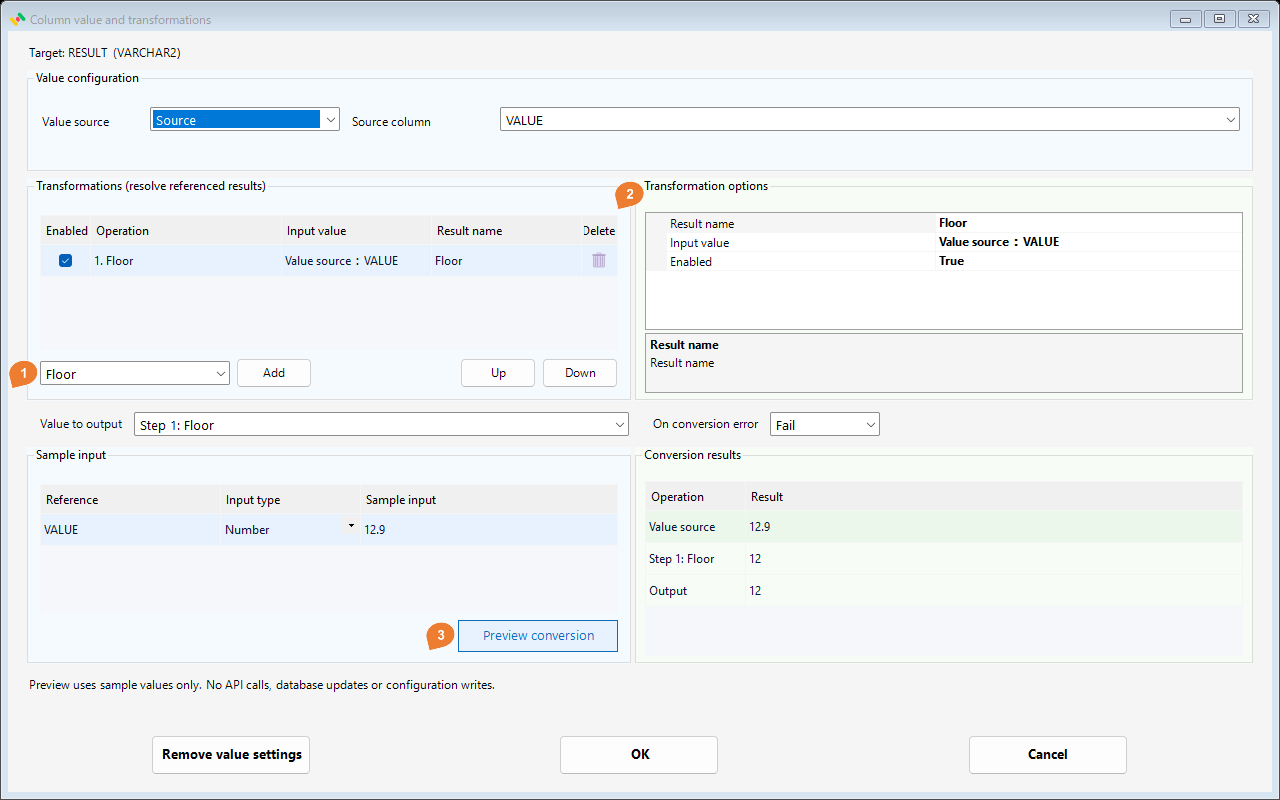
Configure
Select a numeric column or calculation result as Input value. Floor has no additional operation-specific options.
There are no operation-specific fields. Check the input value and selected output step.
Try it
| Sample input | Final result |
|---|---|
VALUE = 12.9 |
12 |
Notes
Floor rounds toward negative infinity rather than simply removing the fractional part. -12.3 becomes -13. Use Round when you need a specified decimal precision.
Condition
Choose an output value according to a condition.
Configure
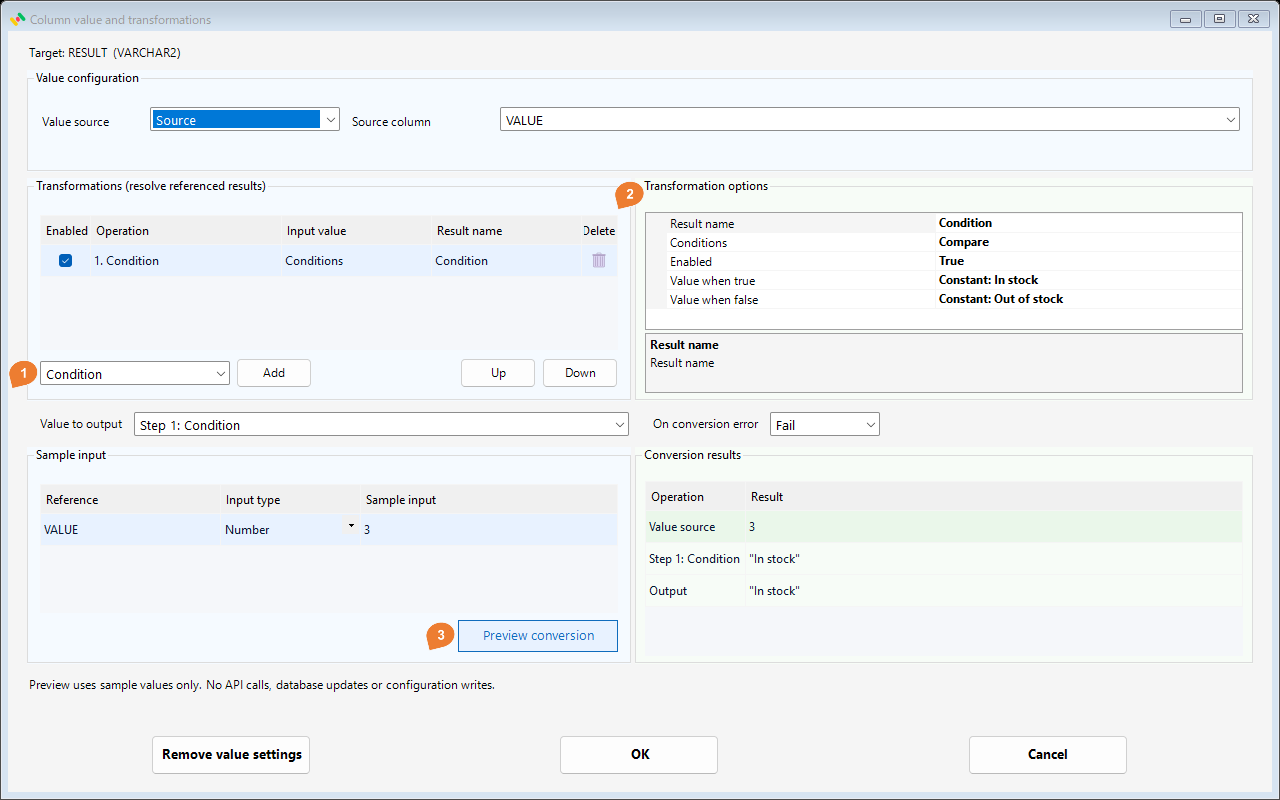
Open Conditions. Set Left value to Origin, Comparison to Greater, and Right value to the Number literal 0. Set Value when true to In stock and Value when false to Out of stock, both String literals.
| Setting | Example |
|---|---|
| Conditions | Compare |
| Value when true | Constant: In stock |
| Value when false | Constant: Out of stock |
Try it
| Sample input | Final result |
|---|---|
VALUE = 3 |
"In stock" |
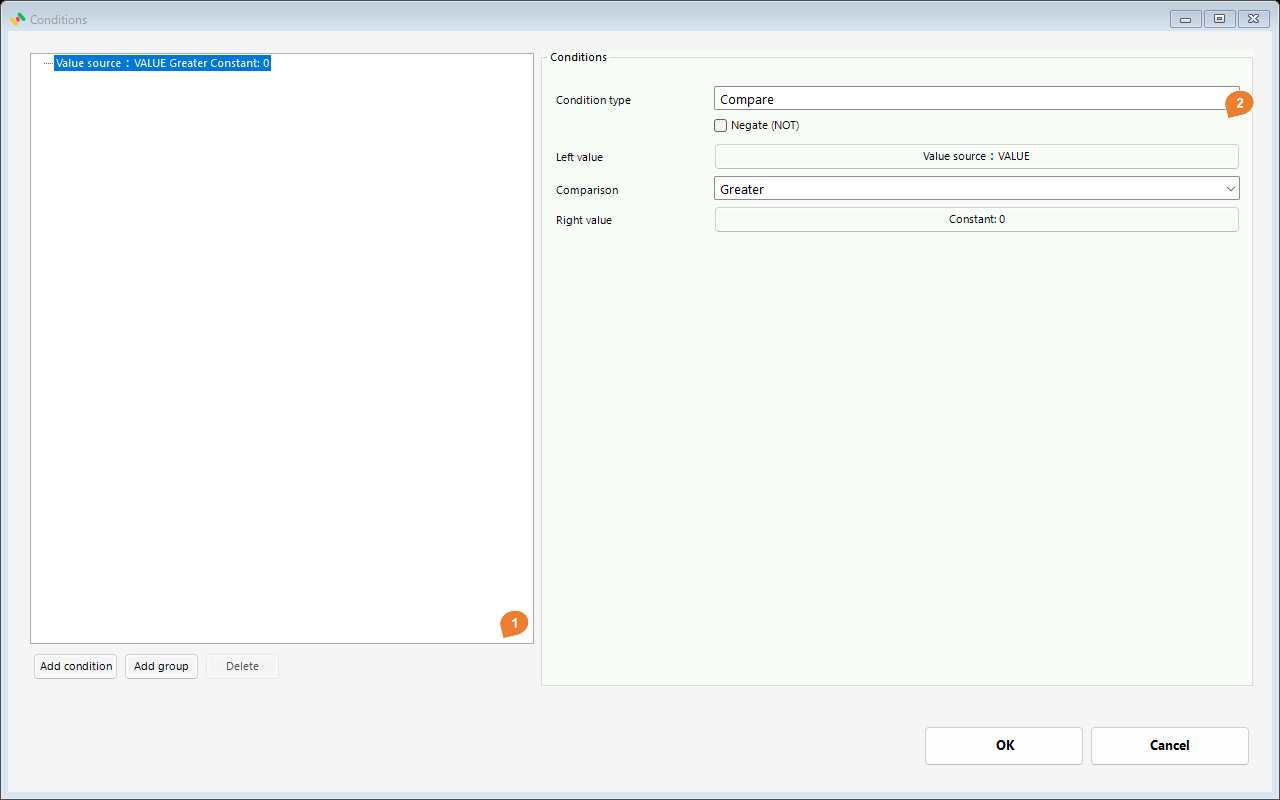
Child area 1 is the condition tree. Select a condition and use 2 to set its mode, left/right values, comparison, and NOT. Groups use All or Any and contain child conditions. Choose OK to return.
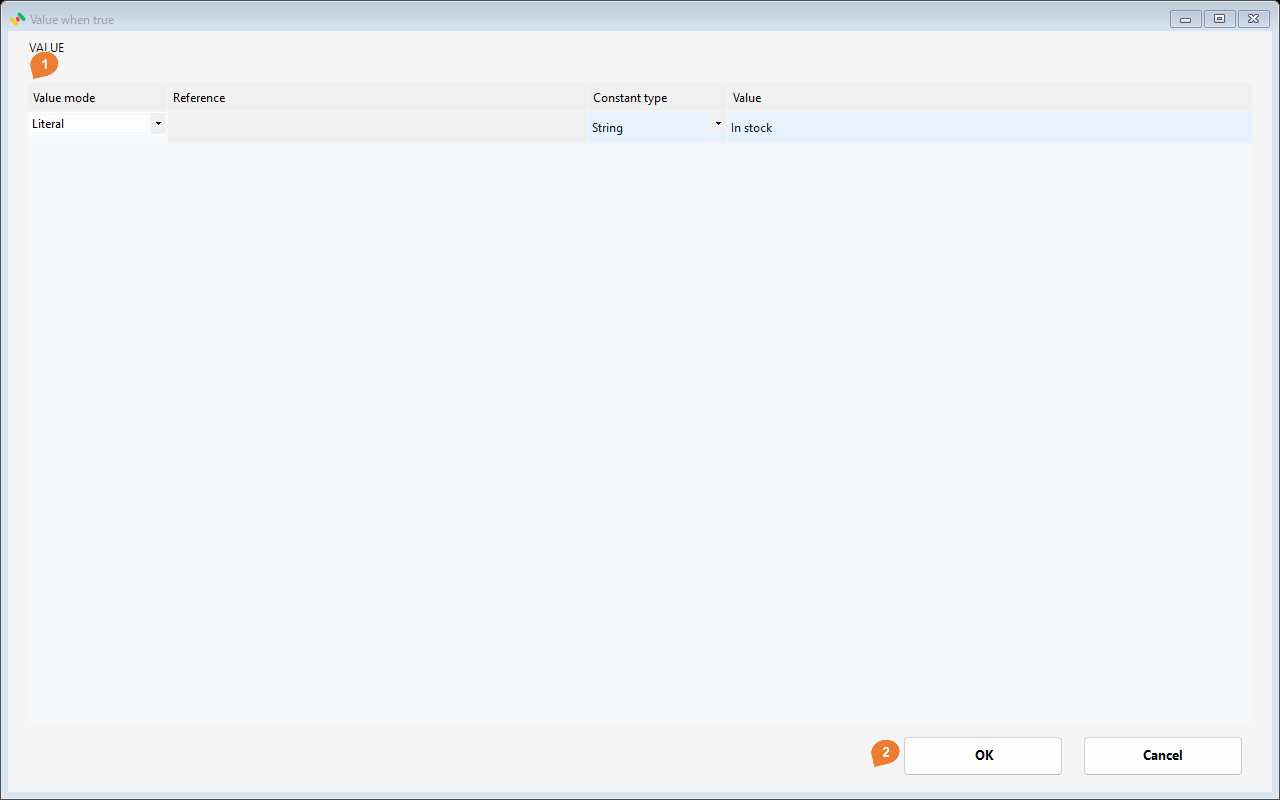
Open Value when true, choose Literal, type String, and enter In stock. Value when false uses the same editor.
Notes
Either branch may use a literal, column, bind variable, origin, or earlier result. At runtime only the selected branch value is evaluated. Use numeric types on both sides when you want a numeric comparison.
CodeMap
Translate codes between systems.
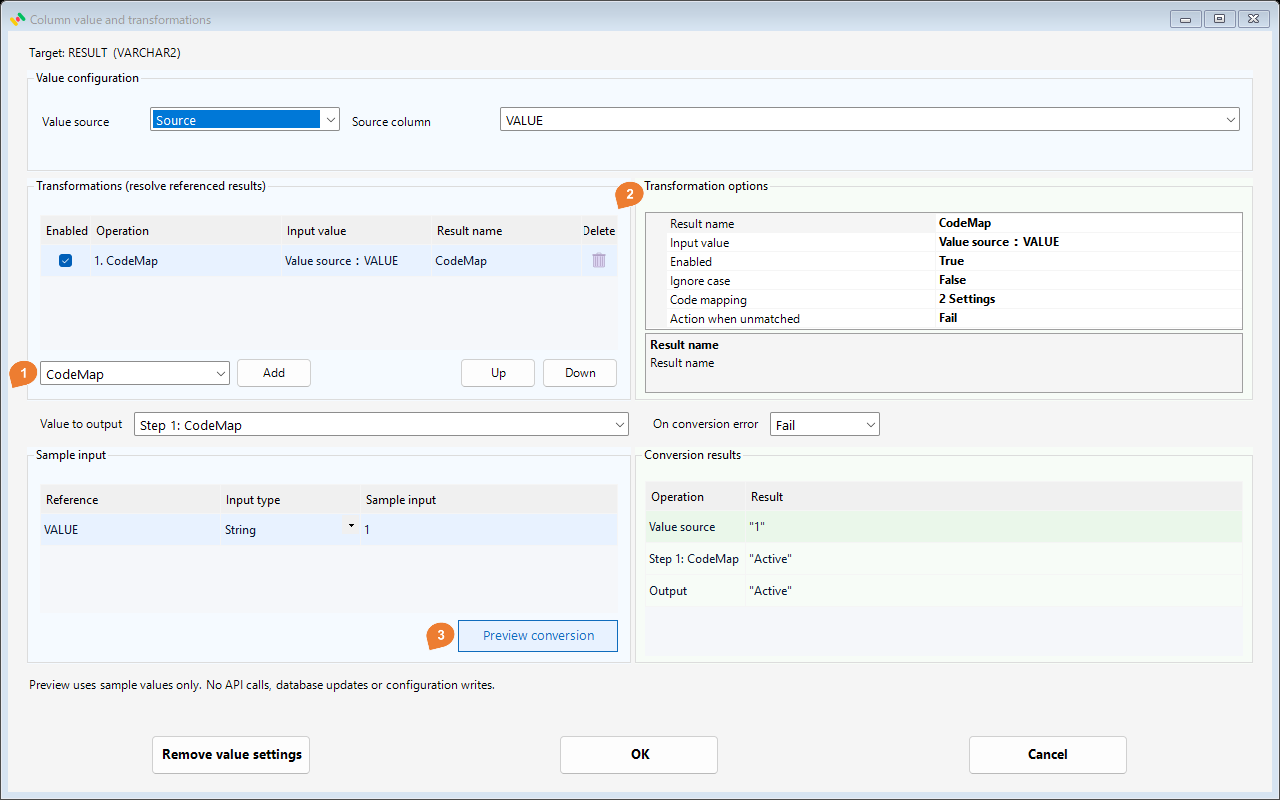
Configure
Open Code mapping. Map input code 1 to the String Active and code 0 to Inactive. Set Action when unmatched for values absent from the table.
| Setting | Example |
|---|---|
| Ignore case | False |
| Code mapping | 2 Settings |
| Action when unmatched | Fail |
Try it
| Sample input | Final result |
|---|---|
VALUE = "1" |
"Active" |
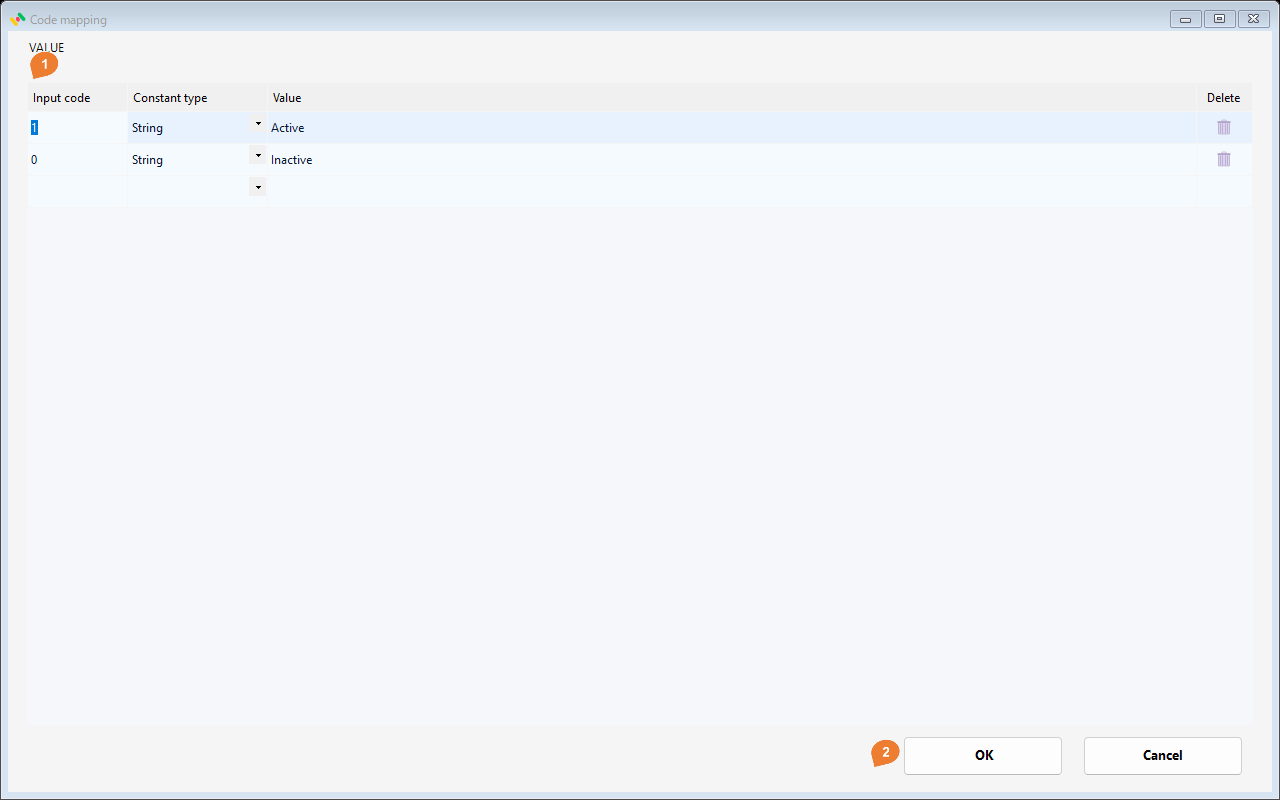
Use child area 1 to enter input codes and typed outputs, then 2, OK, to return. A row’s trash icon removes that mapping.
Notes
Unmatched actions are Fail, Keep, Null, and Default. Default lets you specify a replacement. Input codes must be unique, considering Ignore case. Treat codes with meaningful leading zeros as strings in both input and mapping.
Coalesce
Select the first non-NULL candidate from a list.
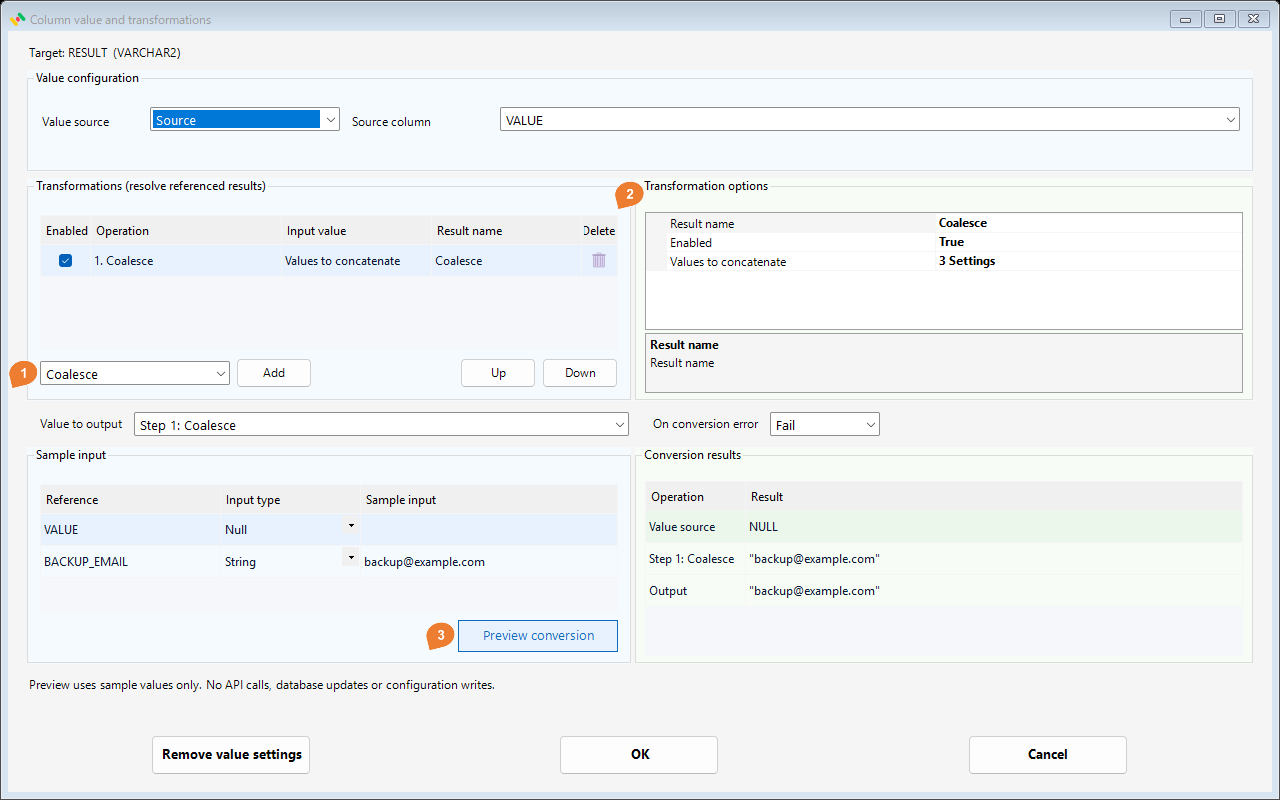
Configure
Open Values to concatenate and list VALUE, BACKUP_EMAIL, then the String literal unknown@example.com. For Coalesce, this field holds candidates; it does not concatenate strings.
| Setting | Example |
|---|---|
| Values to concatenate | 3 Settings |
Try it
| Sample input | Final result |
|---|---|
VALUE = NULLBACKUP_EMAIL = "backup@example.com" |
"backup@example.com" |
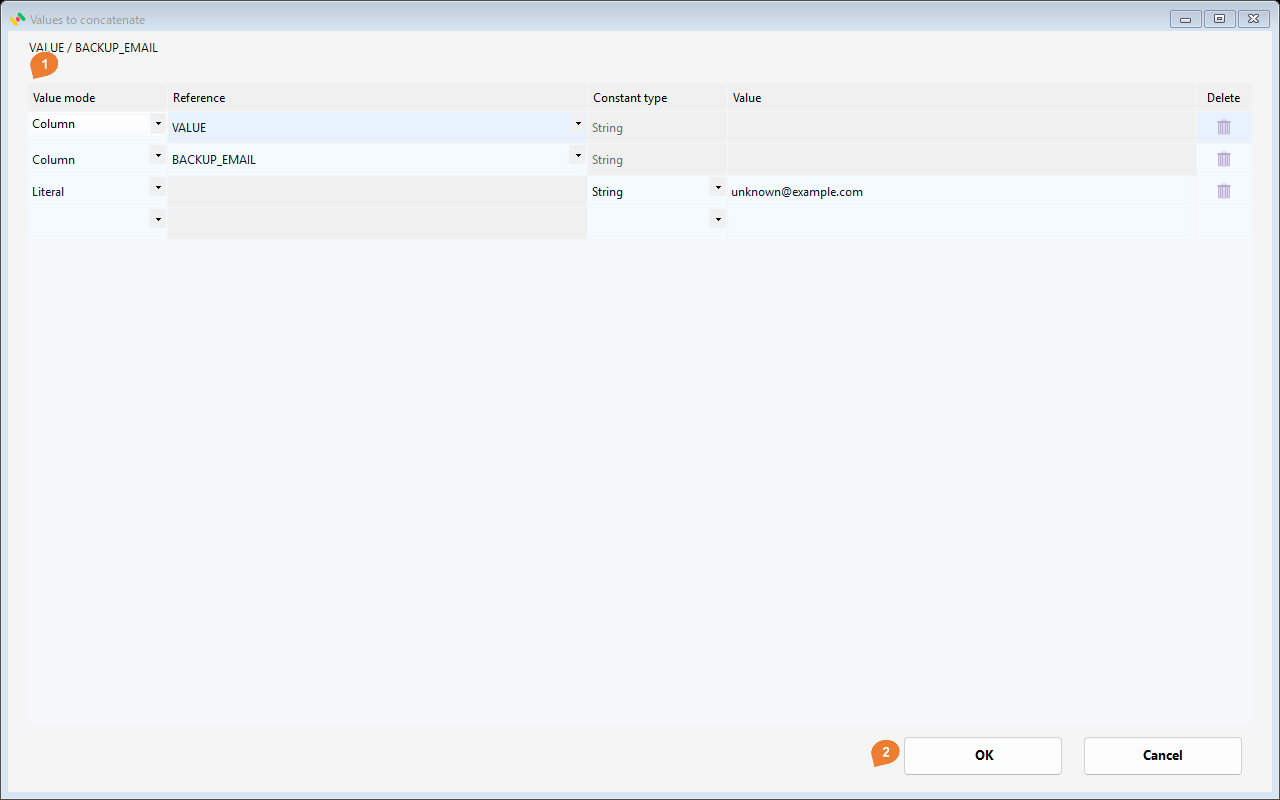
In child area 1, set the mode, reference, literal type, and value as applicable; use 2, OK, to return. Column and Bind references use the dropdown. Literal values do not use Reference.
Notes
Candidates are evaluated in order until a non-NULL value is found. Empty and whitespace-only strings count as values. If all candidates are NULL, the result is NULL. Numbers and earlier step results are also supported.
ConditionResult
Output whether a condition is true or false.
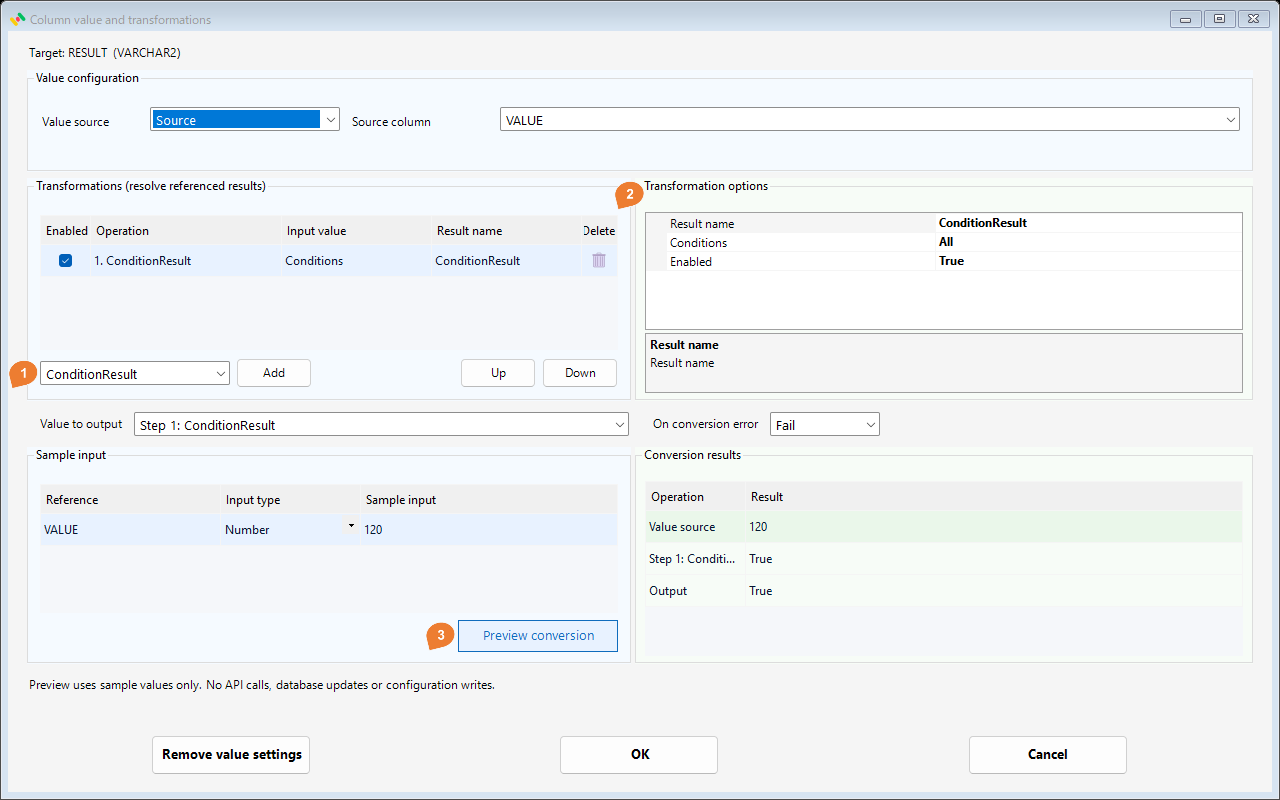
Configure
Open Conditions, choose All, and add two comparisons: Origin GreaterOrEqual 100 and Origin Less 200.
| Setting | Example |
|---|---|
| Conditions | All |
Try it
| Sample input | Final result |
|---|---|
VALUE = 120 |
True |
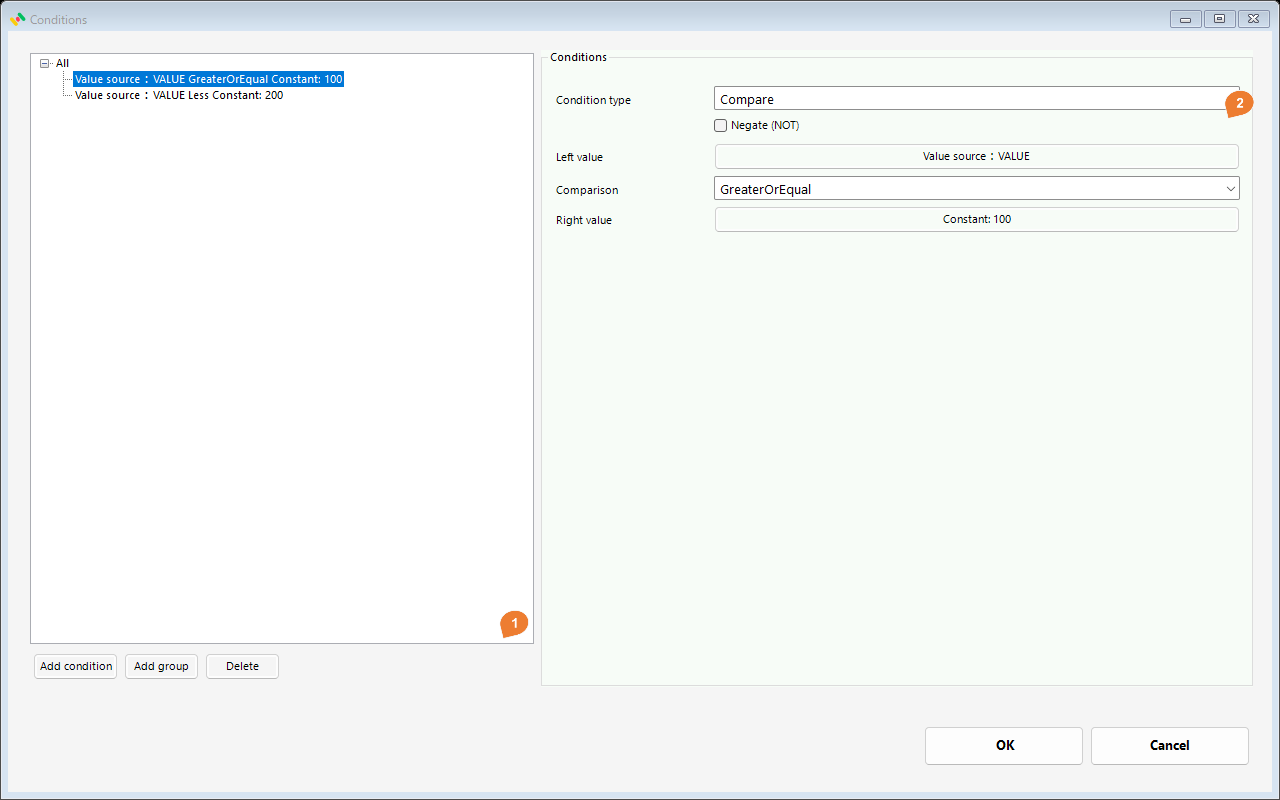
Child area 1 is the condition tree. Select a condition and use 2 to set its mode, left/right values, comparison, and NOT. Groups use All or Any and contain child conditions. Choose OK to return.
Notes
The result is a Boolean, not a string. Unlike Condition, it has no true/false output-value branches. Groups support All/Any and Negate (NOT). A later step can reference this Boolean result.
Masking
Hide all or part of a name, phone number, or code with a chosen character.
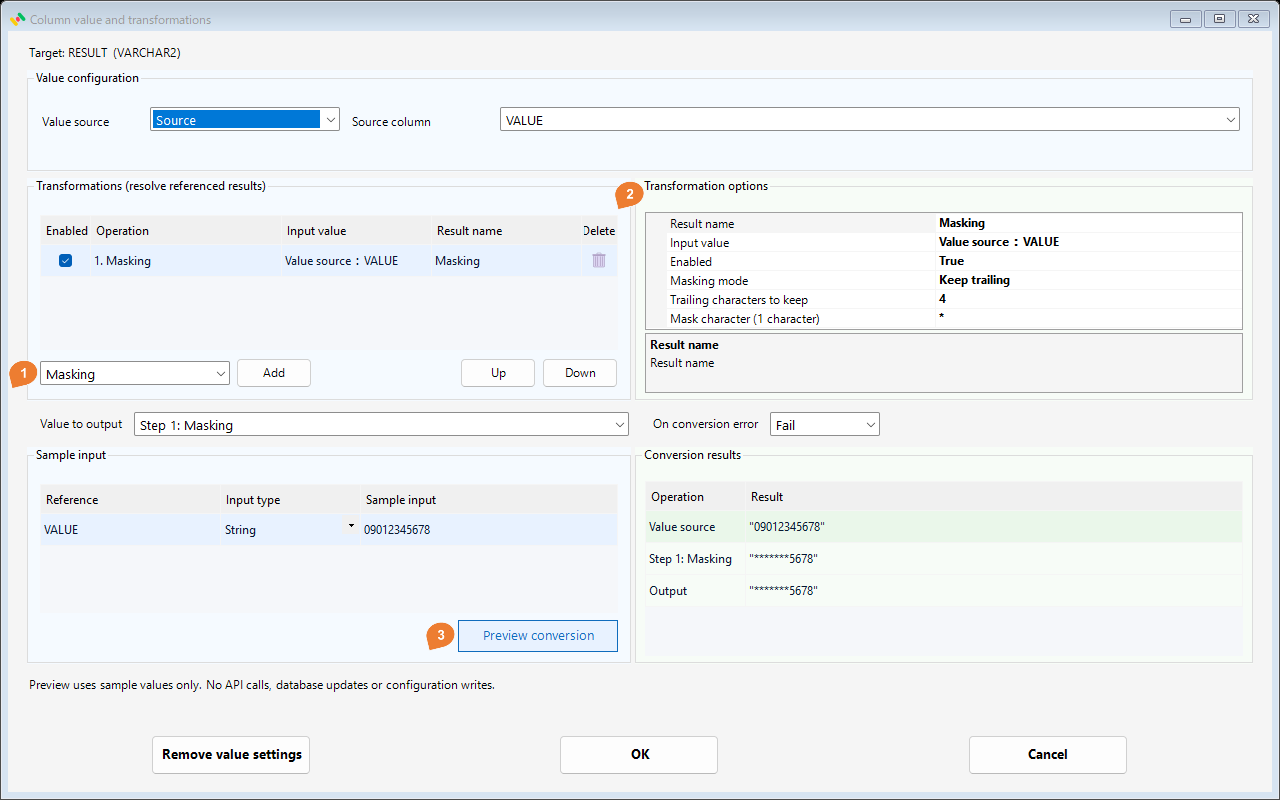
Configure
Choose Keep trailing, set Trailing characters to keep to 4, and Mask character (1 character) to *. Use Keep leading or Keep leading and trailing for other partial masks. Only relevant length fields are shown.
| Setting | Example |
|---|---|
| Masking mode | Keep trailing |
| Trailing characters to keep | 4 |
| Mask character (1 character) | * |
Try it
| Sample input | Final result |
|---|---|
VALUE = "09012345678" |
"*******5678" |
Notes
The defaults are Mask all and *. Retain counts must be nonnegative. If their sum reaches the input length, the whole input is masked. NULL and empty strings stay unchanged. Lengths count Unicode code points without splitting surrogate pairs; combining marks count separately. The mask character follows the single-character padding restriction and cannot be a surrogate pair.
| Mode | Input | Output |
|---|---|---|
| Mask all | 山田太郎 |
**** |
| Keep 2 leading | AB123456 |
AB****** |
| Keep 4 trailing | 09012345678 |
*******5678 |
| Keep 1 leading and 2 trailing | abcdef |
a***ef |
| Short input with 4 trailing retained | 123 |
*** |
When the retained length reaches or exceeds the input
The entire input is masked without an error, including when the retained length exactly equals the input length. The On conversion error policy is not invoked. For input 12345 and mask character *, the results are:
| Configuration | Output |
|---|---|
| Keep 2 leading characters | 12*** |
| Keep 4 leading characters | 1234* |
| Keep 5 leading characters (equal length) | ***** |
| Keep 56 leading characters (exceeds input length) | ***** |
| Keep 1 leading and 4 trailing characters (total 5) | ***** |
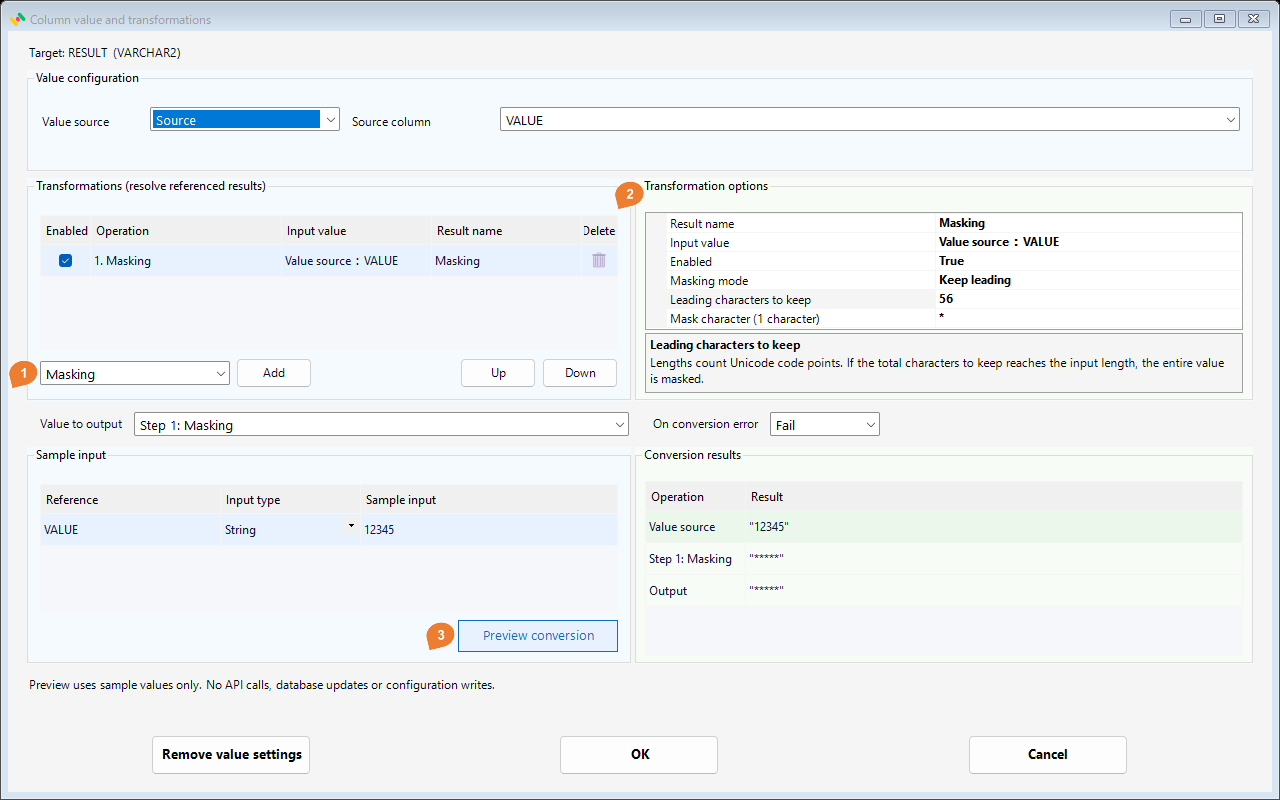
Keep leading and trailing uses the sum of both counts. This prevents a short input value from being exposed in full.
Hashing
Produce a fixed-length hash string for matching equal input values.
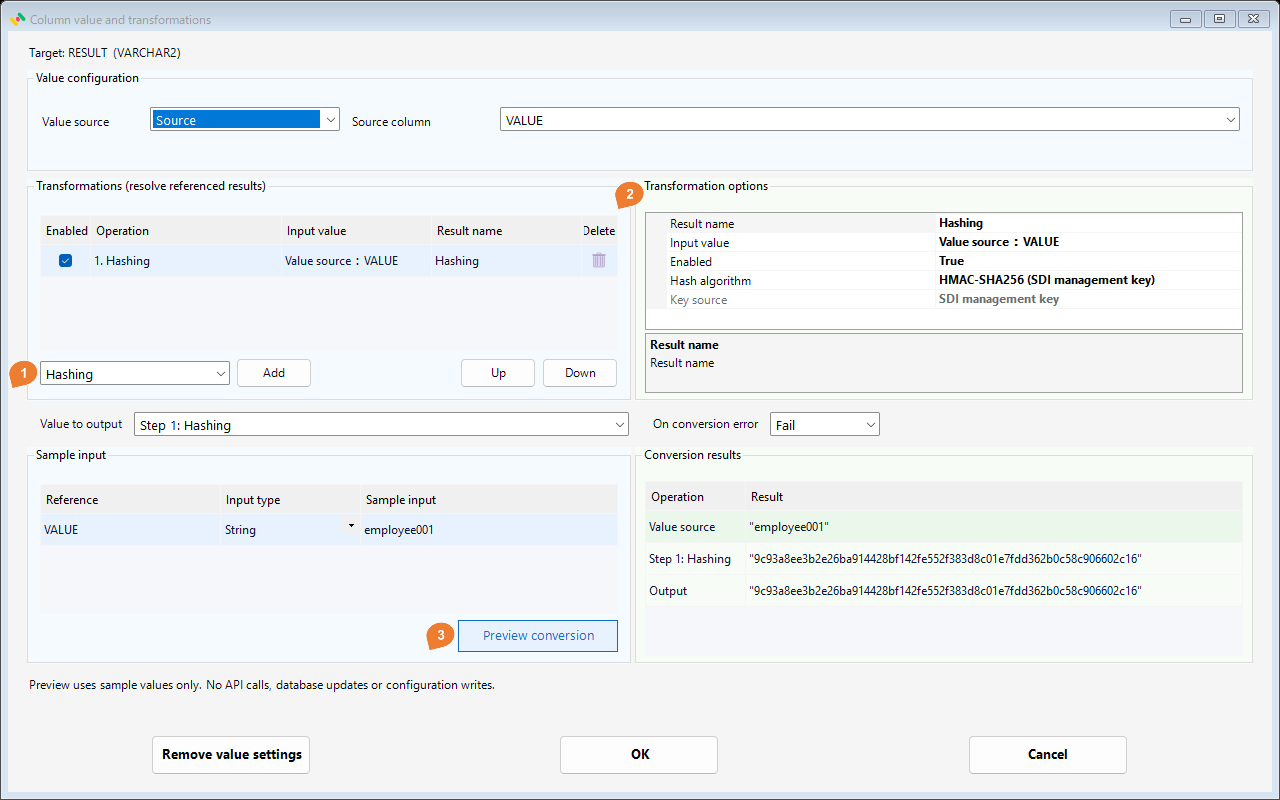
Configure
Choose HMAC-SHA256 (SDI management key). Key source is fixed to SDI management key, so no additional key registration or input is needed. Choose SHA-256 (unkeyed) for an unkeyed calculation.
| Setting | Example |
|---|---|
| Hash algorithm | HMAC-SHA256 (SDI management key) |
| Key source | SDI management key |
Try it
| Sample input | Final result |
|---|---|
VALUE = "employee001" |
"9c93a8ee3b2e26ba914428bf142fe552f383d8c01e7fdd362b0c58c906602c16" |
Notes
UTF-8 input produces 64 lowercase hexadecimal characters. NULL stays NULL; an empty string is hashed. Whitespace and case are preserved; normalize in earlier steps when needed. Use a string destination of at least 64 characters. HMAC results depend on the SDI configuration; the screenshot uses a sample environment. Unkeyed SHA-256 allows candidate values to be hashed and compared.
Choosing a hash algorithm
| Algorithm | Inputs to the calculation | Result for the same input | Typical use |
|---|---|---|---|
| HMAC-SHA256 (SDI management key) | Input value and a key derived internally by SDI | Identical with the same SDI configuration | Pseudonymizing and matching identifiers |
| SHA-256 (unkeyed) | Input value only | Identical across SDI environments | Matching standard hashes with other systems |
Neither algorithm requires additional hash-key registration. HMAC-SHA256 uses the existing SDI management-key mechanism. Use the default HMAC-SHA256 to conceal values such as employee IDs or phone numbers. With unkeyed SHA-256, candidates for the original value can be hashed and compared.
Try unkeyed SHA-256
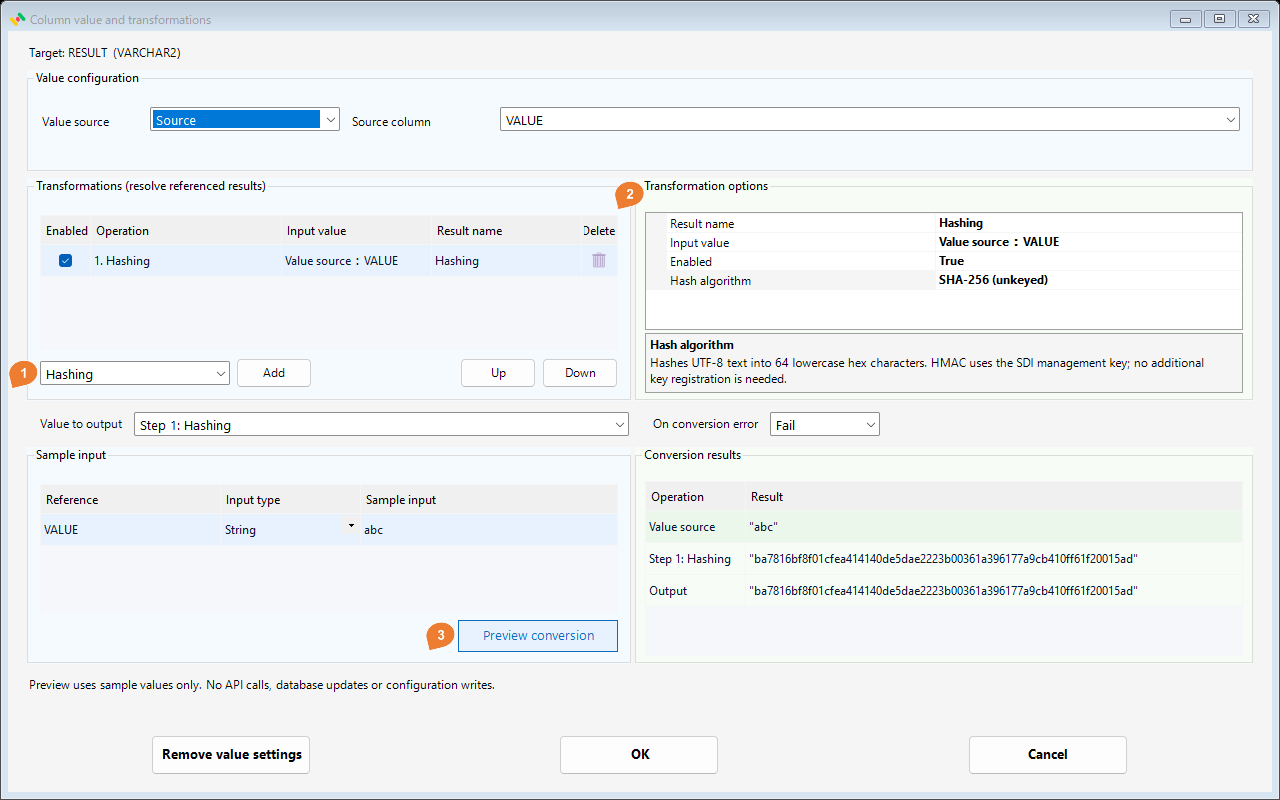
Change Hash algorithm to SHA-256 (unkeyed). Key source is hidden. Set the sample Input type to String and its value to abc, then click Preview conversion.
| Sample input | Result |
|---|---|
abc |
ba7816bf8f01cfea414140de5dae2223b00361a396177a9cb410ff61f20015ad |
For this exact string encoded as UTF-8, the result is the same in every SDI environment.
Output length and destination column
Both algorithms output exactly 64 lowercase hexadecimal characters, regardless of input length. Short input becomes longer; input longer than 64 characters becomes shorter.
| Input | Hash output length |
|---|---|
Employee ID E001: 4 characters |
64 characters |
| Phone number: 11 characters | 64 characters |
| Description: 1,000 characters | 64 characters |
Provide a string destination that can hold at least 64 characters; VARCHAR2(64 CHAR) is one Oracle example. SDI does not truncate the hash to fit the destination. NULL stays NULL; an empty string produces a 64-character hash.
Consistent results across mappings and servers
Mappings and servers sharing the same SDI configuration produce the same result for the same input and transformation settings. Register the existing management key for the shared configuration on each server. Recreating the SDI configuration may change hash results.
Entering the same management password alone does not guarantee equal results in independently created SDI configurations. Share or migrate the same SDI configuration when hashes must match. The HMAC screenshot shows a sample environment, so its result may differ from yours.
Saved settings and unavailable keys
A mapping stores the algorithm, key source, and derivation version, never key material. If the HMAC key is unavailable, execution fails before extraction or output; the per-column NULL/default error policy does not apply. Hashing provides no reverse operation or absolute uniqueness guarantee.
Transform separate columns and combine their results
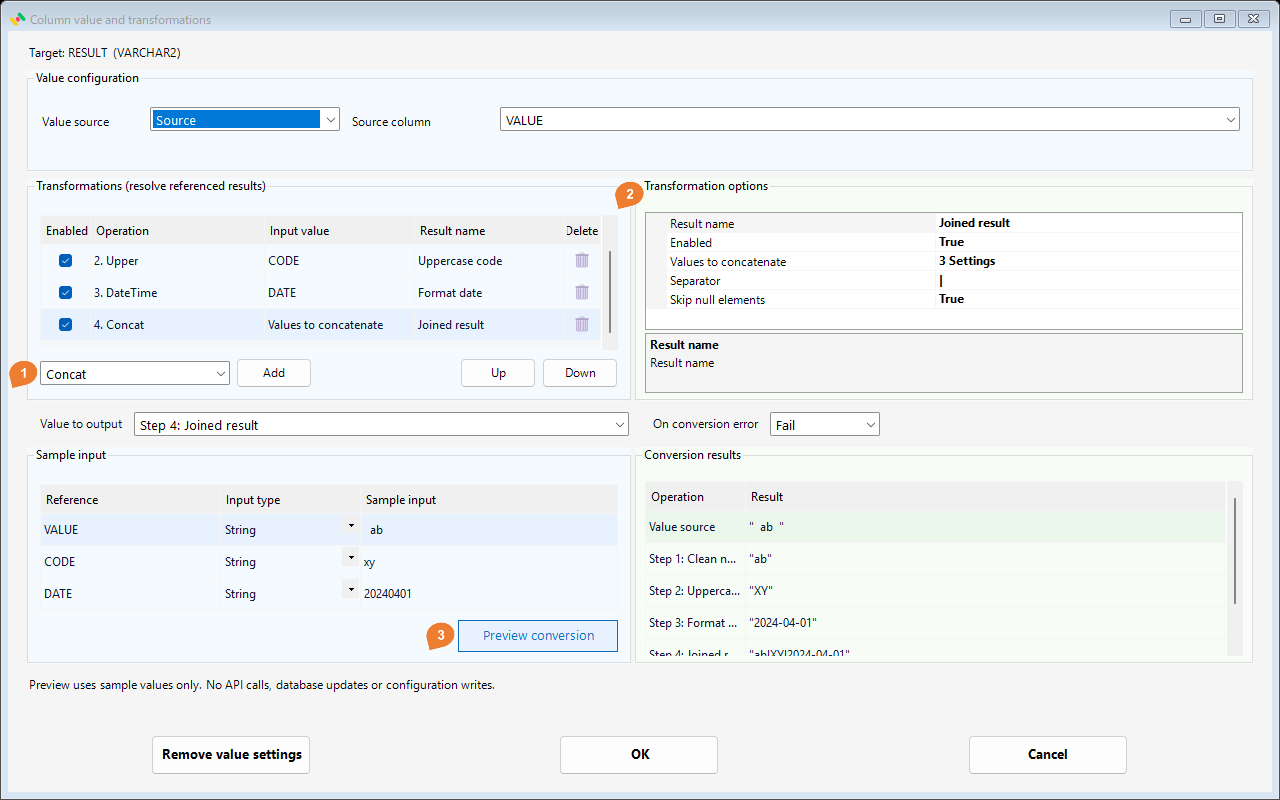
Create these four steps. Steps 1–3 each read their own source column, keeping independent results.
| Step | Input | Operation | Result |
|---|---|---|---|
| 1 | VALUE = " ab " |
Trim | "ab" |
| 2 | CODE = "xy" |
Upper | "XY" |
| 3 | DATE = "20240401" |
DateTime | "2024-04-01" |
| 4 | Results of steps 1, 2, 3 | Concat, separator | |
"ab|XY|2024-04-01" |
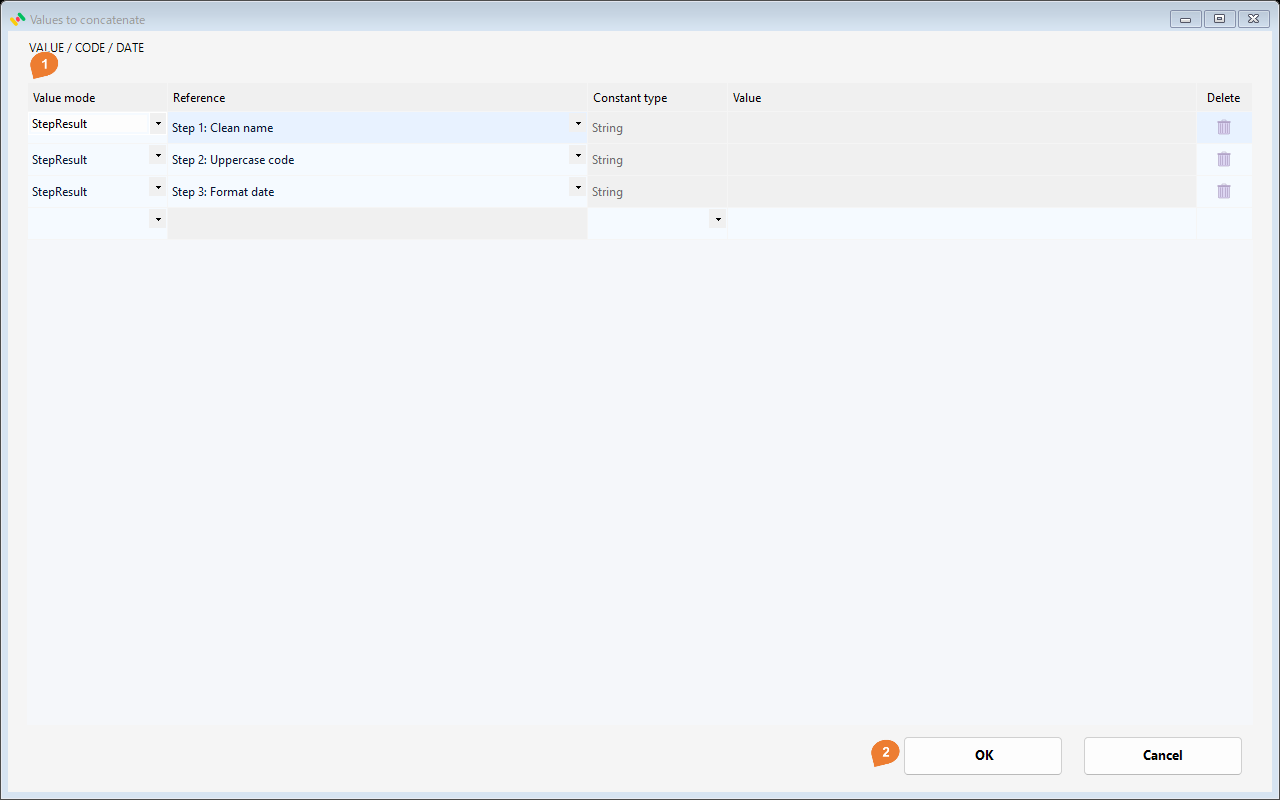
In step 4, choose StepResult for each concatenation item and select steps 1, 2, and 3 in order. Set Value to output to step 4 and preview.
Only earlier enabled steps can be referenced. Results not needed by the selected output or its dependencies are shown as not used. The calculation evaluates only required results and their dependencies. Results belonging to another target column are not available.